
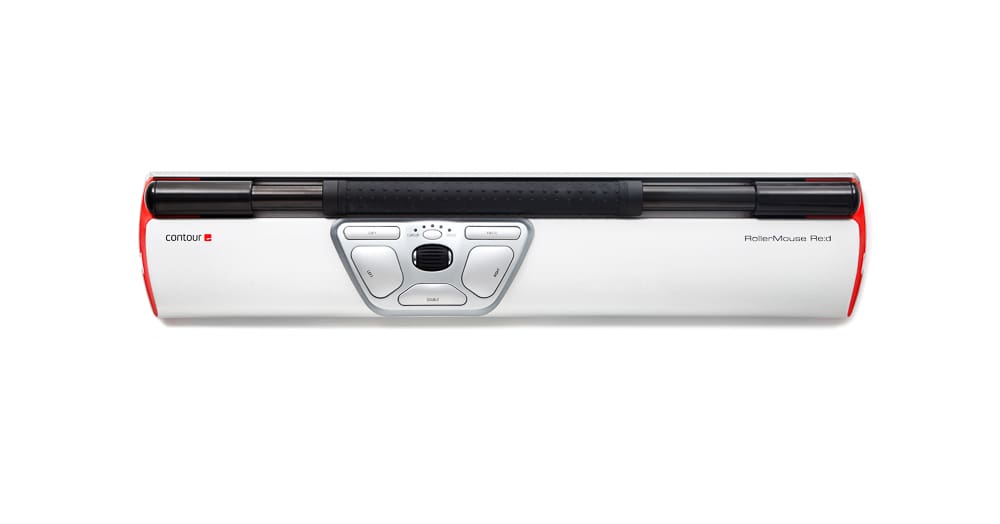
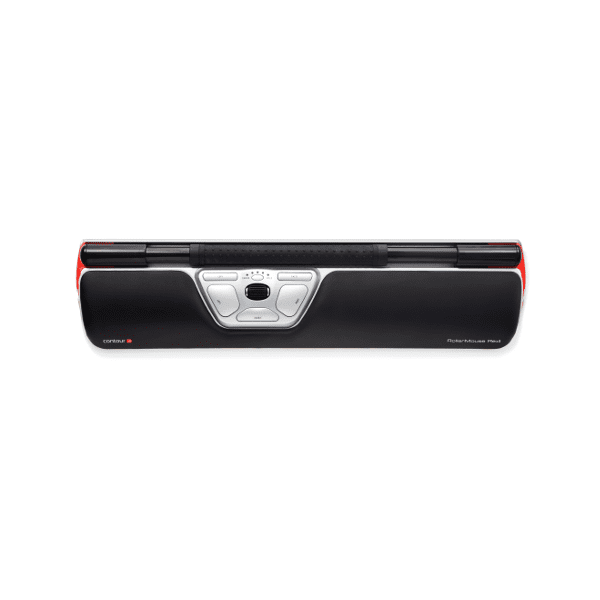
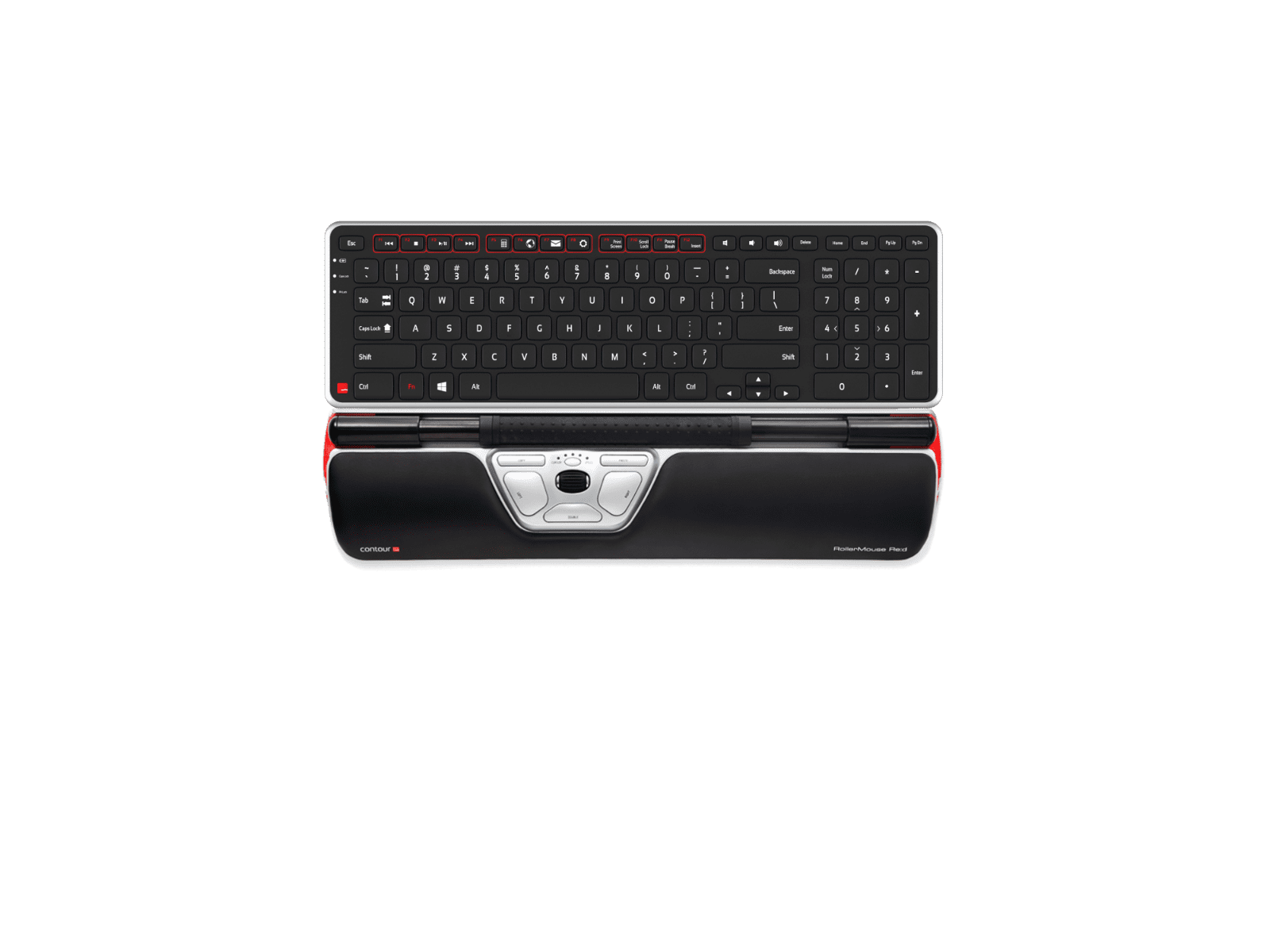











Contour RollerMouse Re:d
Price range: $139.70 through $1,315.60
Found a lower advertised price? Let us know and we’ll do our best to give you a better price.

Choose your requirements using the field selectors below. Where “Choose an option” shows, please make your selection from the available options.
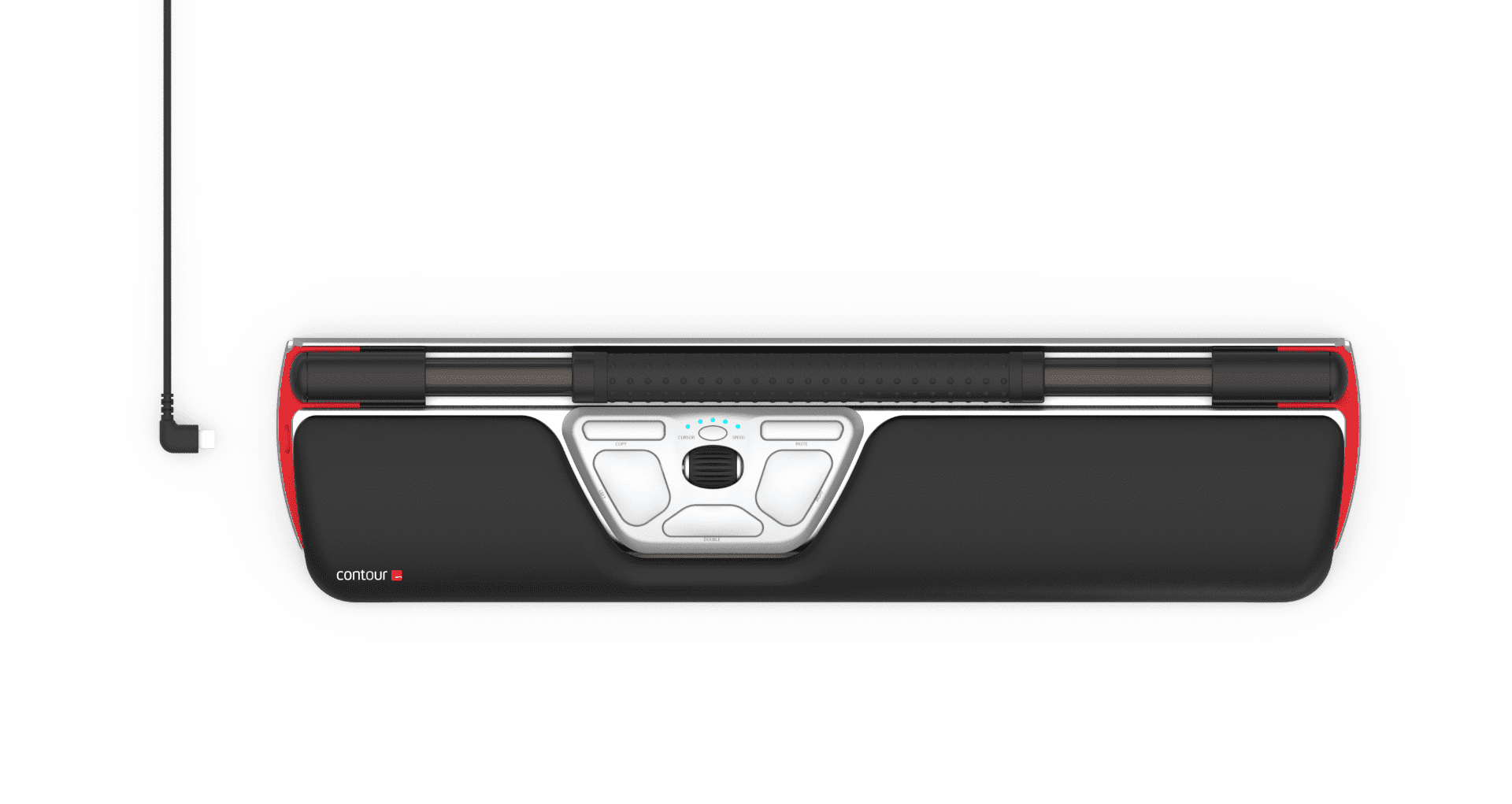
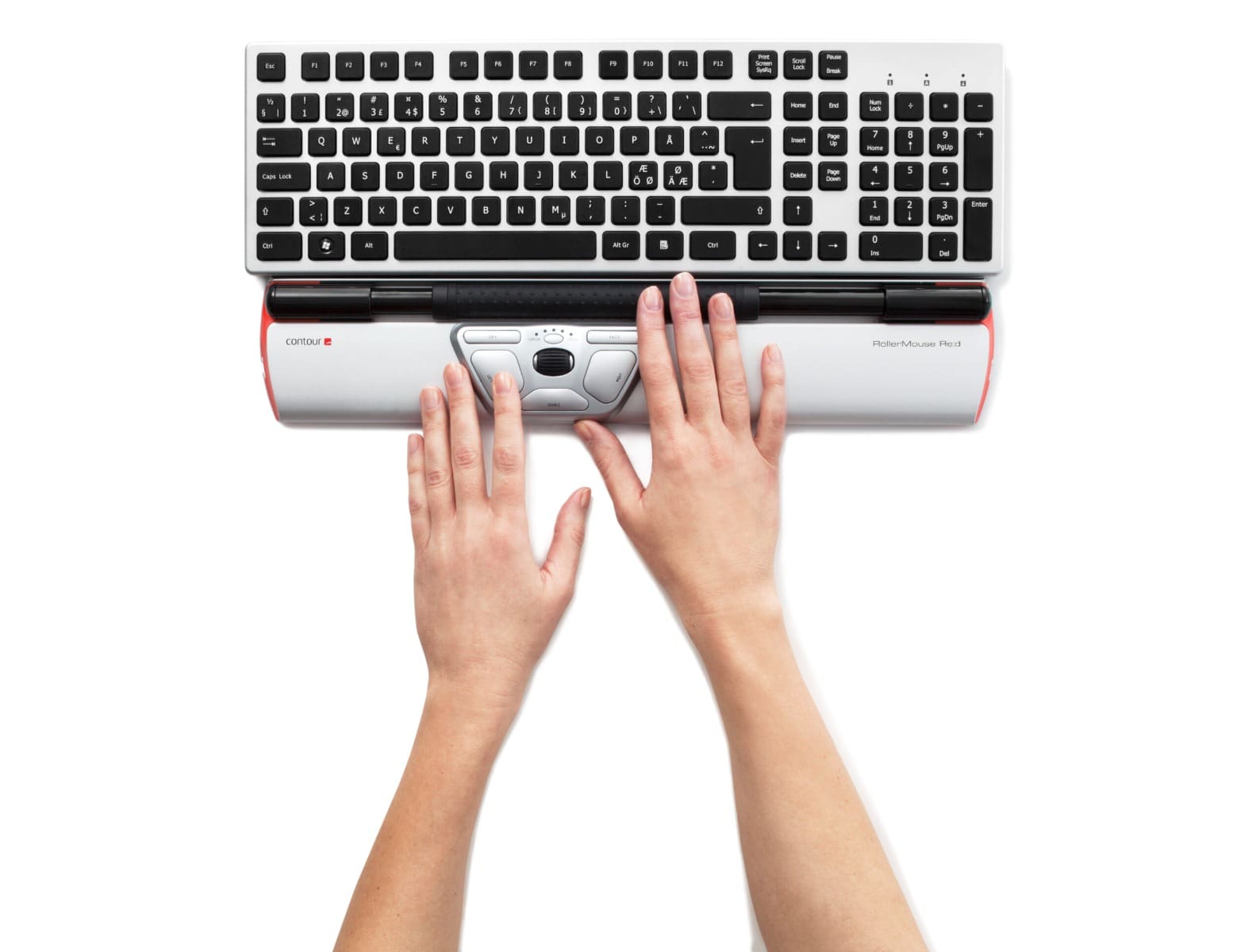
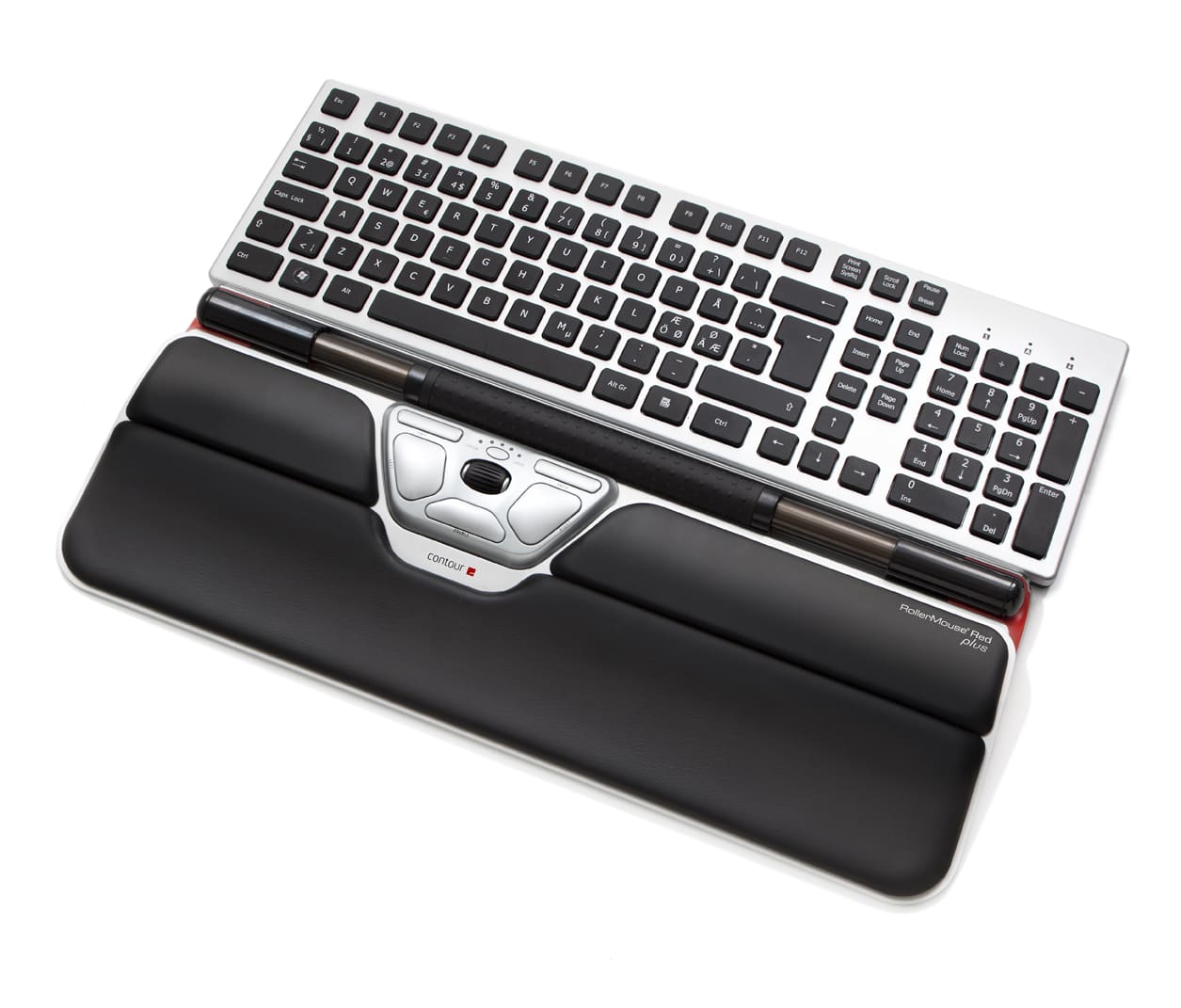
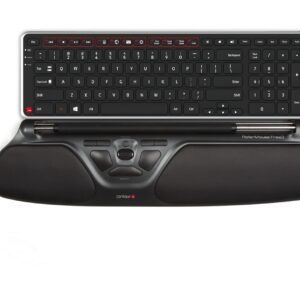
An innovative, ergonomic mouse that sits in front of the keyboard. Experience unrivalled comfort, control, and pinpoint accuracy
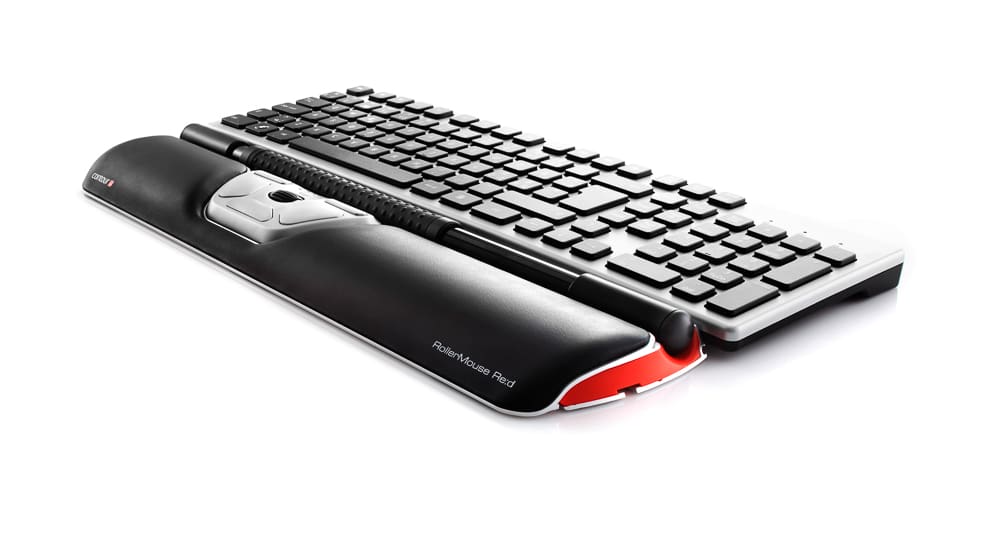
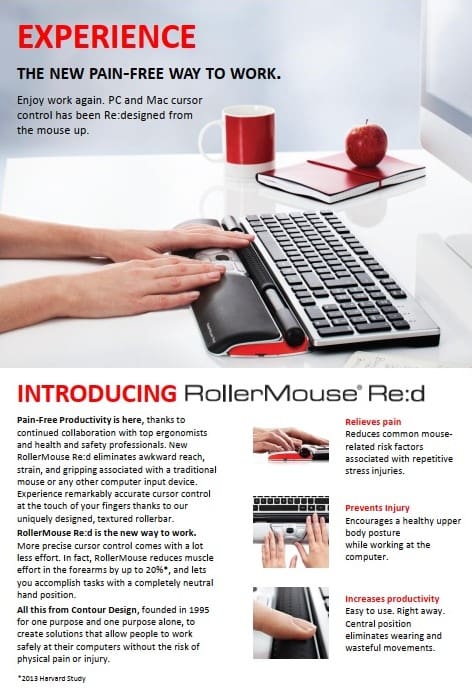
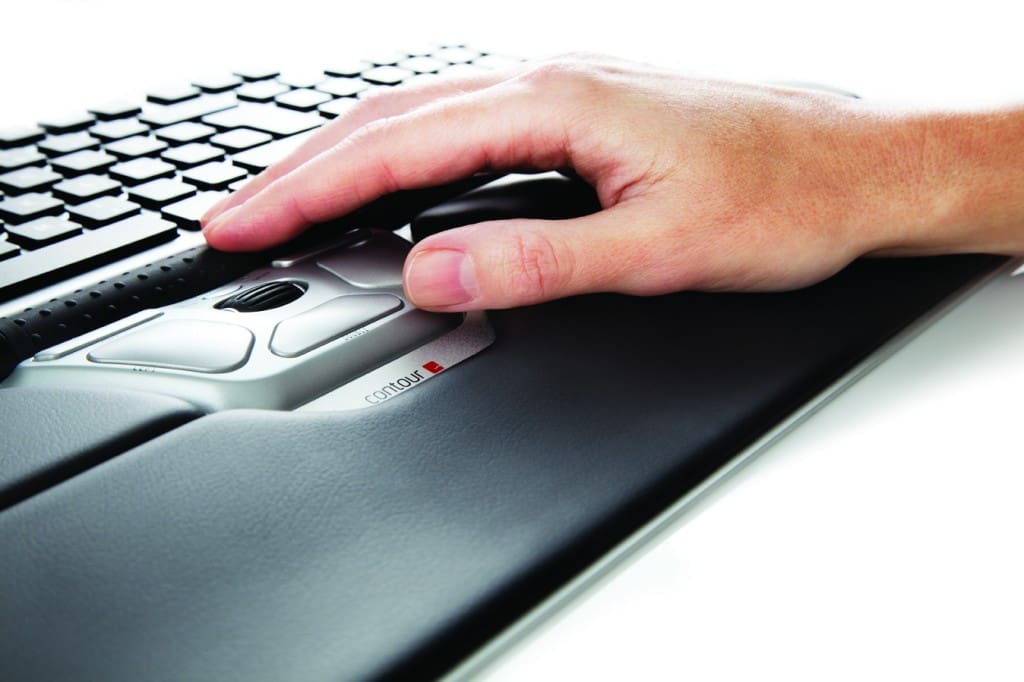
The mission of the RollerMouse is to make you better at what you do. A RollerMouse is designed to sit in front of your Keyboard and relies on a patented Rollerbar to control the cursor. Ther RollerMouse can be used ambidextrously, and encourages use of both the fingers and the thumbs to roll and slide your way to a healthier, more productive work experience.
Work Never Felt So Good
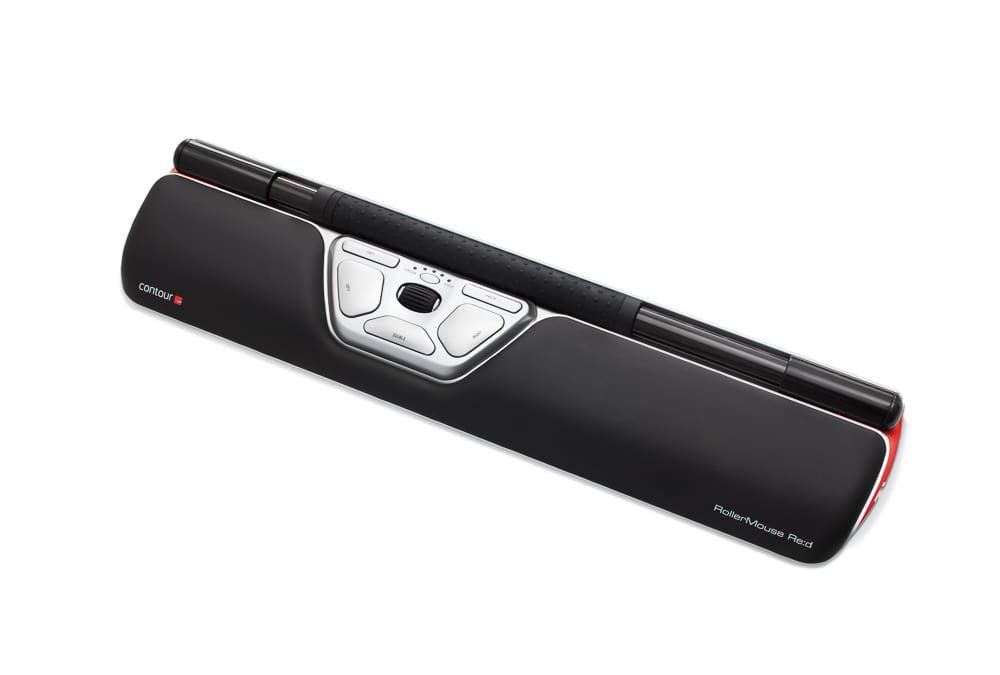
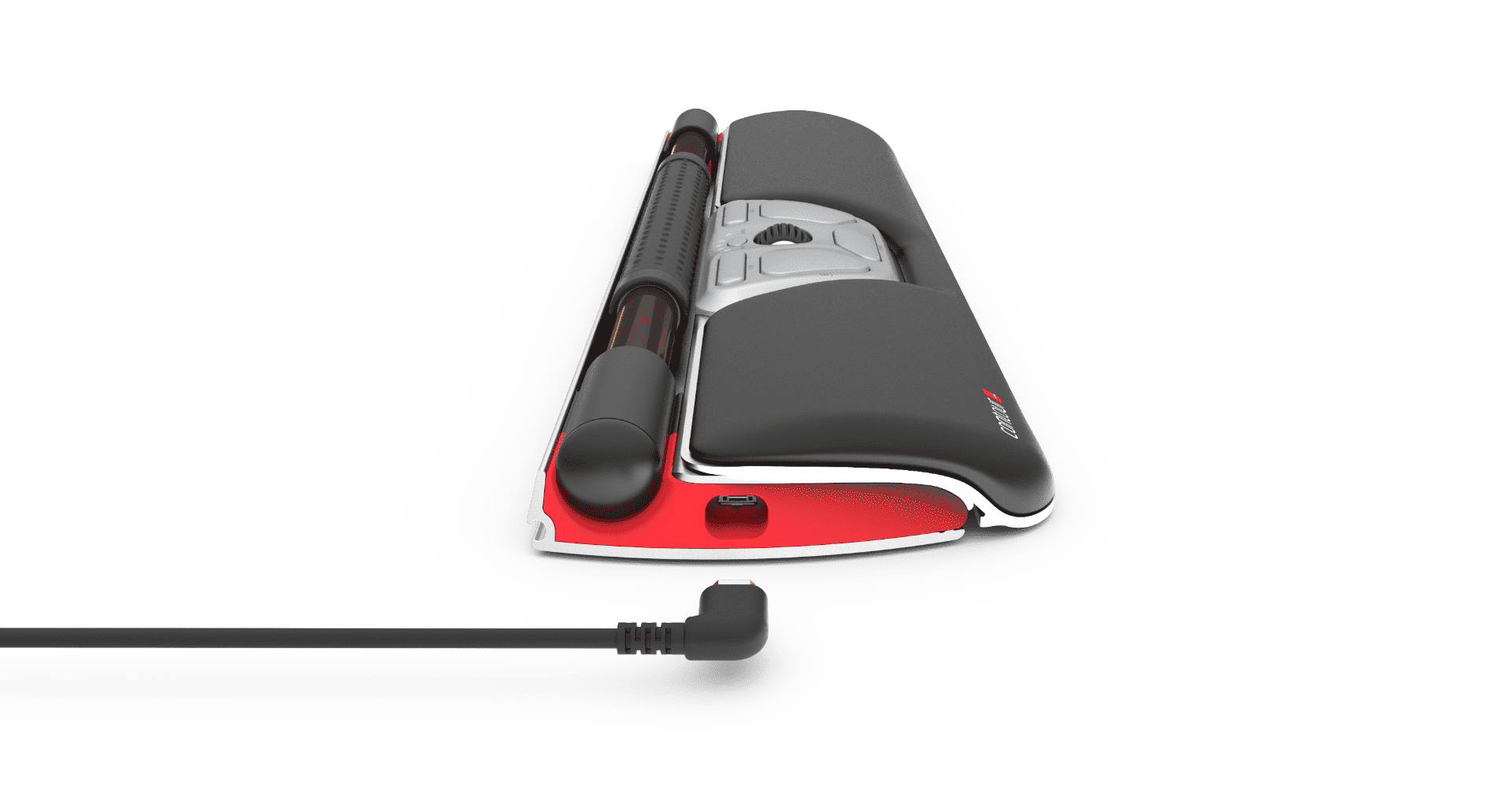
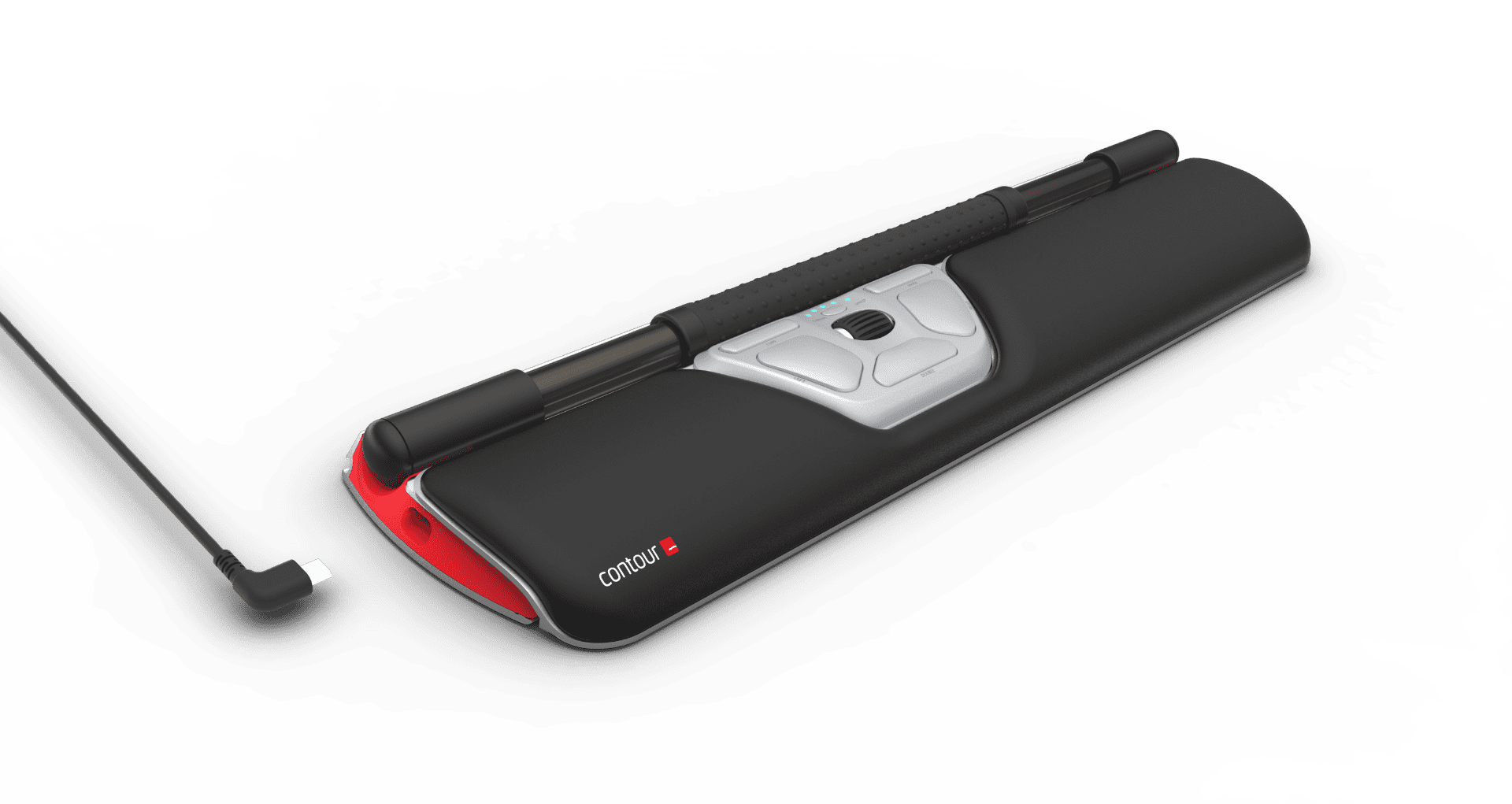
Experience unrivalled comfort, control, and pinpoint accuracy with the Contour RollerMouse Re:d - an innovative, ergonomic mouse that sits in front of the keyboard. The RollerMouse Re:d is available as a wired or wireless version.
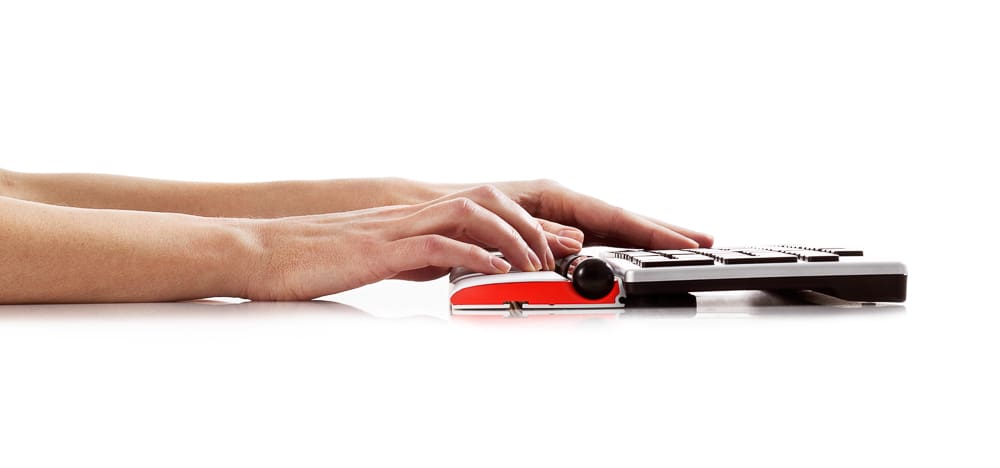
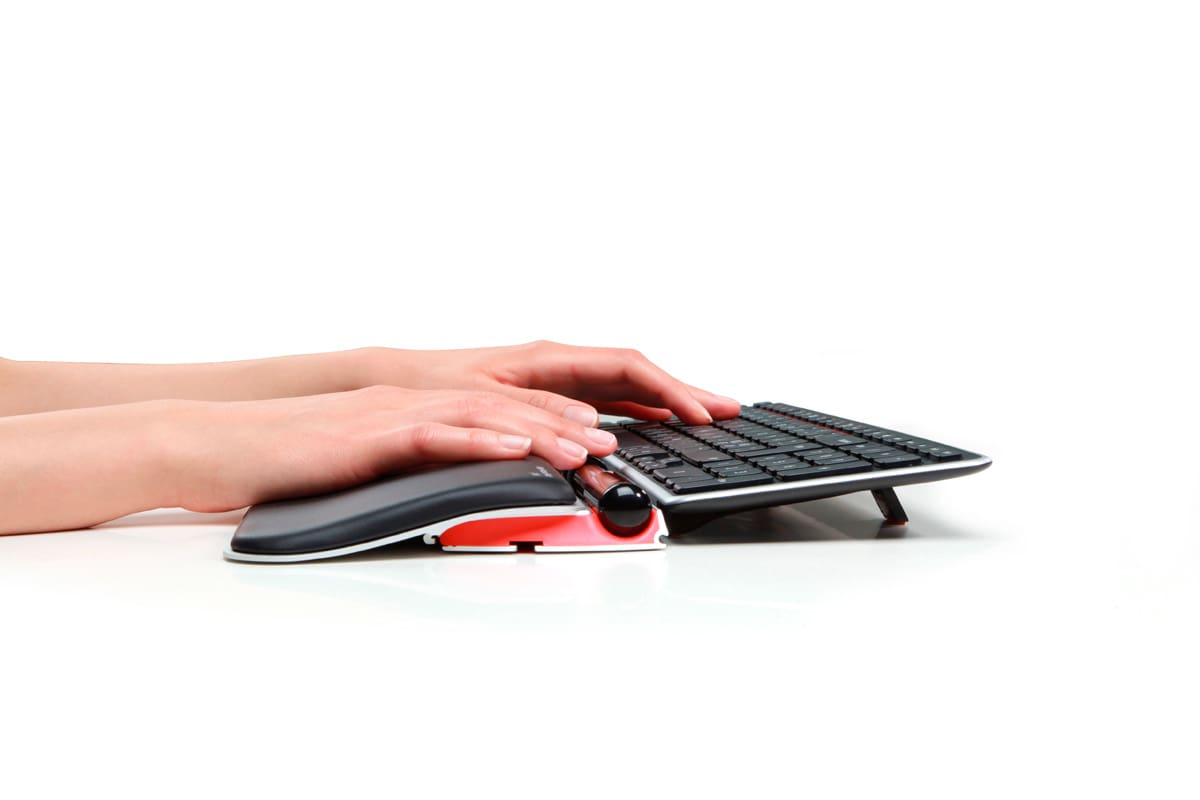
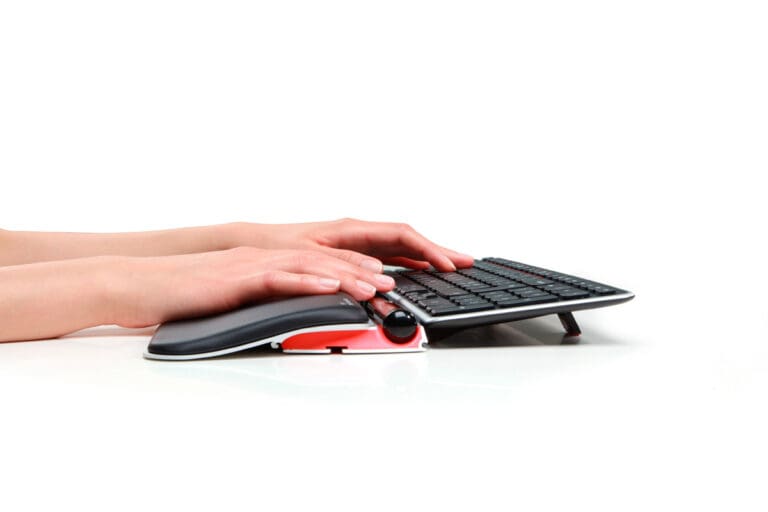
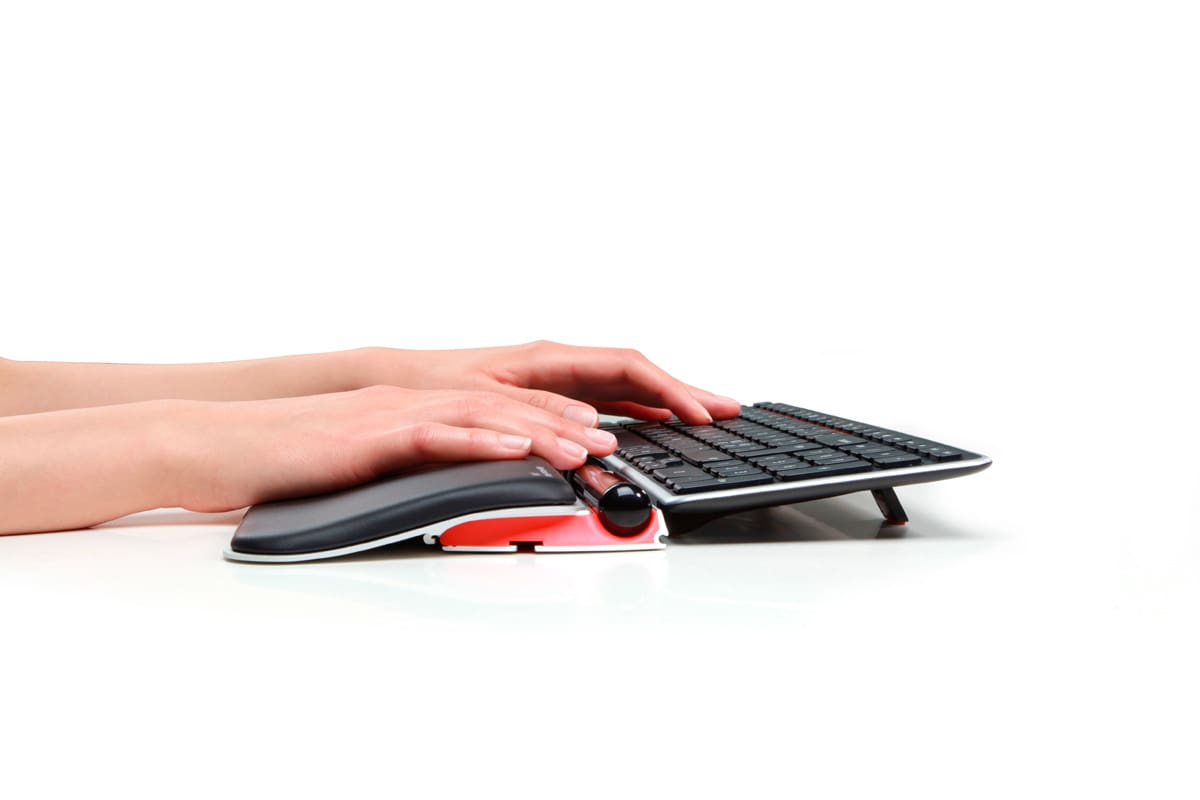
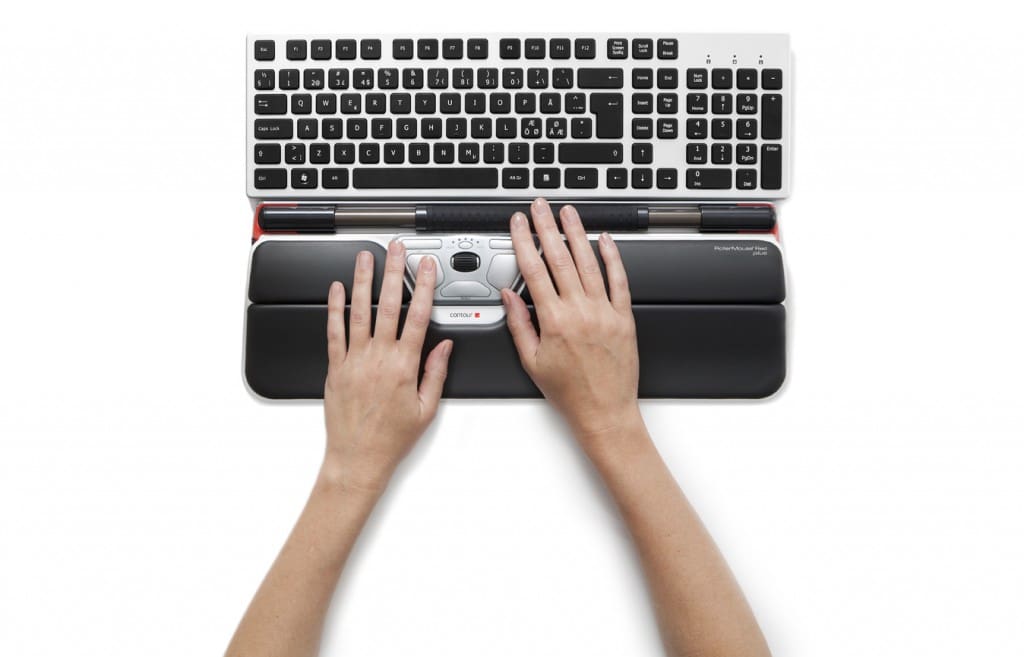
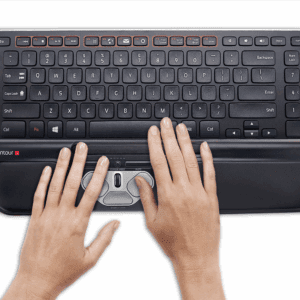
The RollerMouse Re:d allows users to stay within their optimal work zone with relaxed hands and a neutral wrist posture, eliminating the need to grip or reach for the mouse.
A RollerMouse is designed to sit in front of your keyboard and relies on its patented Rollerbar to control the cursor. The RollerMLouse can be used ambidextrously, and encourages the use of both fingers and the thums to roll and slide your way to a healther, more productive work experience.
The RollerMouse Re:d is best suited for users with small to average sized hands. Adding the RollerMouse Plus Palm Support will accommodate users with larger hands.

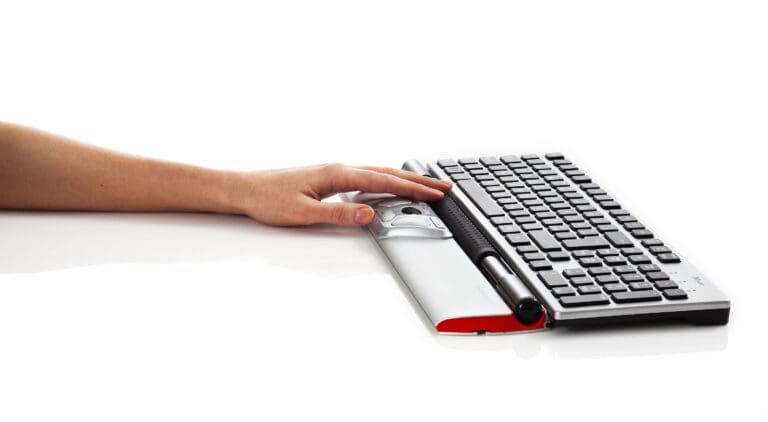
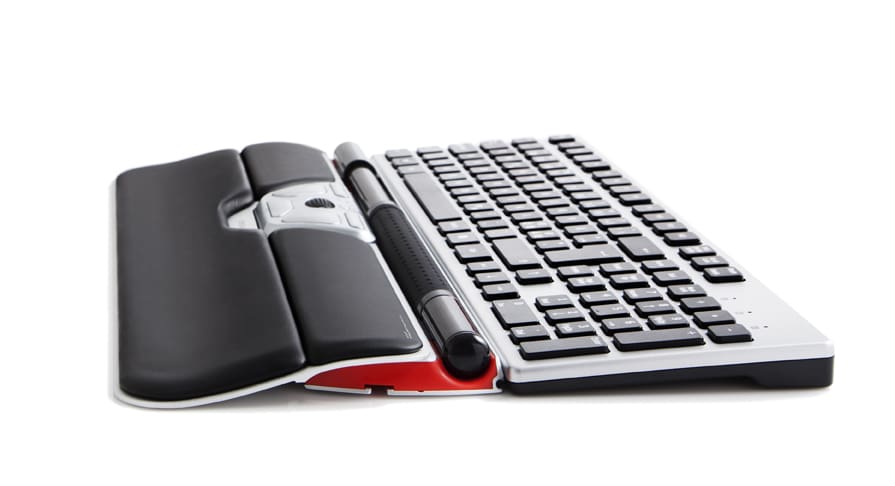
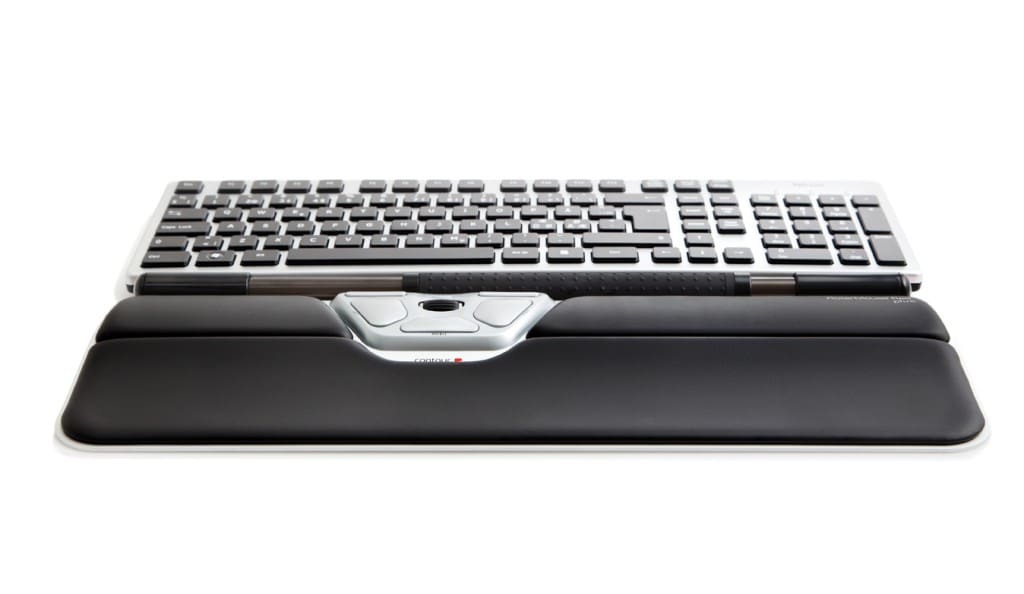
Central Positioning While traditional mice sit to either the left or right of the keyboard, the RollerMouse Re:d sits in front of the keyboard. This placement eliminates the need for reaching for the mouse and will greatly reduce unnecessary muscle activity in your arms, shoulders, and neck.
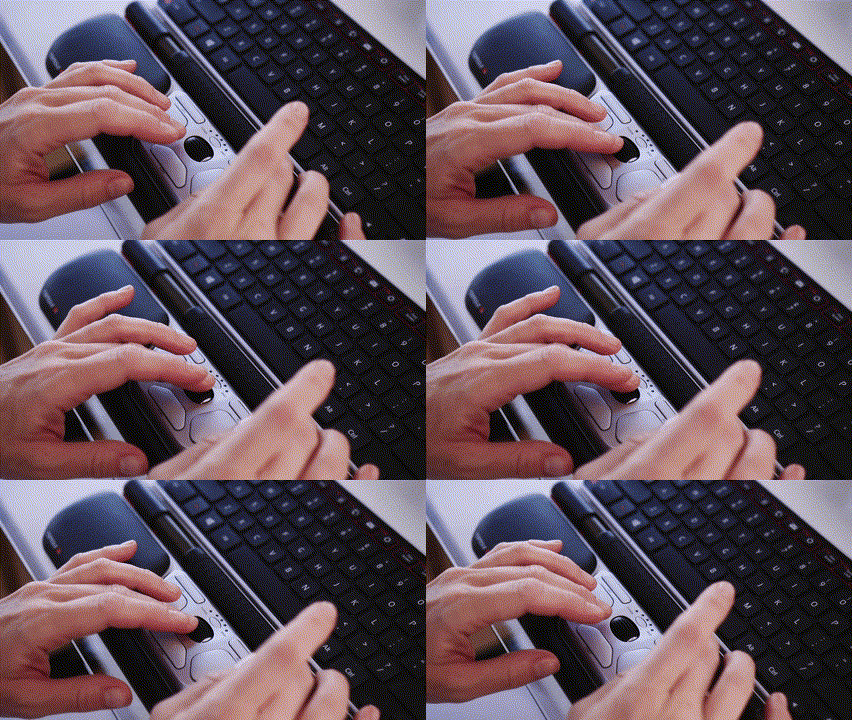
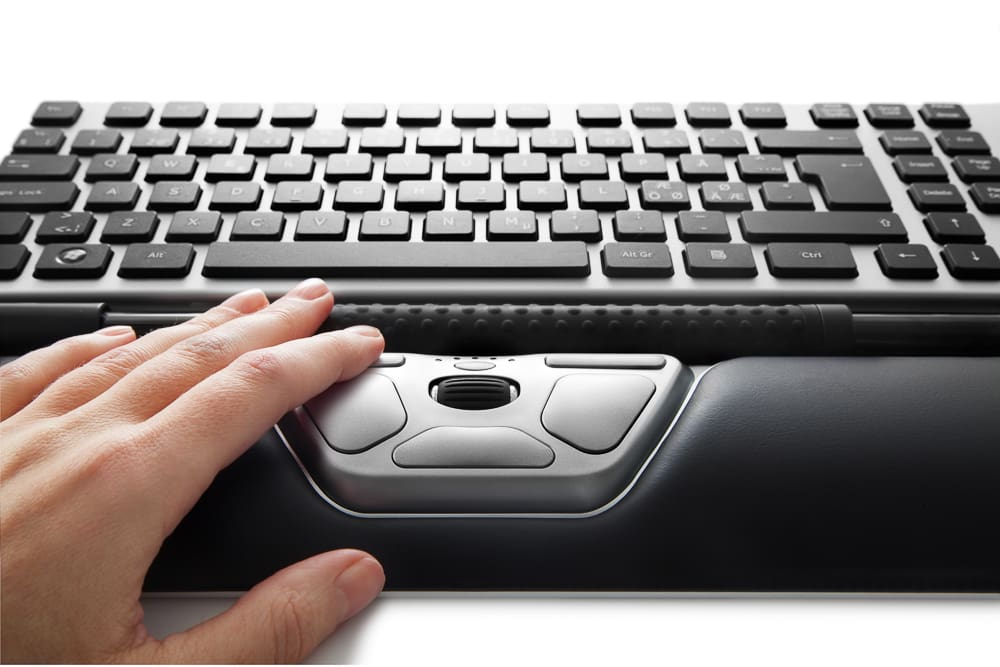
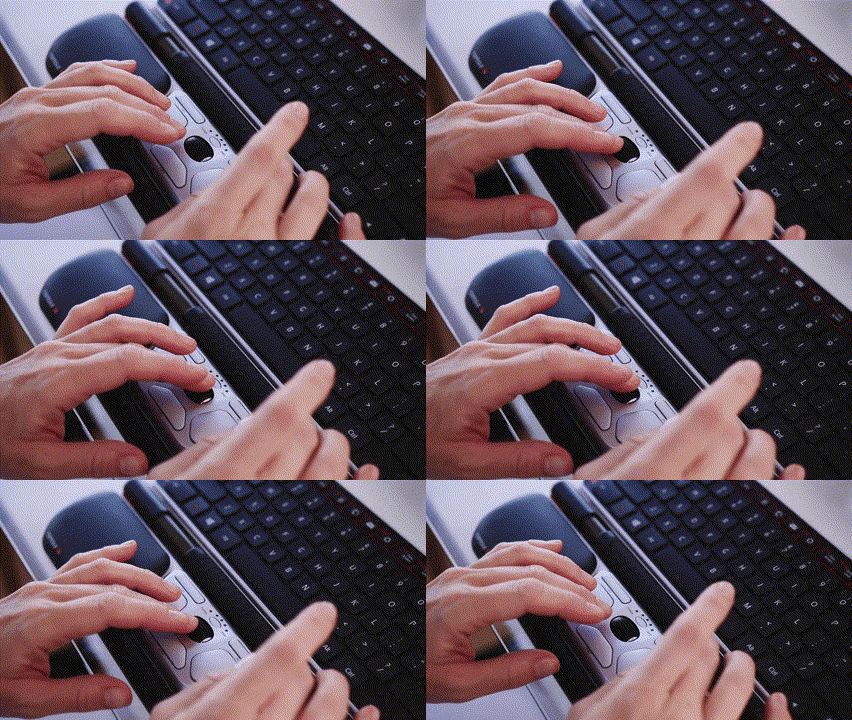
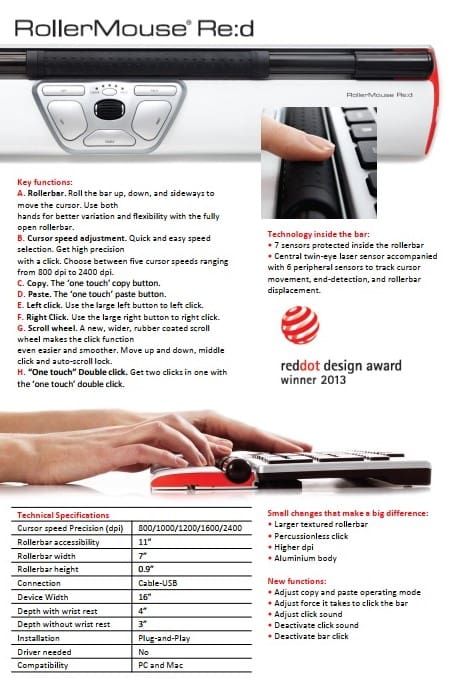
The Rollerbar RollerMouse products feature the patented Rollerbar to control the cursor on the screen. The textured Rollerbar ensures better control of the device and increase comfort and accuracy. This way of cursor control spreads the workload across the fingers and thumbs, and is easily used ambidextrously. Rollerbar usage removes the gripping and squeezing associated with handheld mice, reducing hand, wrist, and forearm strain.
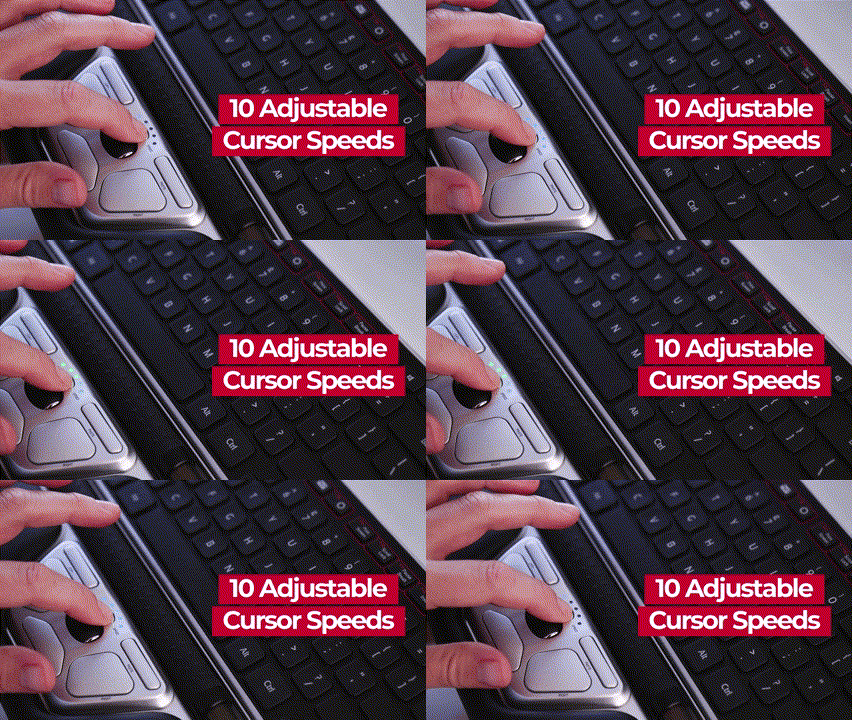
Cursor Speed Selection 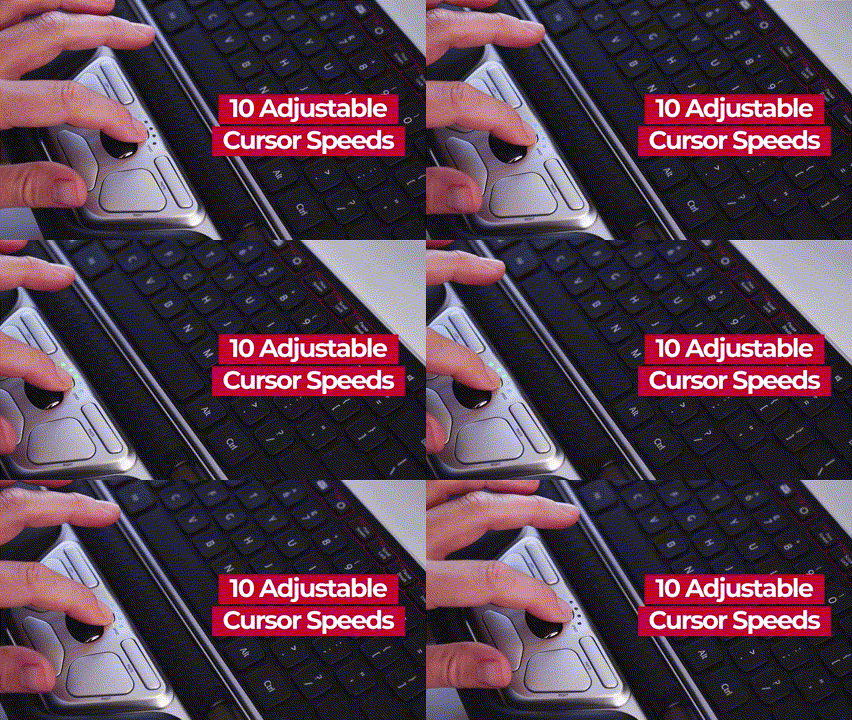 There are 10 different cursor speed settings that can be changed in a moment via a dedicated speed control button. When fine cursor control is required, the lower settings offer enhanced precision, while the higher speeds provide much greater cursor movement when working across multiple screens.
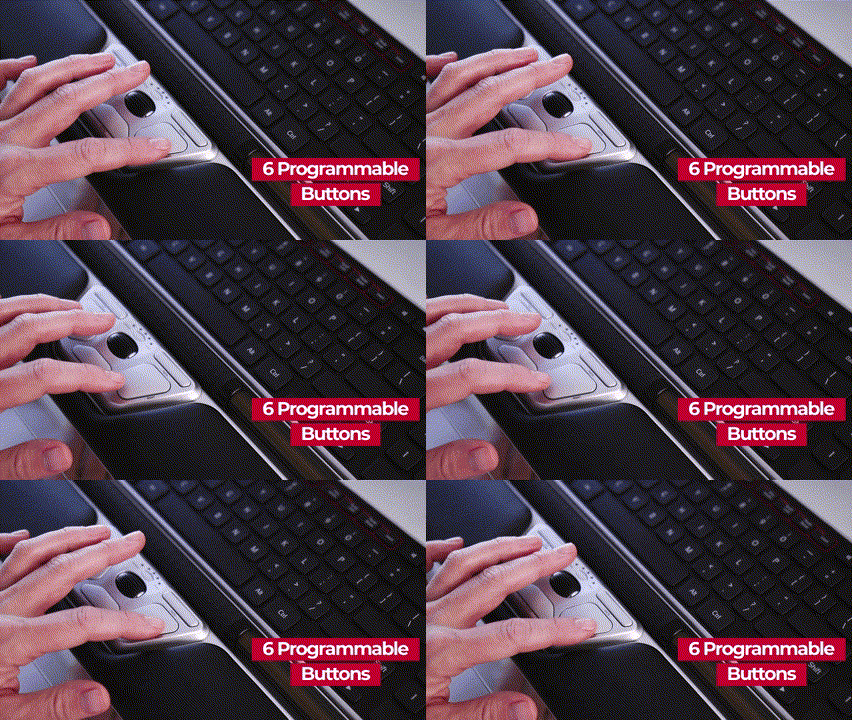
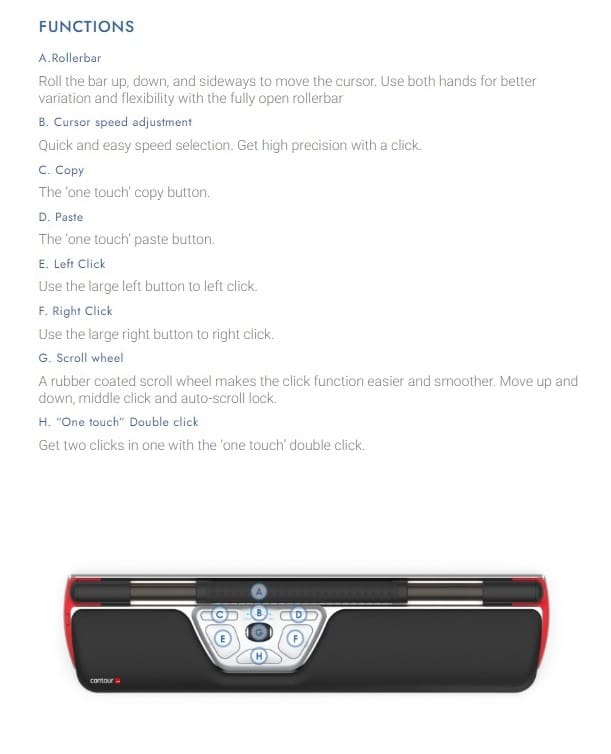
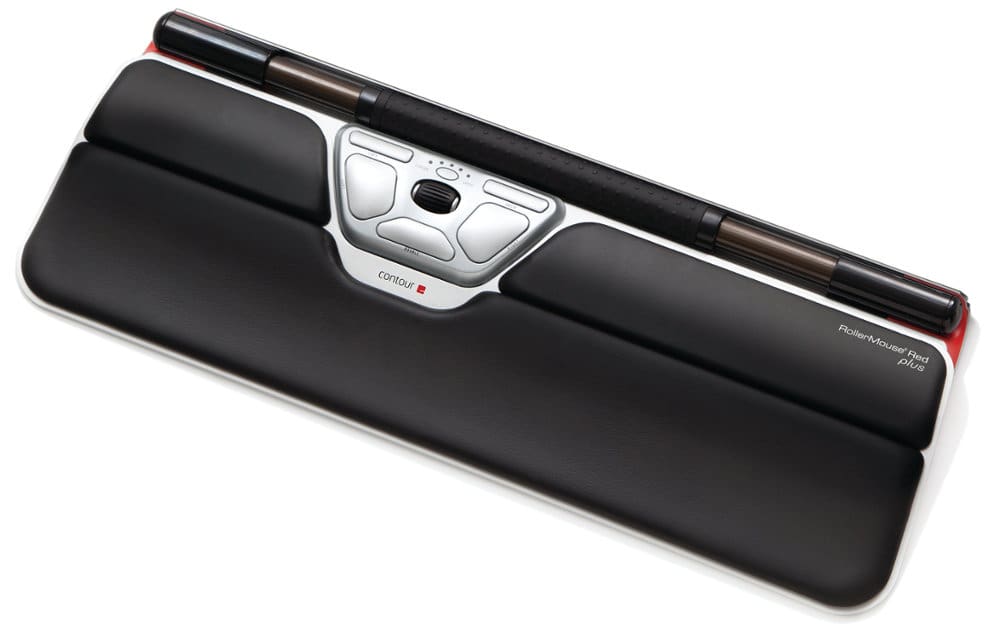
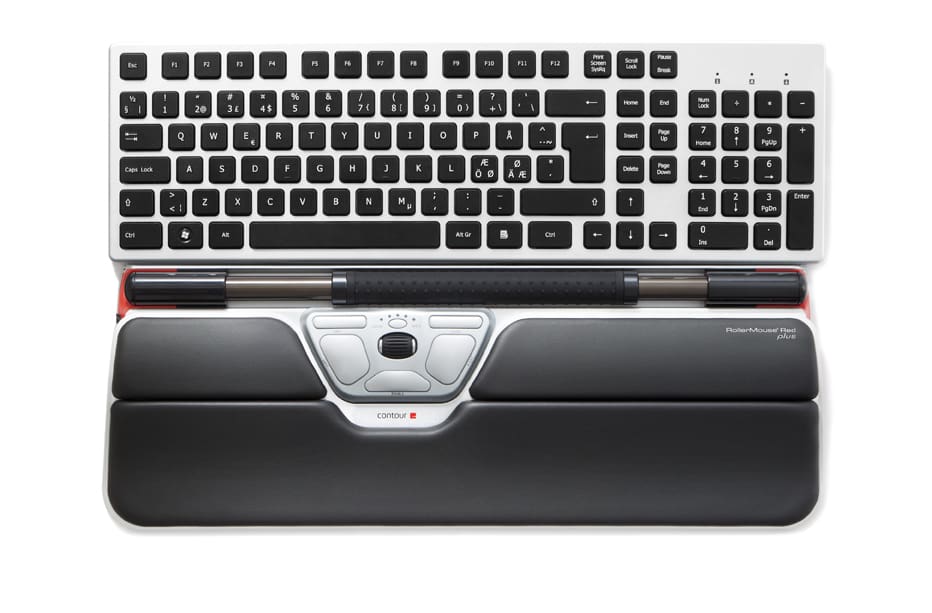
Programmable Buttons 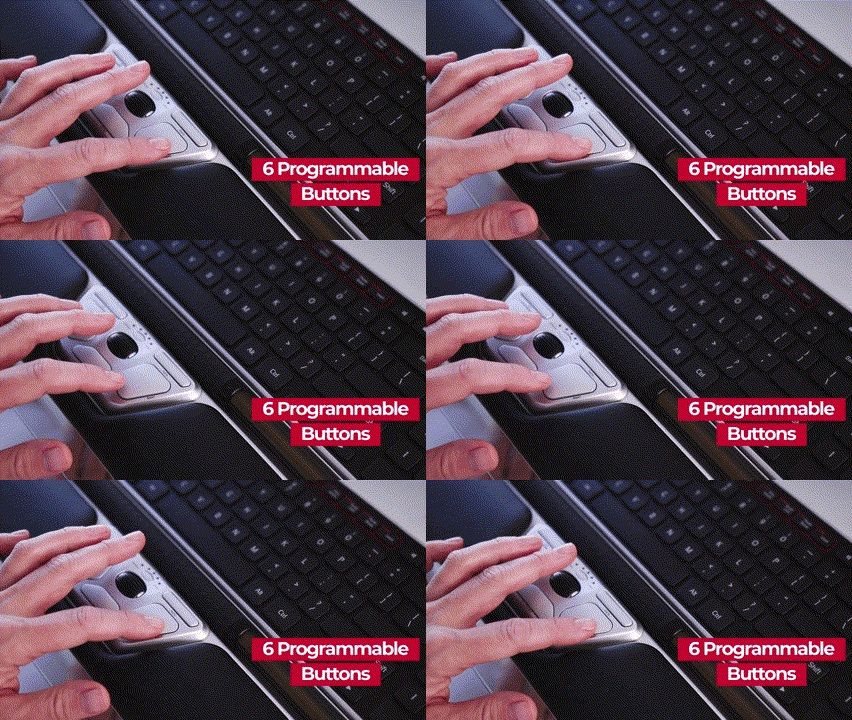 While a left click can be actioned by pressing down on the Rollerbar, there is also a cluster of 5 buttons and a scroll wheel beneath the Rollerbar. The default programming of these buttons is for popular tasks, but the functions can be changed via the Contour driver. The placement of this cluster encourages ambidextrous use and discourages stretching outside the core work zone.
Stop the Reach
RollerMouse Re:d, unlike a traditional mouse, sits in front of your keyboard instead of to the left or right. This eliminates the need for reaching for the mouse and will greatly reduce unnecessary muscle activity in your arms, shoulders, and neck.
Experience the New Pain-Free Way to Work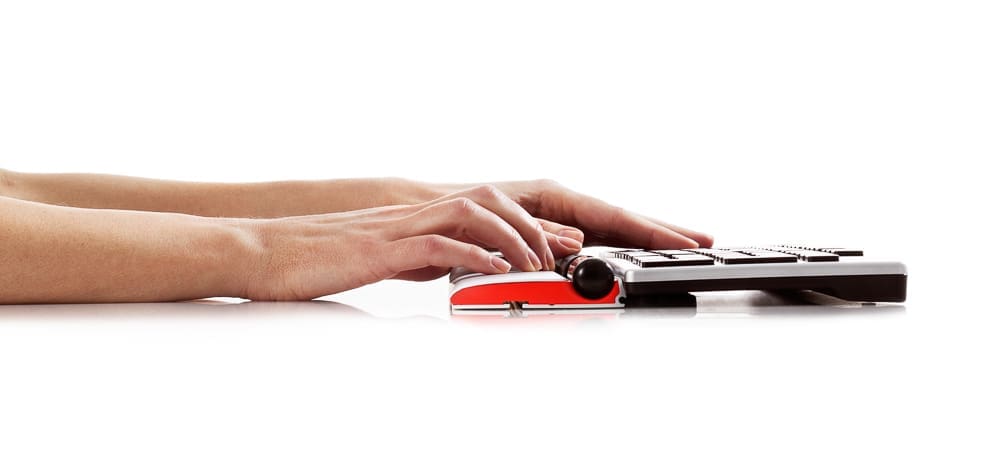
The RollerMouse RE:D has a virtual click over a mechanical mouse click to remove force feedback and reduce the risk of unnecessary strain. The effortless click mechanism combined with the thicker, textured rollerbar allows you to work with maximum precision and comfort.
Built-in Precision
7SENSESTM, new tracking technology inside the rollerbar, provides unmatched cursor precision and control. 7SENSESTM tracks cursor position, constantly adjusting speed and acceleration to ensure the rollerbar is as central as possible, while intuitively adapting to your pace to decrease micro movements and increase efficiency.
Effortless Control
Get more control and less strain with the bigger and better rollerbar. The mechanical mouse click has been replaced with a virtual click to remove force feedback and reduce the risk of unnecessary strain. This effortless digital mouse click combined with the thicker, textured rollerbar allows for easier handling.
RollerMouse DNS
RollerMouse, centrally placed in front of your keyboard, eliminates the need to grip or reach for the mouse, which can stress the neck, shoulders, elbows and wrists. This optimal work zone corrects posture and prevents injury. Use the wrist rest, both hands and vary your position to avoid discomfort. Simply a better way to work.
Easy to Use, Right Away
The new rollerbar is easier to use and even more precise. The larger surface gives you more control when pointing, rolling or clicking. It adapts to the individual, from professionals using CAD and other advanced design programs to the average user.
More Palm Support for even Greater Comfort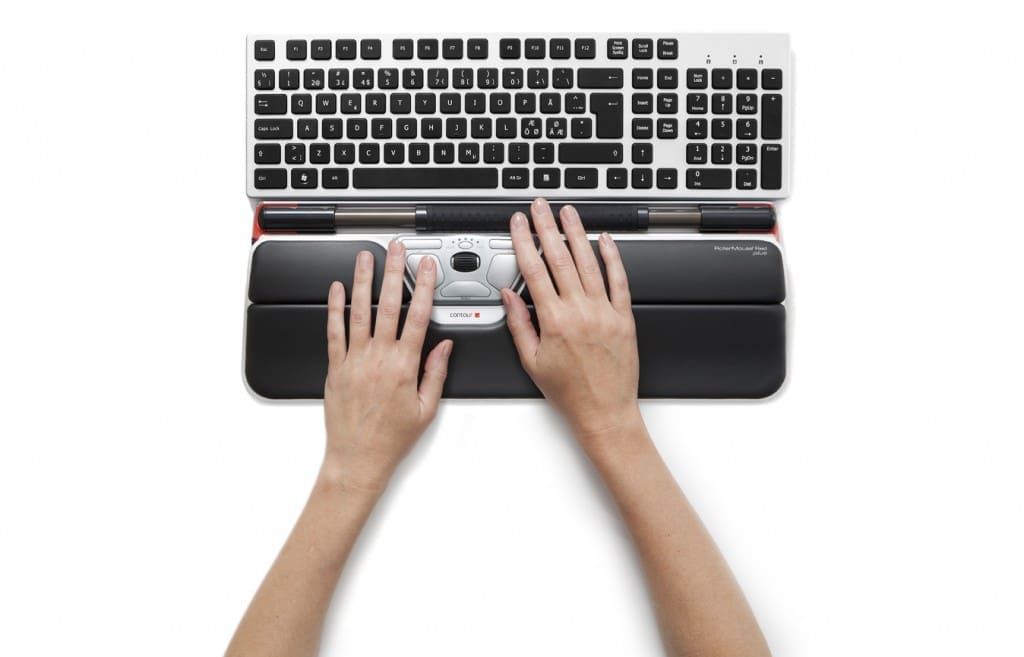
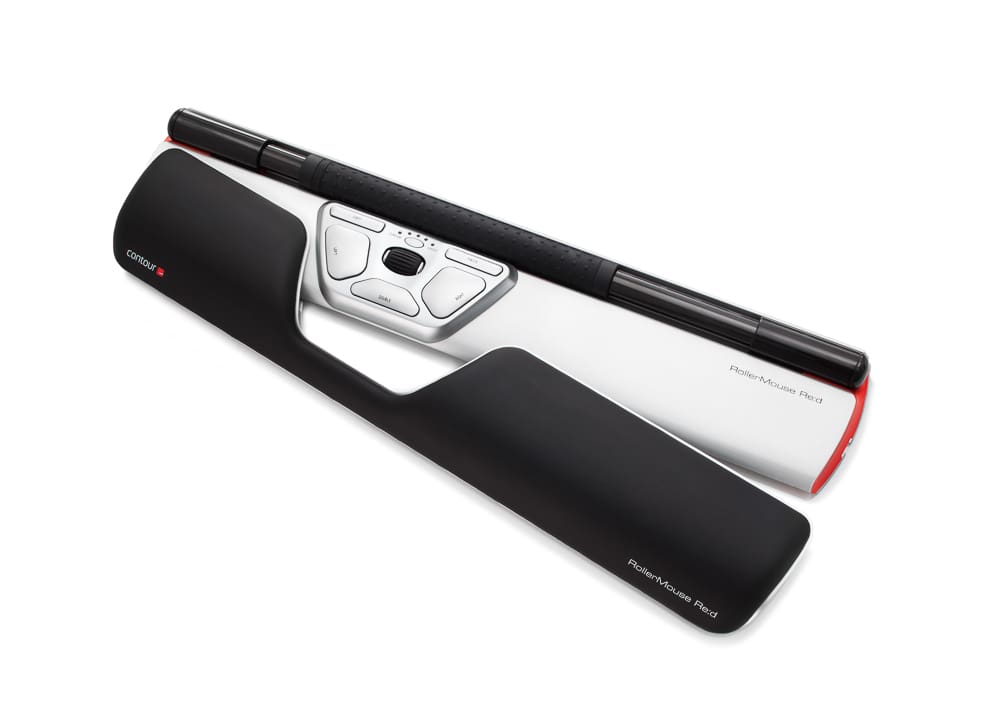
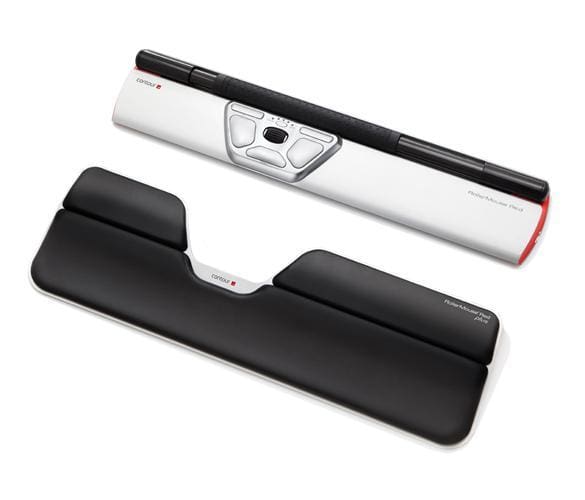
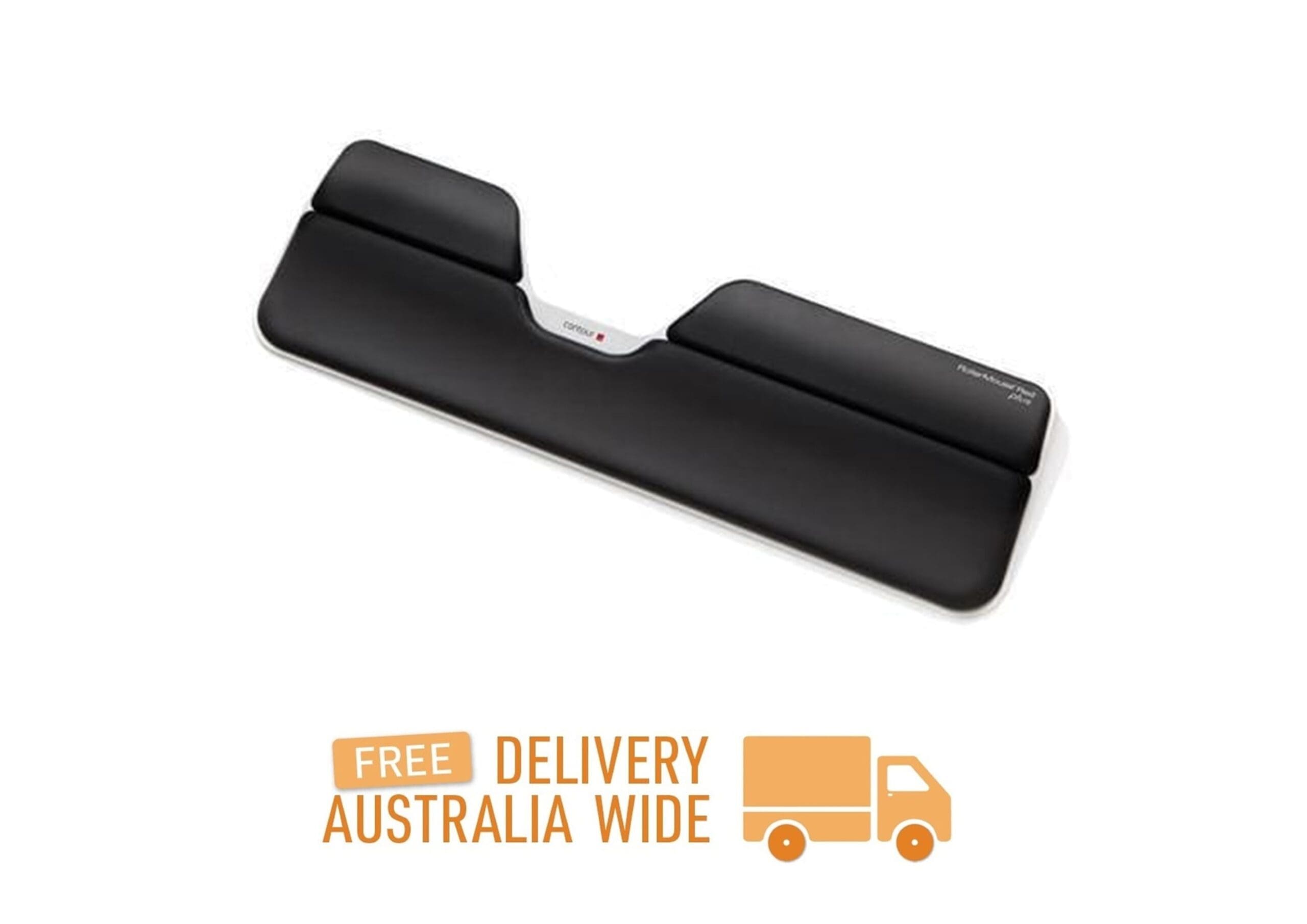
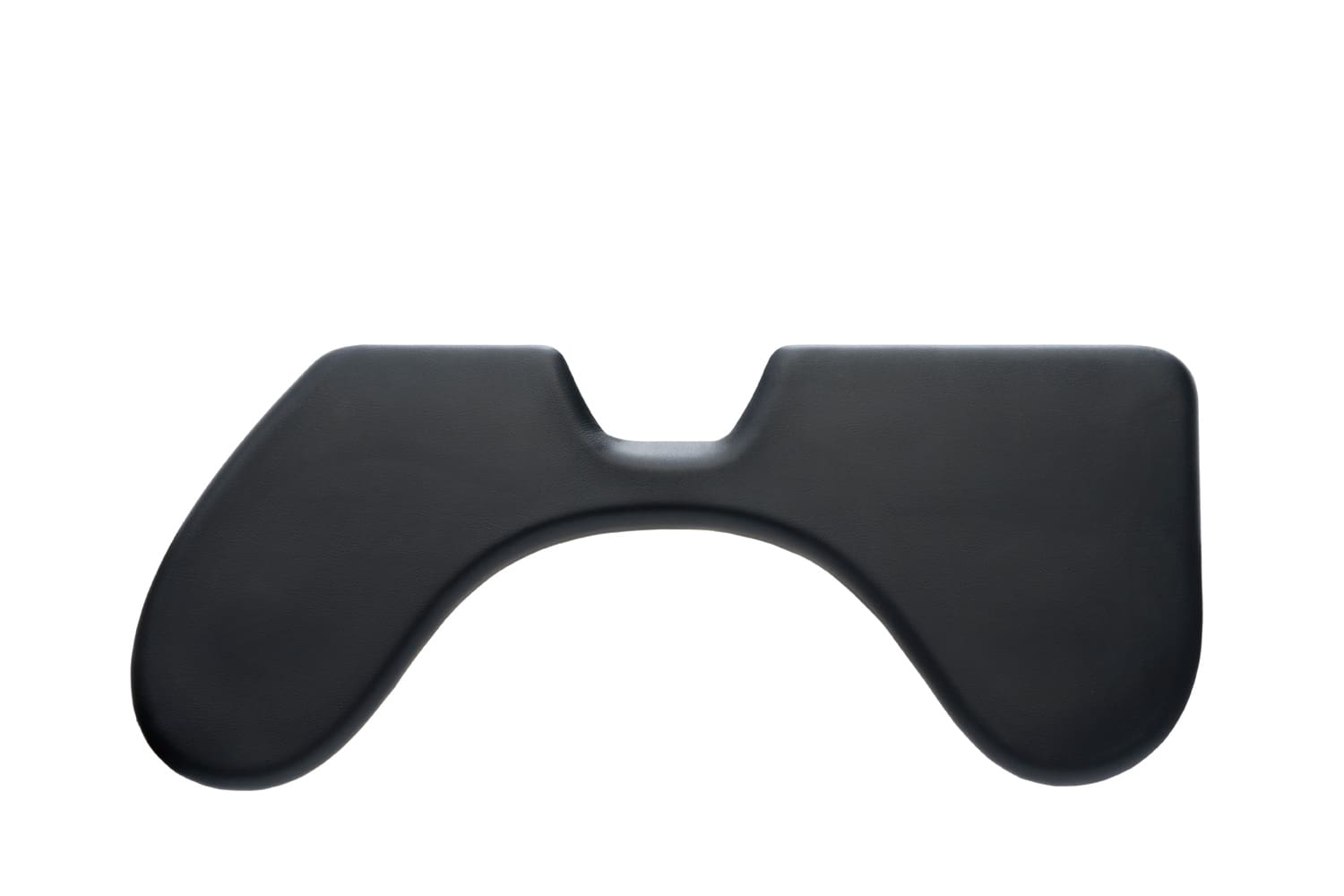
The Re:d Plus Palm Support is an extended Palm Support that provides even more comfort for your palms and wrists while working. Made specifically for the Contour RollerMouse Re:d, the Re:d Plus Palm Support offers a longer and smoother transition from Desk to RollerMouse and Keyboard.
When Bigger is Better
Because it is larger than the regular palm support on the RollerMouse Re:d, the Re:d Plus Palm Support promotes an even better and more ergonomic working posture for you. The Re:d Plus Palm Support also provides additional comfort for computer users with larger hands and longer fingers.
The Contour RollerMouse Re:d with and without a Re:d Plus Palm Support


Make a Great productivity Partner even Better
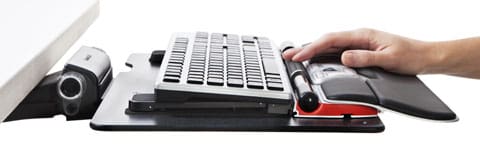
The tapered angle and soft inner core of the extended palm support helps improve hand posture and distributes pressure over a wider area. The Re:d Plus Palm Support is ideal for desks with at least 12" of space in front of the Monitor and mountable Keyboard Trays as it acts as a supportive extension off the front edge of the tray.
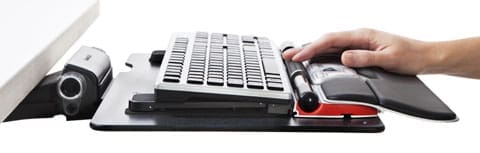
Shoulder Support takes work comfort to an entirely new level

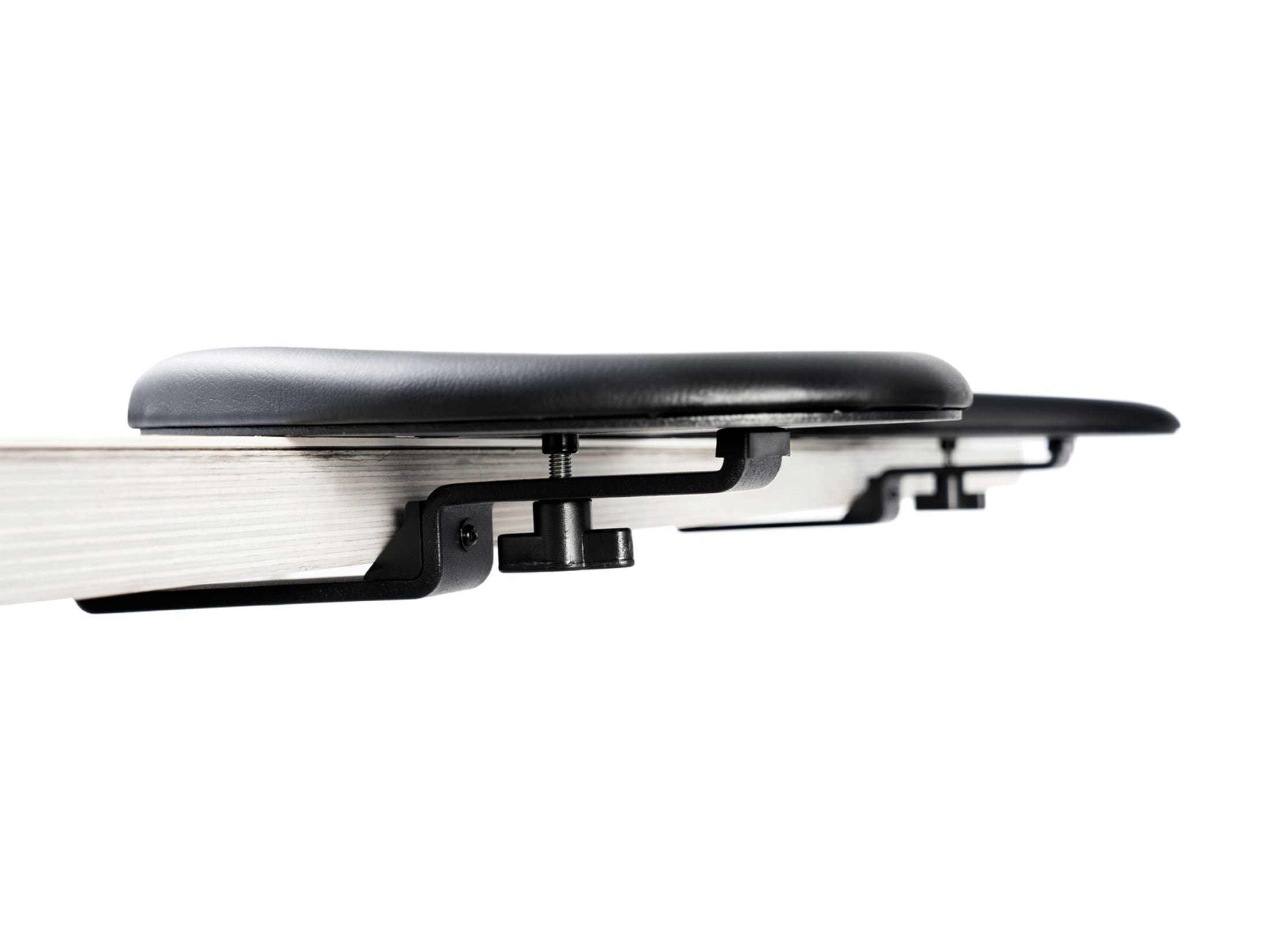
The ArmSupport Re:d is an extended Forearm Support for the Contour RollerMouse Re:d which aligns the upper body while you type and use your RollerMouse Re:d.
Perfectly positions for more pain-free productivity when sitting or standing
ArmSupport Re:d makes a great productivity tool even better, helping to ensure proper work posture and alleviate muscle strain in your neck, back, arms and wrists while sitting or standing.
Created specifically for RollerMouse Re:d, ArmSupport Re:d aligns the upper body while you type and use your RollerMouse Re:d.
Able to be clamped to the front edge of desks from 25mm to 44mm in thickness, the Arm Support Re:d accessory to the RollerMouse Re:d is ideal for height-adjustable workstations.
Re:d Replacement Palm Rest
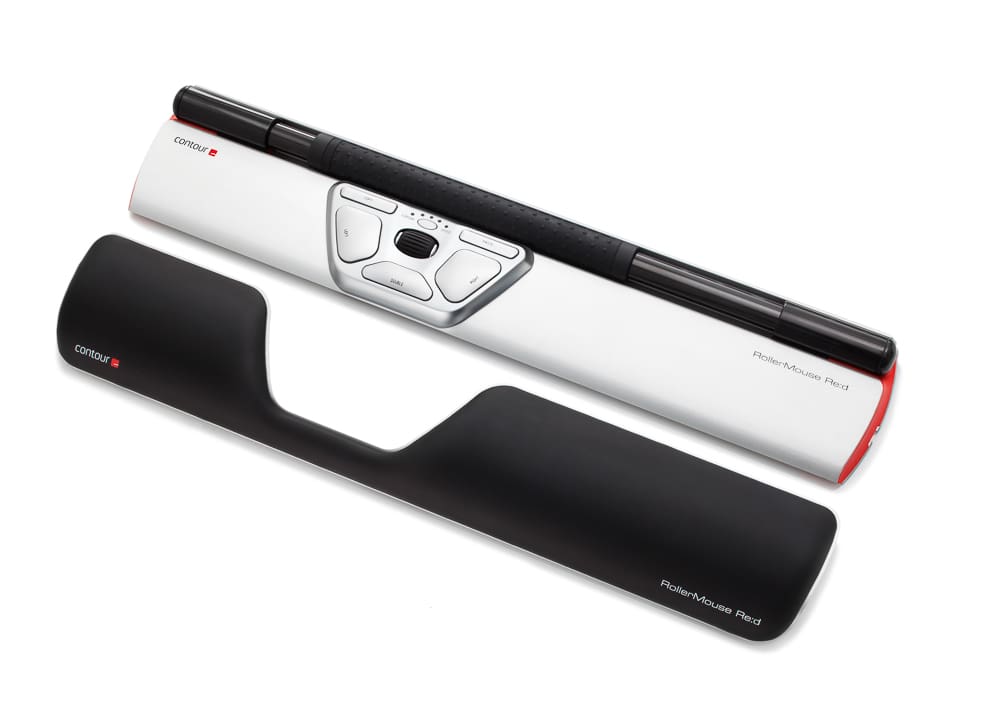
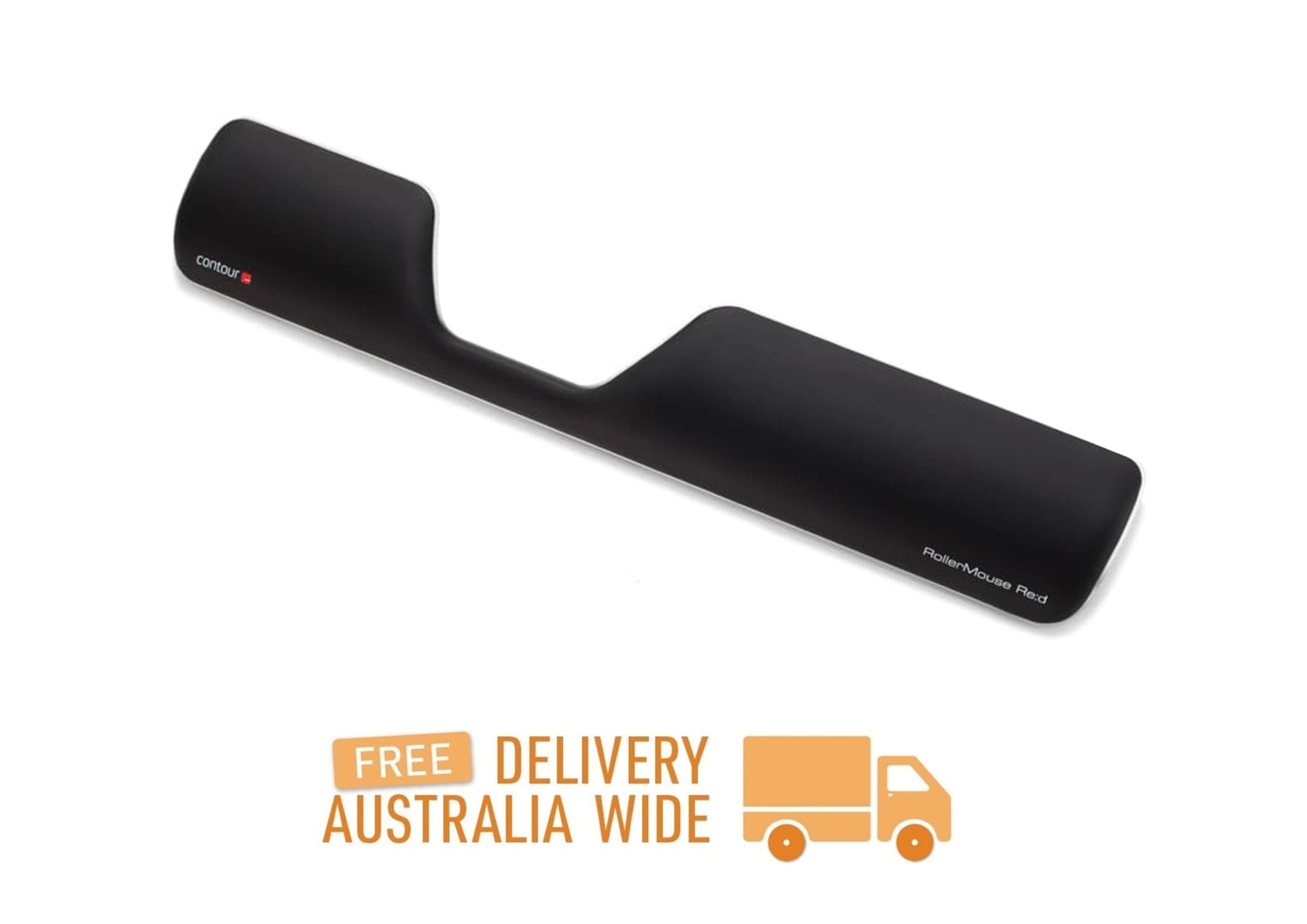
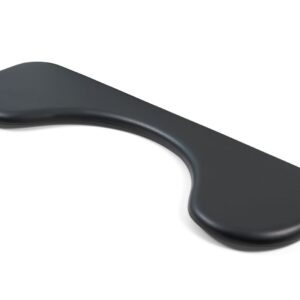
The Palm Rest on the Contour RollerMouse Re:d can become worn over time and with regularly use. The worn Palm Rest can be easily replaced with a new Palm Rest.
The Perfect Partner - The Perfect Fit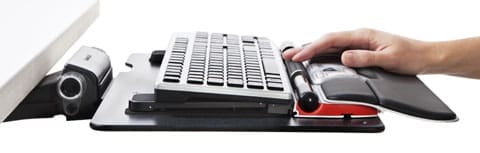
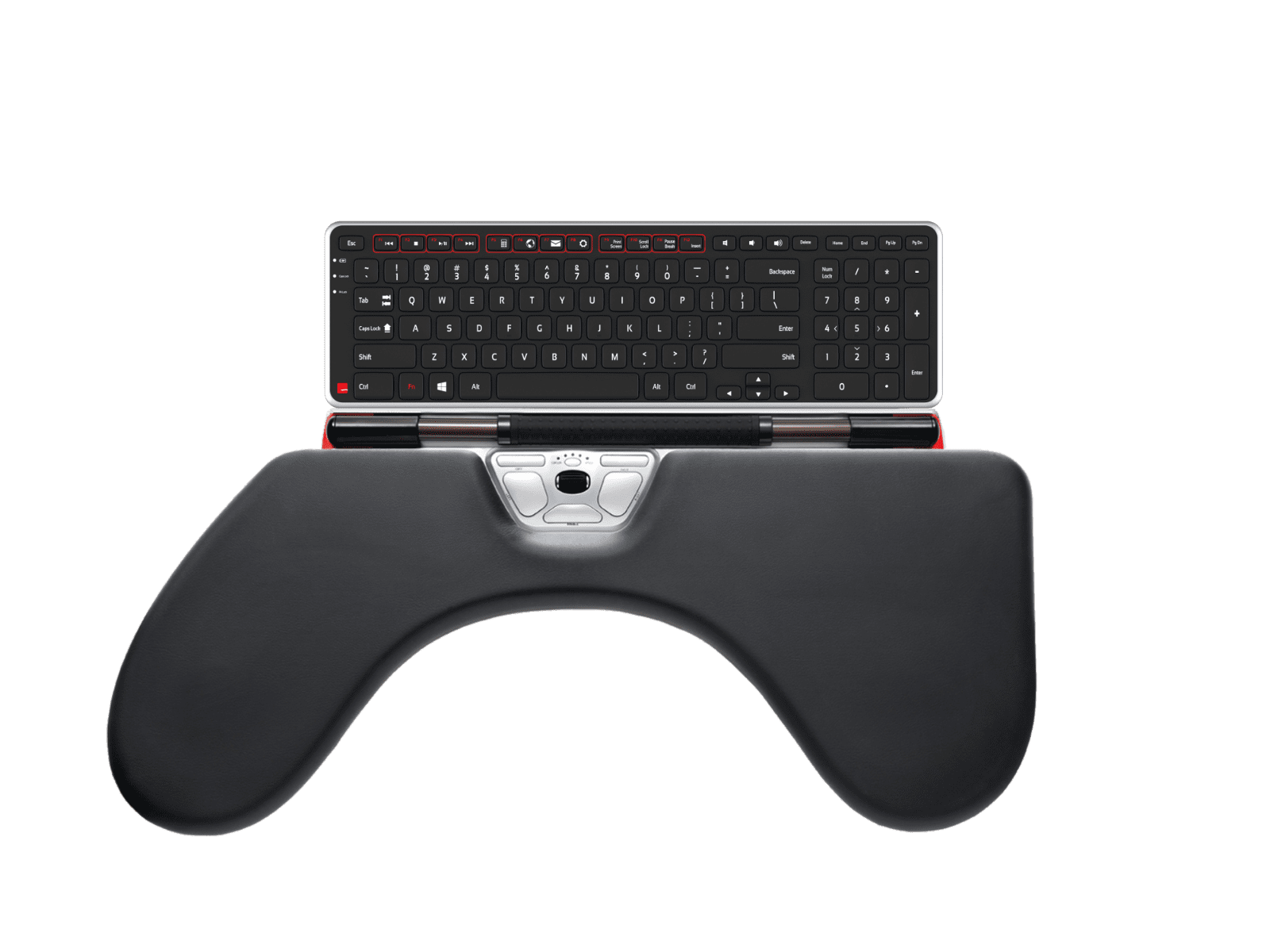
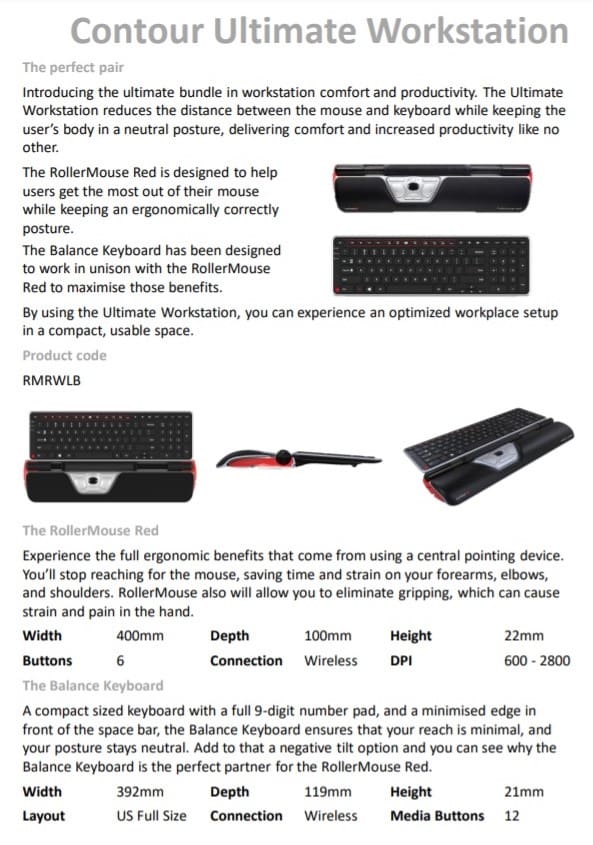
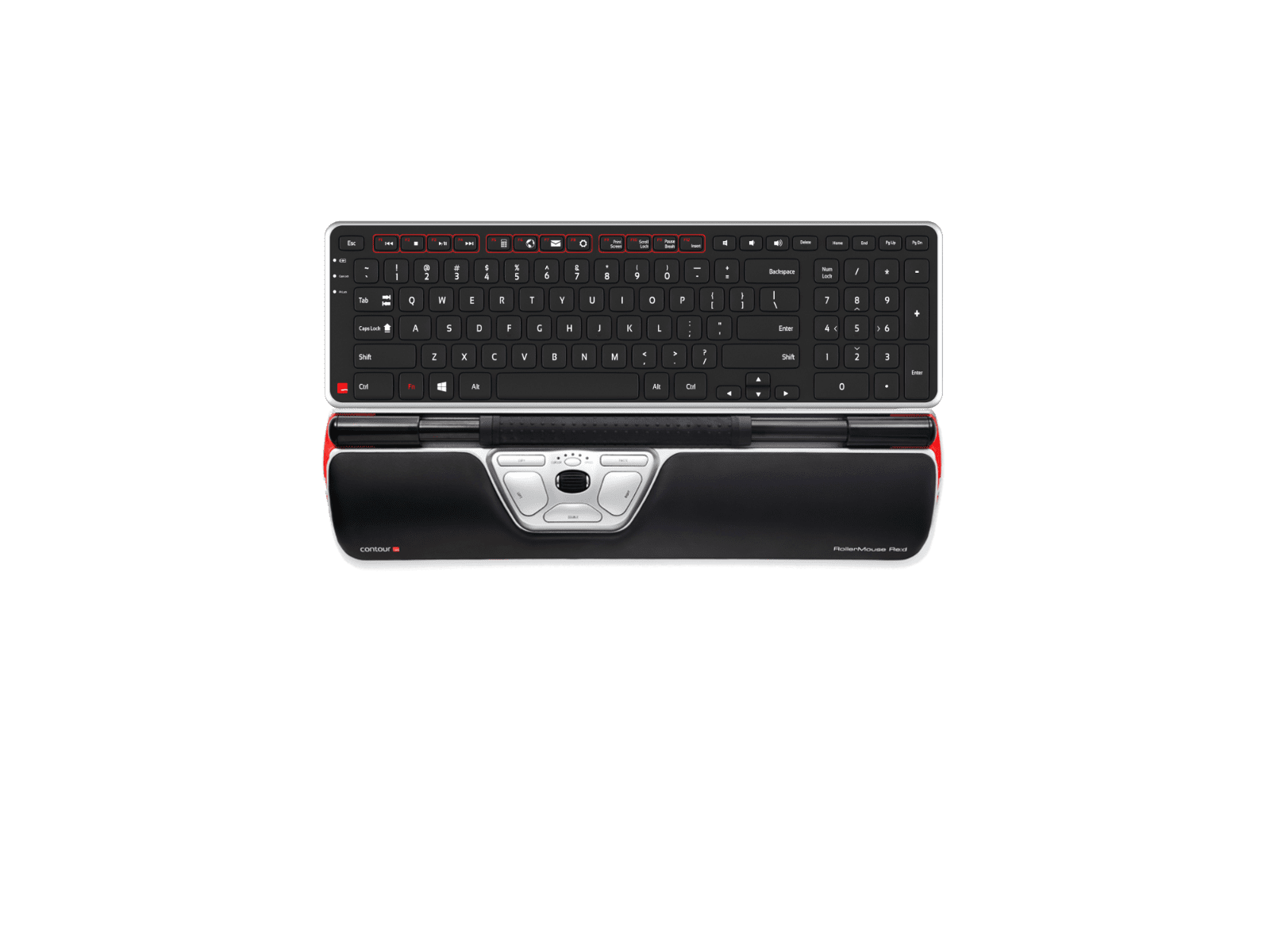
Introducing the Contour Balance Keyboard - a Keyboard specifically designed to fit the Contour RollerMouse Family.
Combining the Balance Keyboard with a Contour RollerMouse puts hands in the perfect typing and mousing position.
Comfort is Key
Designed specifically for use with the award winning Contour RollerMouse family, the Balance Keyboard positions users in an improved, stress-free position while getting the most out of the keyboard and mouse.
Using the Balance Keyboard keeps hands closer to the action and within reach of both the Rollerbar and Keyboard keys.
Increased Functionality at Hand
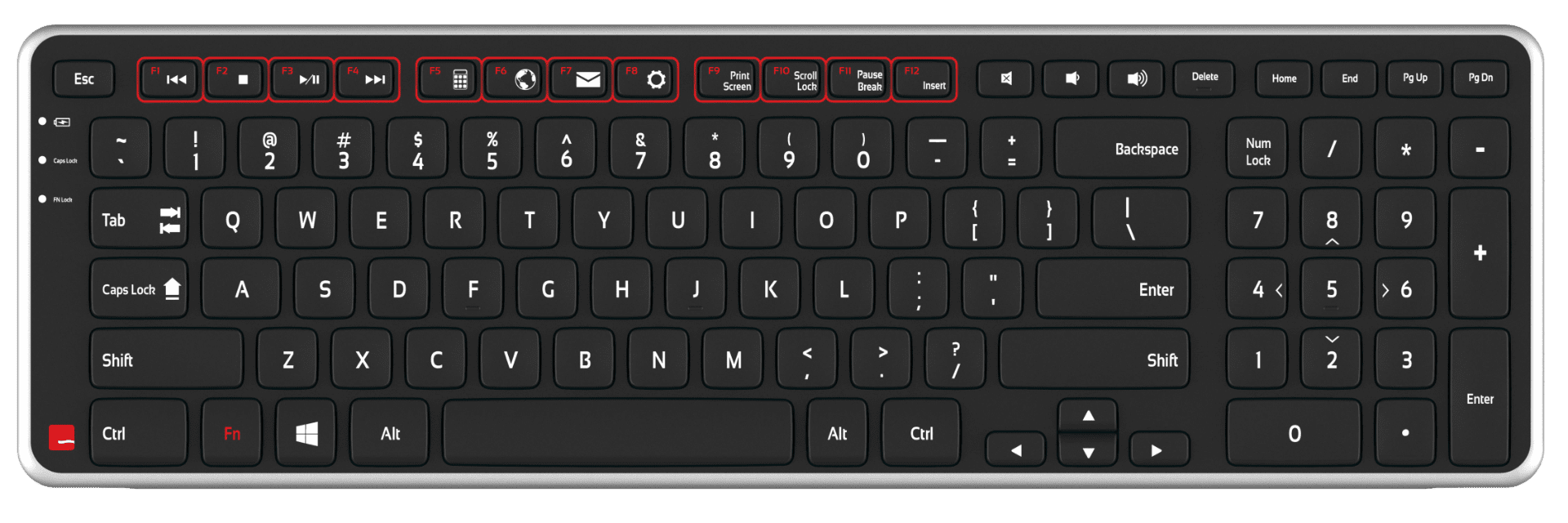
The Balance Keyboard's media keys perform useful everyday tasks and can easily be programmed to suit specific needs.
Traditional function keys (F1-F12) are also available, with the Fn Lock feature making them readily available when needed.
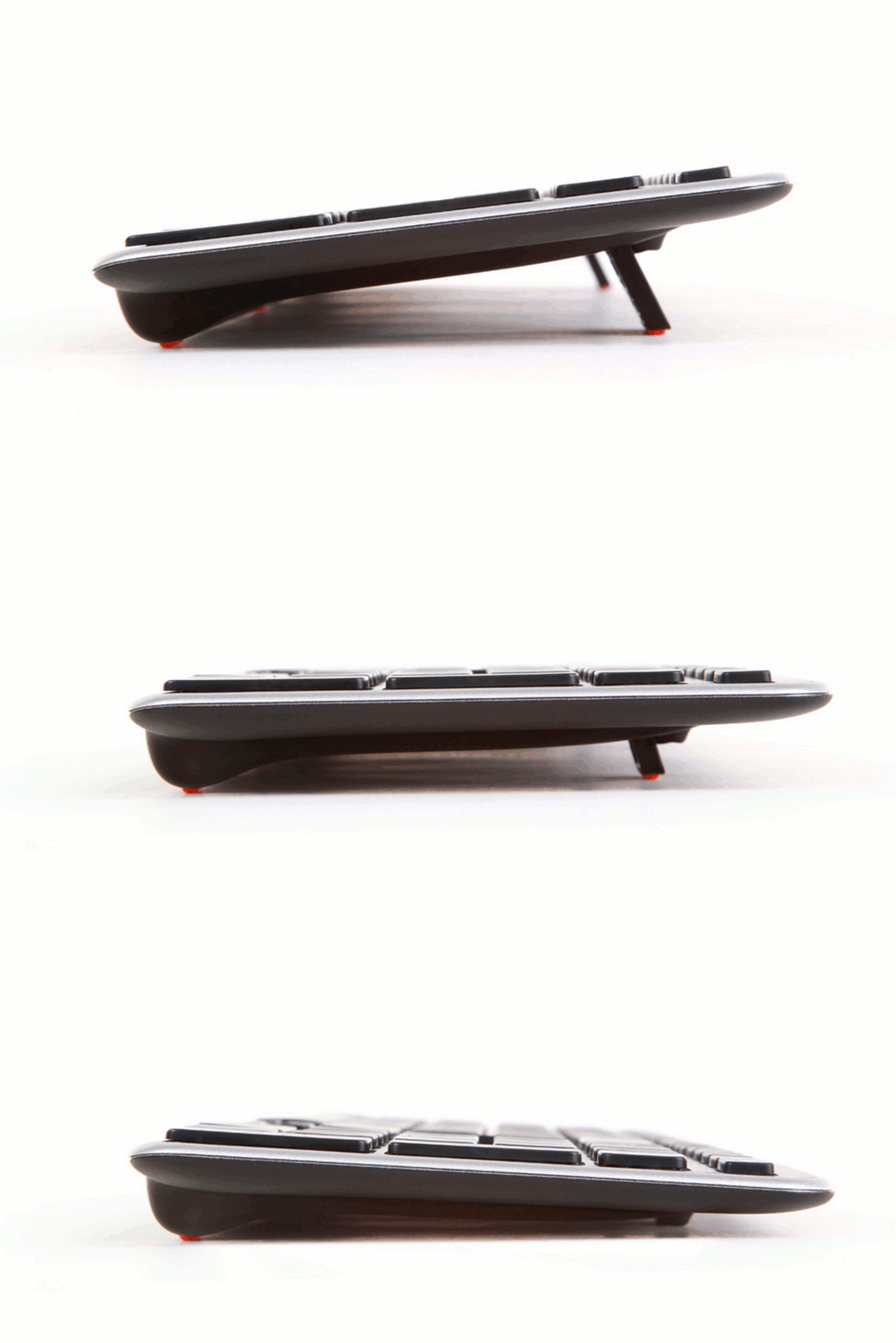
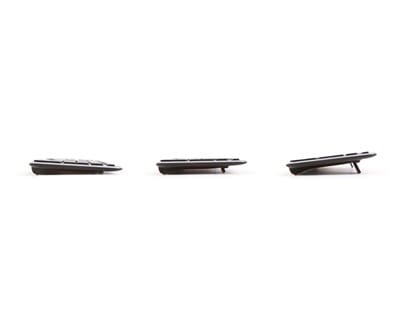
Find the Right Angle
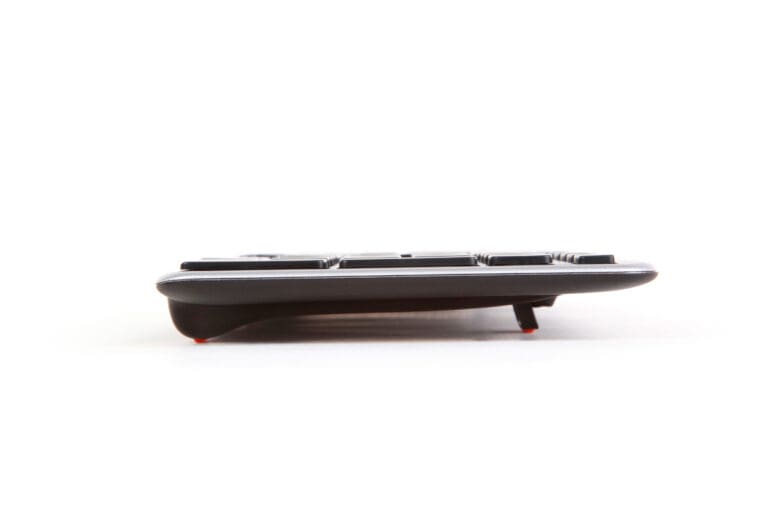
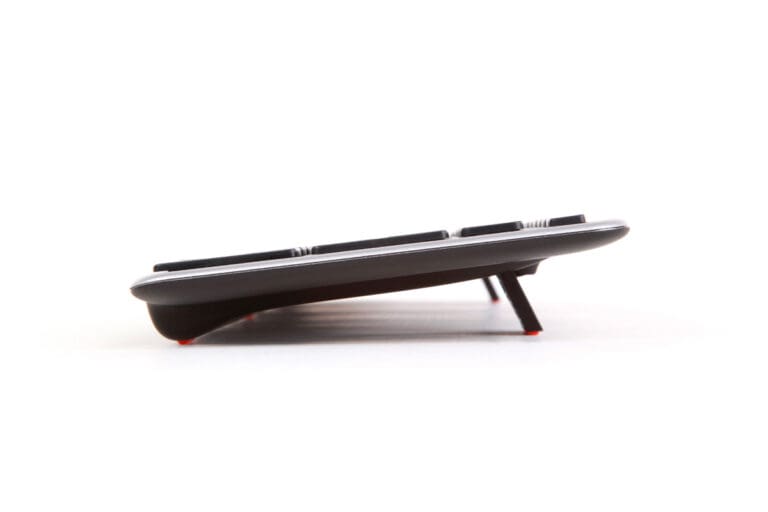
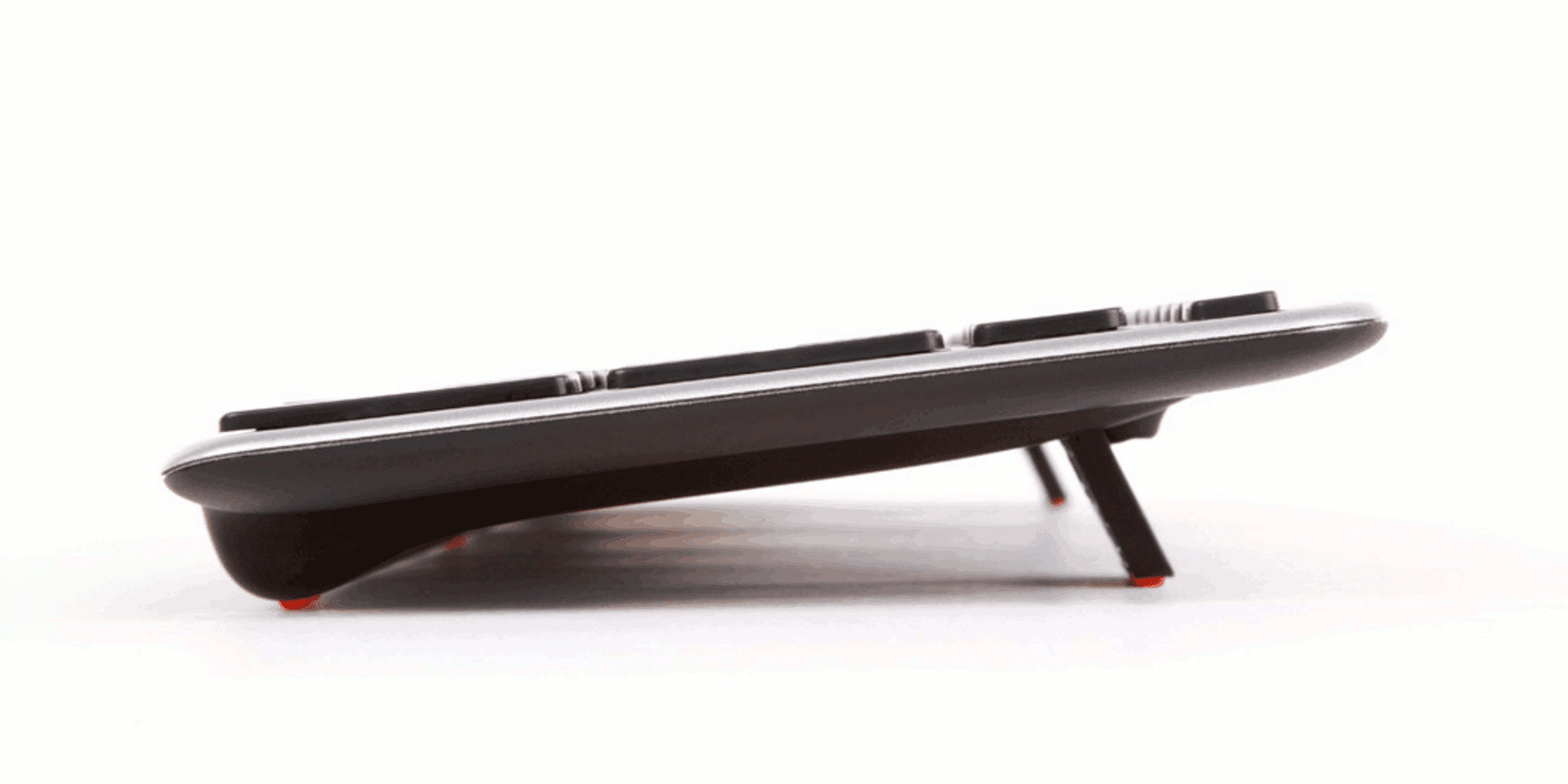
The Balance Keyboard's adjustable legs and tilt options allow for easy adjustability into negative, neutral and positive typing angles.
Key Functions
- Aligns perfectly with the Contour RollerMouse RE:D
- Includes a full Number Pad
- Indicator Light for Battery Level, Caps Lock and Function Lock
- A slightly larger "A" key, to prevent accidental Caps Lock selection
- Fn Lock allows for immediate use of all programmed function keys
- Reduced bottom edge to minimize reach from Rollerbar to Keyboard
Alternative Spellings: rollermouse red, roller mouse red, contour red, RMRED, RMREDW, RMBALANCE US, Contour Roller Mouse, Re:d, roller red, rollerred, rollered, Red, Balance Keyboard, red palm rest, red wrist rest, Arm Support Re:d, Plus Palm Support Re:d, PS-PLUS, RMASRED, PS-RED, RMBALANCE US, RMBALANCE US W, RMRED, RMREDW, contour plus ultimate wireless workstation RMREDW+PS-PLUS+RMBALANCE US, contour ultimate wireless workstation RMREDW+RMBALANCE US, contour support ultimate wireless workstation RMREDW+RMBALANCE US+RMASRED, contour ultimate wirless workstation with travel sleeve RMREDW+RMBALANCE US+UNIVERSAL-
Contour RollerMouse Re:d
Hand Size: The RollerMouse Re:d is best suited for users with small to average sized hands. Adding the RollerMouse Plus Palm Support will accommodate users with larger hands.
Suitable for Desktop and Keyboard Tray Use
Features:
- Rollerbar has extra padding for additional comfort and control
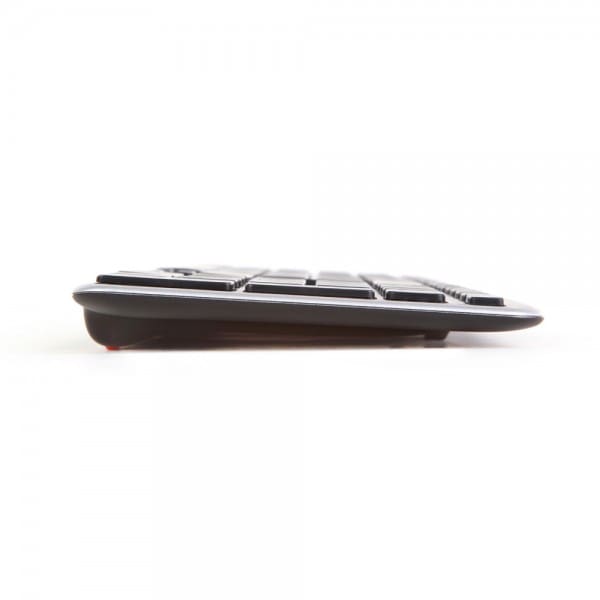
- Keyboard rises to customise Height and Angle
- Integrated and detachable Wrist Rest designed to keep Hands, Wrists and Forearms flat
- An optical sensor detects the cursor movement, making it easier to move the cursor
- Click Force Adjustment allows for the adjustment of the amount of pressure required to perform a mouse click
- Click Volume Adjustment
- Additional Wrist Support available with the Plus Palm Support Accessory
- Additional Arm Support available with the Arm Support Accessory
Eight Key Functions:
- Rollerbar for cursor movement
- Dedicated Copy button
- Dedicated Paste button
- Left click
- Right click
- One touch double click
- Cursor speed adjustment
- Scroll wheel
Rollerbar: has extra padding for additional comfort and control
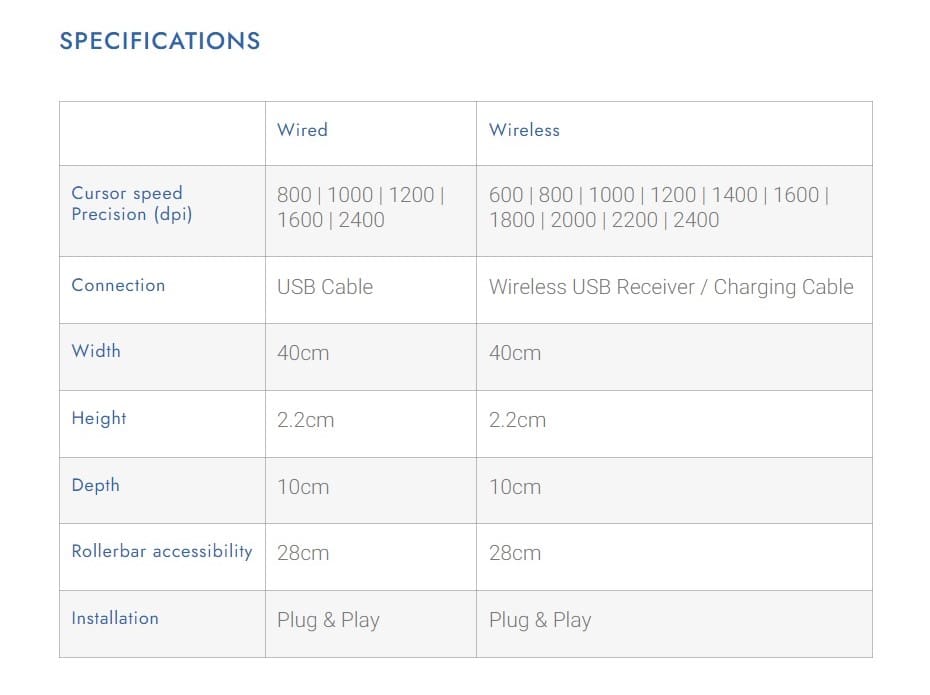
Rollerbar Dimensions:
- Accessibility: 279.4mm
- Width: 177.8mm
- Height: 22.86mm
Device Dimensions:
- Width: 406.4mm
- Depth with Wrist Rest: 101.6mm
- Depth without Wrist Rest: 76.2mm
Keyboard Rises: included to customise the height and angle of your keyboard
Wrist Rest: Integrated and detachable designed to keep hands, wrists and forearms flat
Connection Options:
- Wired USB Cable
- Wireless USB Receiver
Installation: Plug & Play
Driver Required: No
Tracking Method: Twin-Eye Laser Motion Sensor
Cursor Speed Precision (DPI): 600/800/1000/1200/1400/1600/2000/2200/2400
Optical Sensor: detects the cursor movement, making it easier to move the cursor
Click Force Adjustment: allows for the adjustment of the amount of pressure required to perform a mouse click
Click Volume Adjustment
Operating Systems:
- Microsoft Windows 8/7/Vista/XP/ME/98
- Microsoft Windows 2008/2003/2000/NT 4.0
- Apple OSX, Apple Mac OS 8.1 or newer
Compatibility: PC and Mac
Colour: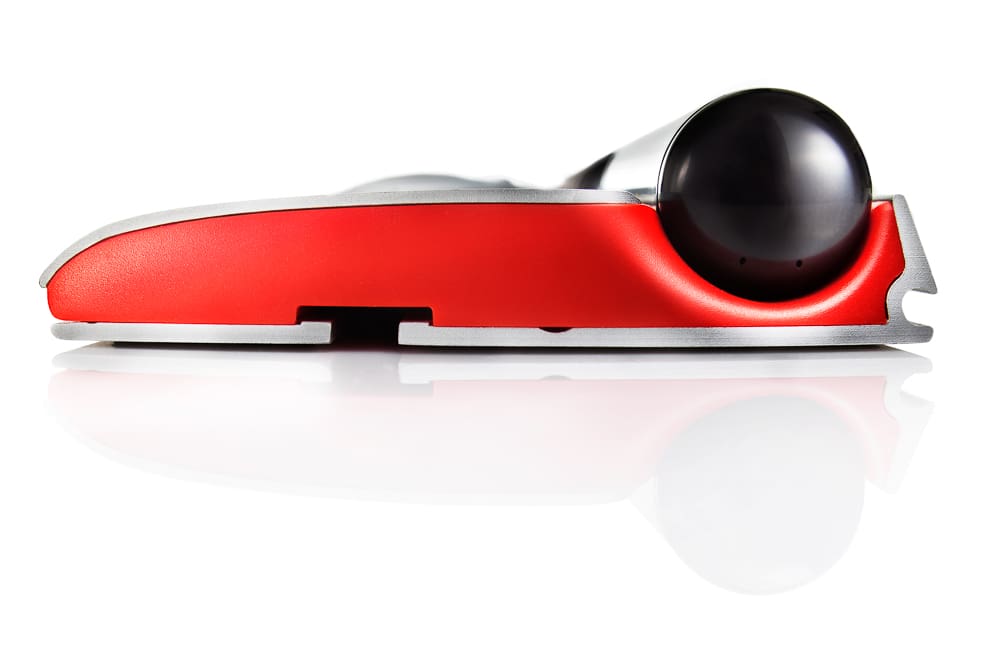
- Black Rollerbar
- Black Padding
- Silver Body
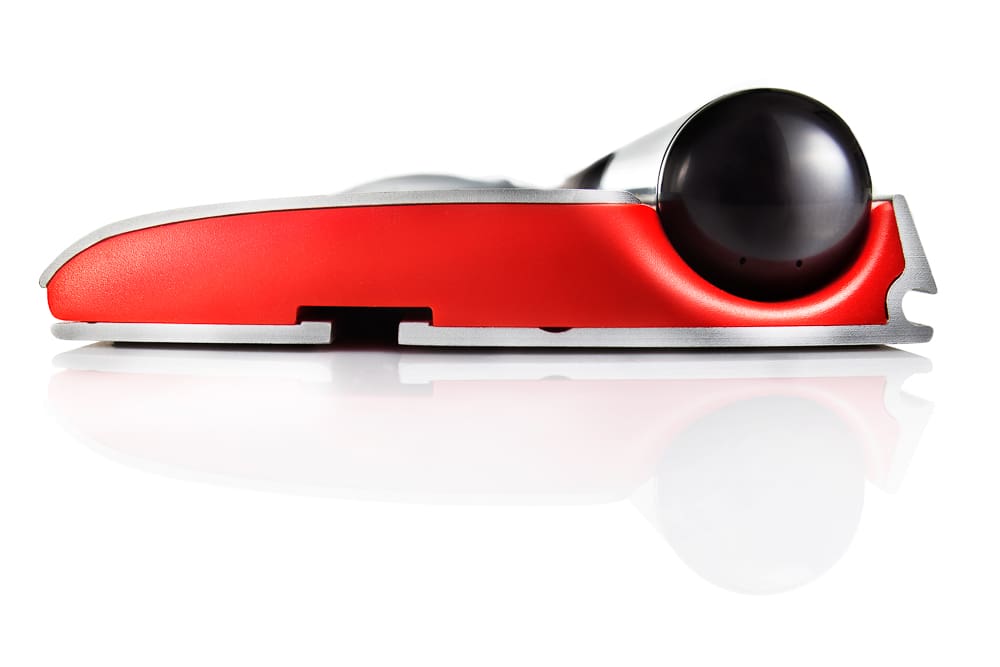
- Red Highlights on Sides
Plus Palm Support Re:d
Features:
- Adds an extra 55mm to the RollerMouse Re:d to provide additional support to Palms, Wrists and Forearms
- The tapered angle and soft inner core of the extended Palm Support helps improve hand posture and distributes pressure over a wider area
Dimensions:
- Width: 43mm
- Depth: 155mm
- Wrist Rest Depth: 130mm
- Height: 23mm
Colour: Black
ArmSupport Re:d
Features:
- Can be clamped to the front edge of a Desk with a 25mm to 44mm thickness
- Ideal for Height Adjustable Workstations
Dimensions:
- Width: 609mm
- Depth: 273mm
- Height: 38mm
- Weight: 2.8kgs
- Distance between brackets: 420mm
Colour: Black
Re:d Replacement Palm Rest
Wrist Rest:
- integrated and detachable
- Designed to keep hands, wrists and forearms flat
Colour: Black
Contour Balance Keyboard
Keyboard Dimensions:
- Width: 392mm
- Depth: 119mm
- Height: 20.5mm
Connection:
- Wireless Versions: through USB Receiver
Drivers: Plug & Play
Operating System: OSX, Windows
Compatibility: PC and Mac
Layout: US
Power: Wireless Version – 2 x AAA Batteries (Included)
Purchase includes: 1 x Contour RollerMouse Re:d as selected with all components for immediate use
Watch: Youtube Video Introducing the RollerMouse Re:d
Why the Re:d is recommended by Workplace Rehabilitation Case Managers, WHS Advisors and Occupational Therapists: prevents repetitive right-sided or left-sided mouse use and prevents prolonged gripping experienced to complete mousing tasks
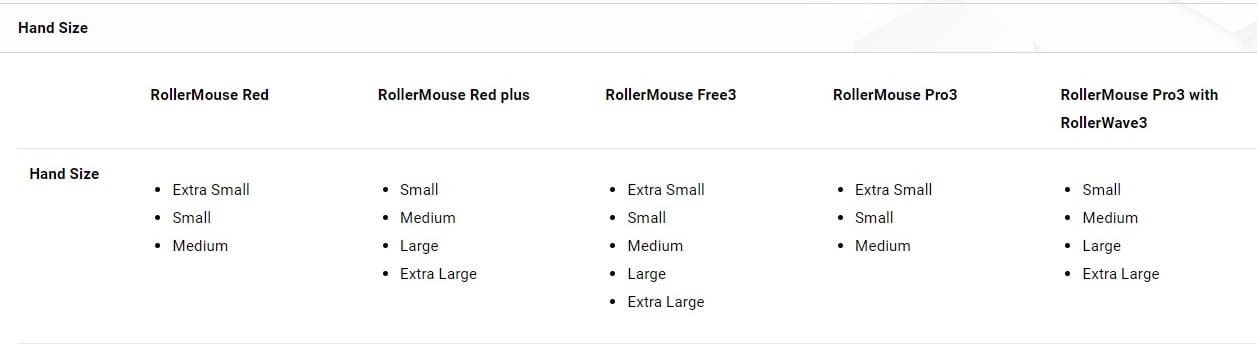
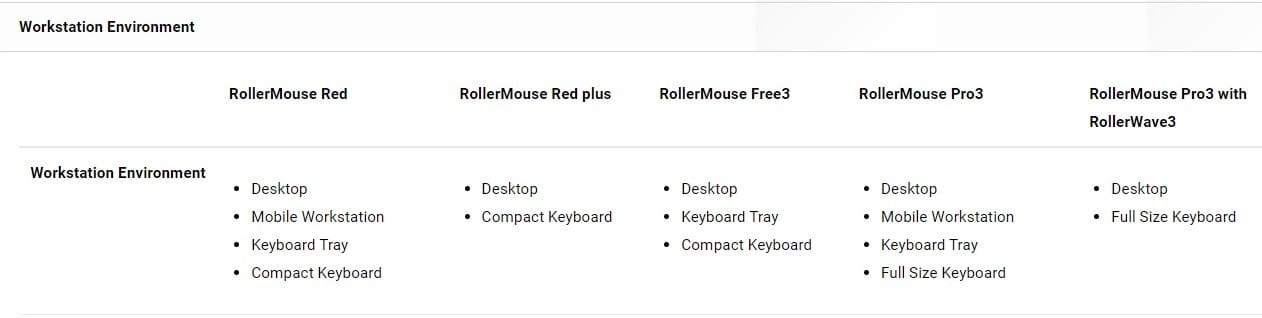
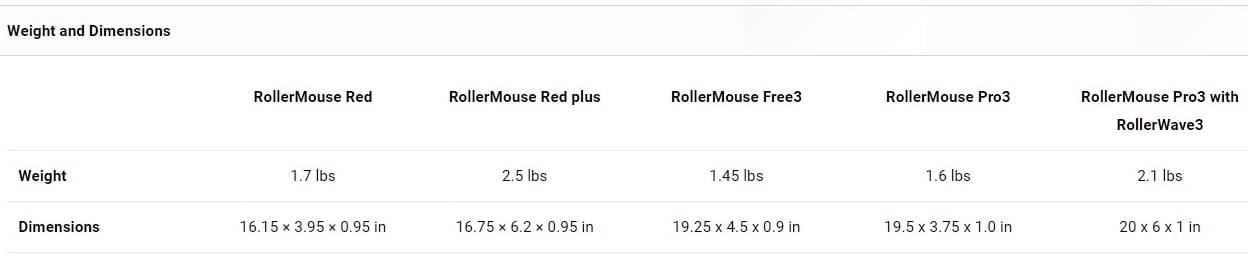
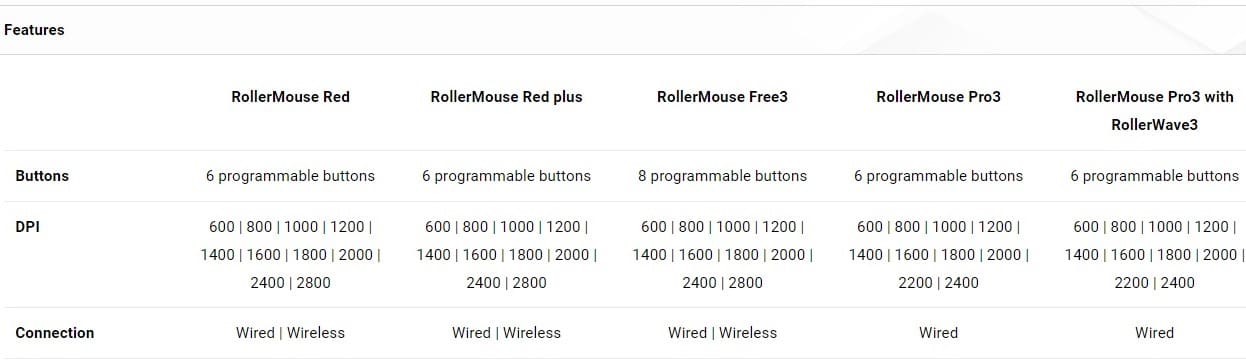
RollerMouse Comparison – Re:d, Pro, and Free
 Below is a short comparison designed to help users find a suitable mouse.
There are 3 models on Contour RollerMouse – Re:d, Pro, and Free. The Re:d and Free3 are available in Wired or Wireless versions. The Pro3 is available as a Wired version only.
The Re:d is the most dynamic RollerMouse, and great for people with small to average hand sizes. Teamed with a Plus Palm Support, the Re:d will accommodate users with large and extra-large hands, and for those using the device on a desktop. The Re:d is suitable for use on a keyboard tray as as well as on a desktop. The Re:d is available as a wired or wireless device.
The Free3 is great for those with small, average, and large hands. Its gradually sloped palm support makes it too large for keyboard trays, but perfect for desktop use. With two extra shortcut buttons, the Free3 has the most customized buttons of any RollerMouse. The Free3 is available as a wired or wireless device.
The Pro3 is the only RollerMouse long enough to support a full-sized keyboard with a 10-digit number pad (up to 19″) and is made to work best on a keyboard tray. Its reduced depth and semi-closed bar makes it ideal for those with small to average-sized hands.
If you require any support with this product, Chat, email [email protected] or phone us on 0403 693 780.
Australia Wide: 3-10 weekdays. Please note, longer delivery time frames can sometimes occur.
Need it urgently or want to know when you will receive your order? Check with us before placing your order. Chat, email [email protected] or phone us on 0403 693 780.
Troubleshooting:
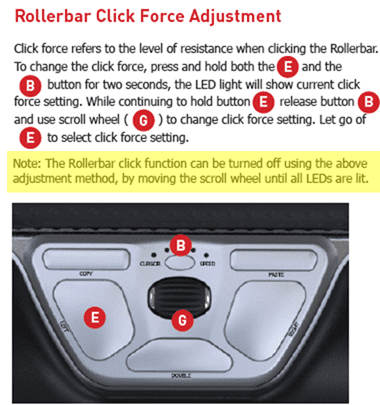
Issue: The Rollerbar click function has stopped working.
The Rollerbar click function can be turned off/on. The instructions to do this are below shaded yellow:
If the above does not resolve the issue, unplug and then plug in the device.
If the above does not resolve the issue, refresh the RollerMouse drivers. The latest drivers can be downloaded from the below links: (The model will be indicated on a sticker on the base of the unit)
If that does not resolve the issue, the use can try refreshing the RollerMouse drivers. The latest drivers can be downloaded from the below links, the model the user has will be indicated on a sticker on the base of the unit:
We recommend unplugging and then plugging the device back in first.
RollerMouse Re:d V1:
RollerMouse Re:d V2 & V3:
macOS 10.10 or later (including macOS Mojave as of 9/24/18)
Issue: The RollerMouse has stopped working.
– Connect the RollerMouse to a different USB Port directly into the computer device (not through a USB Hub). If this does not solve the issue, continue to the next point.
– Turn the Re:d off, then turn it on again. If this does not solve the issue, continue to the next point.
– Are there any kinks in the USB Cable or damage to the USB Connector. If yes, please contact us with what component is damaged. If not, continue to the next point.
– Plug & Play drivers can have issues after an OS update. If there has been a recent Windows update, this could be the reason why the Re:d has stopped working. Please delete and then reinstall the drivers. There are two driver options, a Plug & Play driver that downloads when the device is plugged in for the first time, and an optional driver, Contour Pointing Device Configuration, which can be used to customise the settings of the Re:d.
The steps to delete and then reinstall the drivers are as follows:
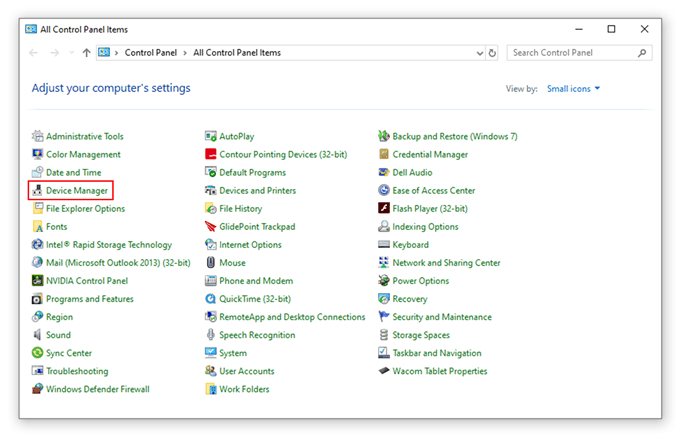
1. The Plug & Play drivers can be deleted by Opening the Control Panel. Select Device Manager
Expand the Human Interface Devices list. Right click on the Contour Rollermouse Red that is listed.
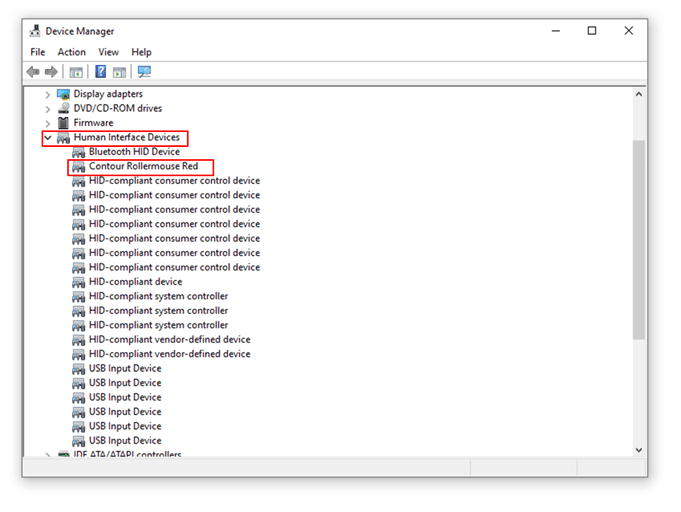
Select Uninstall Device. A warning window will appear. If there is a check box on the warning that states “Delete the software for this device”, check the box. Click Uninstall.
The driver will now be uninstalled. To reinstall the Plug & Play driver, remove the USB receiver and then plug it in again.
The computer should register a new device and advise that it is “Setting up a new device”. When the driver has finished downloading, the system will advise that the device is ready.
2. If the computer does not regiser that it is Setting up a new device, then the driver has not been deleted.
If there is not a RollerMouse listed, the device may be listed under Universal Serial Bus controllers as a USB Composite Device. Right Click on the USB Composite Device. Select Uninstall Device. A warning window will appear. If there is a check box on the warning that states “Delete the driver software for this device”, check the box. Click Uninstall. This will need to be done for all USB Composite Devices listed.
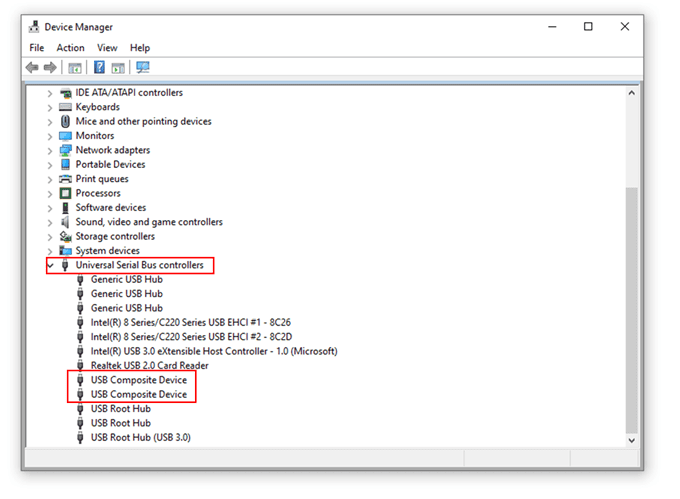
The driver will now be uninstalled. To reinstall the Plug & Play driver, remove the USB receiver and then plug it in again.
The computer should register a new device and advise that it is “Setting up a new device”. When the driver has finished downloading, the system will advise that the device is ready.
3. If the computer does not register that it is Setting up a new device, then the driver has not been deleted. There may be a line item with an error message next to it in this list. If there is, please send us a screen grab of it and we will investigate further troubleshooting.
4. If there is still an issue after successfully uninstalling and reinstalling the Plug & Play driver, the Contour Pointing Device Configuration Driver will need to be uninstalled.
The driver can be uninstalled via the Start Menu. The Driver will be listed under Contour Pointing Devices. Expand the list and then select Uninstall Contour Pointing Device. Follow the on-screen prompts to uninstall the driver software.
Once the driver is uninstalled, it can be downloaded again from the below links:
– macOS Big Sur and macOS Monterey
5. If there is still an issue after successfully uninstalling and reinstalling the Contour Pointing Device Configuration Driver, open the driver via the Start Menu or the System Tray.
Select the About Tab and click Reset the settings to the factory ones:
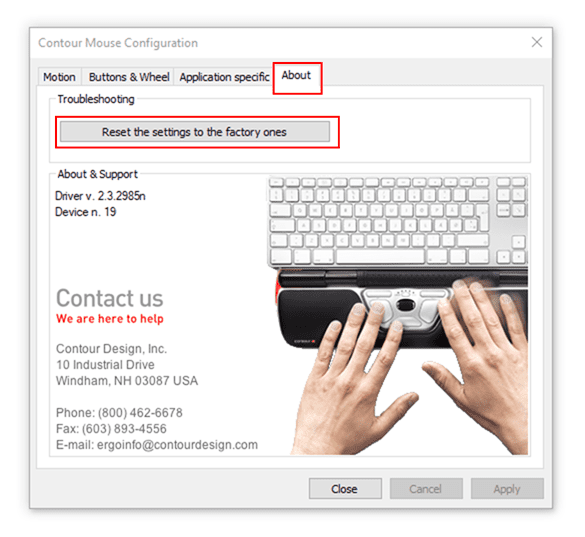
Select Apply and then Close
Restart the Computer
6. If the above steps do not resolve the issue and the error message is still appearing, or the device is not showing on multiple machines, it may be a hardware issue.
If the cable appears to be undamaged, please email a the serial number on the base of the unit, a picture of a close-up of where the cable connects to the RollerMouse on the left side, and of the internal connection on the rollerbar:
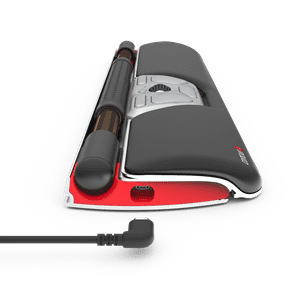
Cable connection (above image is of the wireless model)
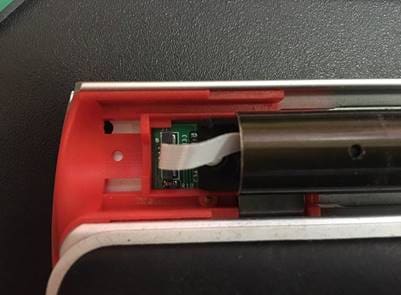
Internal connection on the roller
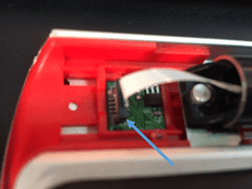
To access the internal connection, follow the below steps:
– Remove the left side end tab by sliding it to the left and then lifting up

– the end of the circuit board and the circuit ribbon that connects the roller bar to the bar will be exposed
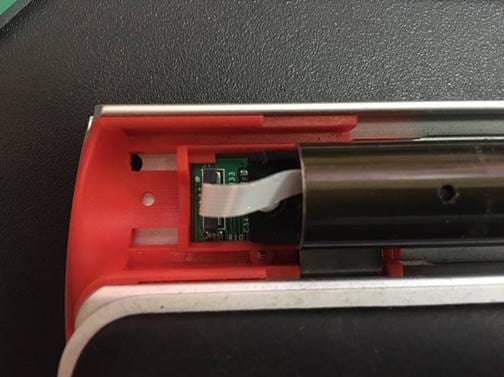
– the white ribbon needs to be inserted into the port
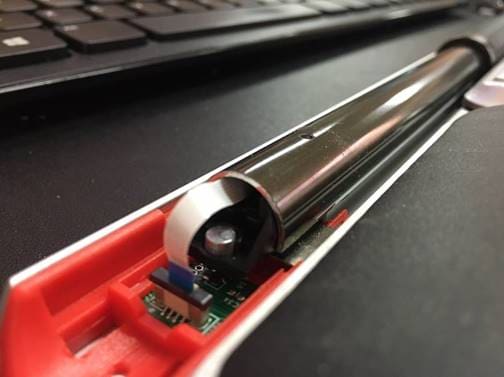
Issue: The circuit ribbon has been disconnected
The power cable for the RollerMouse Re:d is difficult to access and requires disassembling the entire right side of the RMRED casing. As it is completely enclosed, there would be no need to clean that area.
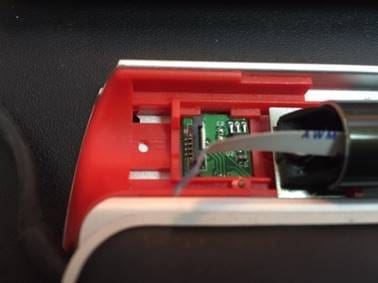
If the circuit ribbon has been disconnected (the circuit ribbon connects the rollerbar to the rest of the Re:d), it is very easy to reconnect.
Very gently lift up either end of the black cap on the port. It will only move a few millimetres and should not be completely removed.
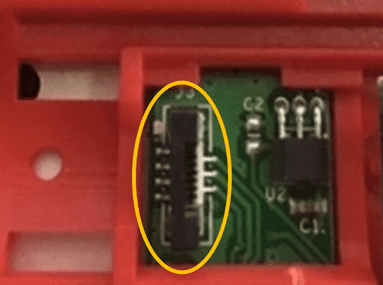
Please the circuit ribbon in the port, with the blue tab side facing away from the rollerboar. Once the circuit ribbon is in position, push the black cap back down. This will lamp the ribbon in place.
Warranty: 2 Years
What do I do if the product is faulty?
1. Cease using the product as it may be unsafe to use. Damage that occurs as a result of continued use of a faulty product will not be covered under warranty.
2. Complete and return the Product Repair Request form

Reviews
There are no reviews yet.