


Contour RollerMouse Free3
Price range: $77.00 through $903.10
Found a lower advertised price? Let us know and we’ll do our best to give you a better price.

Featuring the most customized buttons of any RollerMouse. For use on desktops, not on a keyboard tray.
Choose your requirements using the field selectors below. Where “Choose an option” shows, please make your selection from the available options.
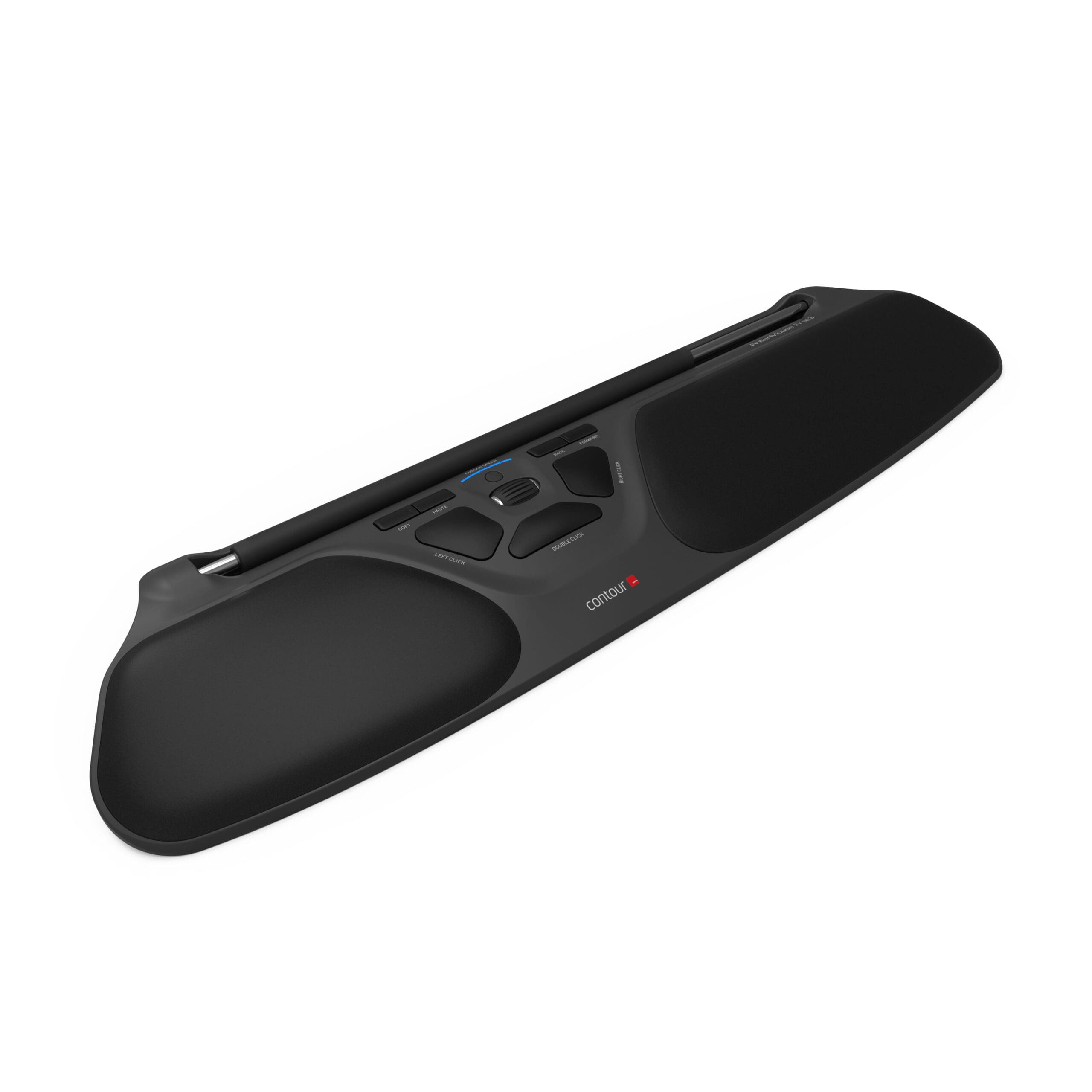
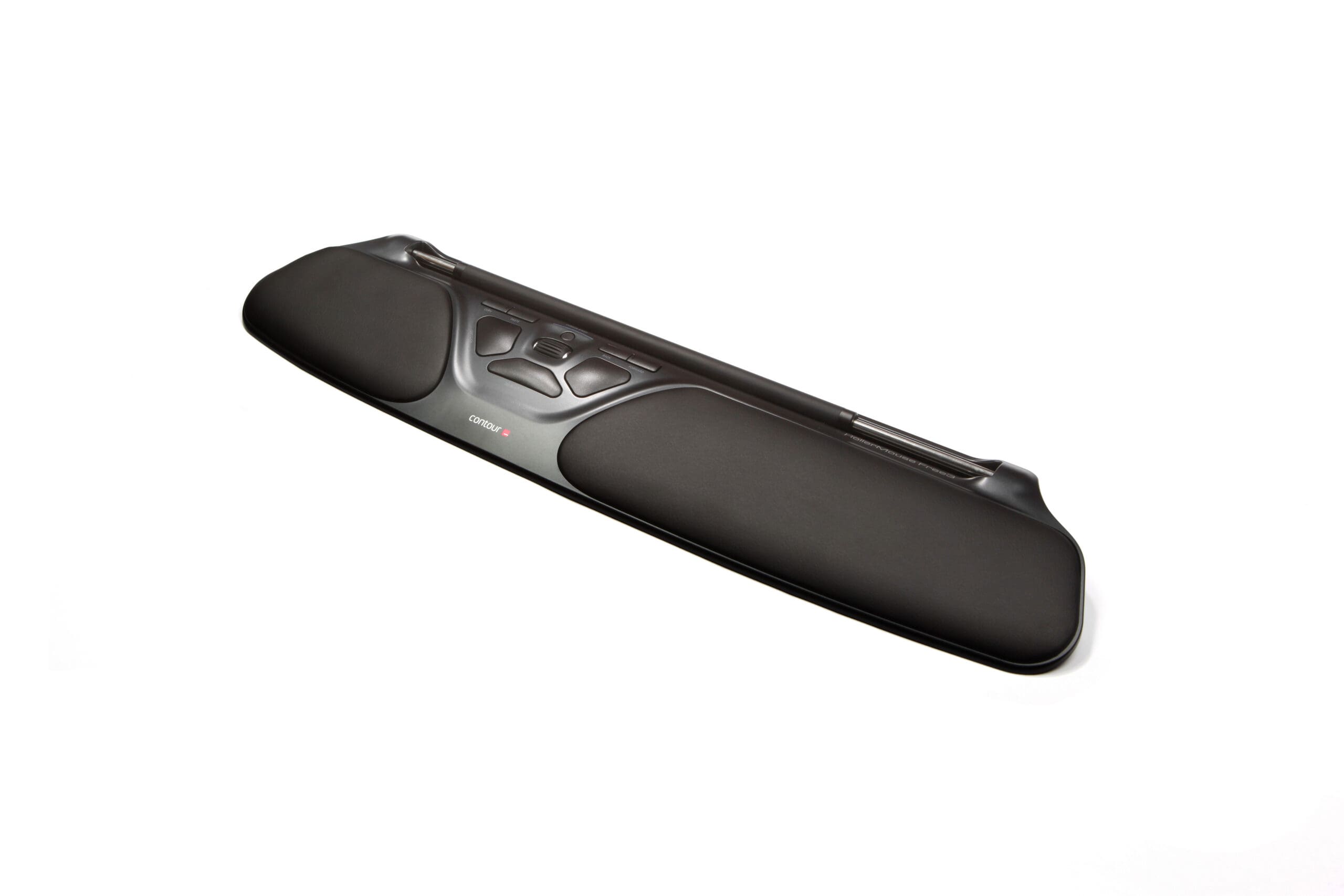
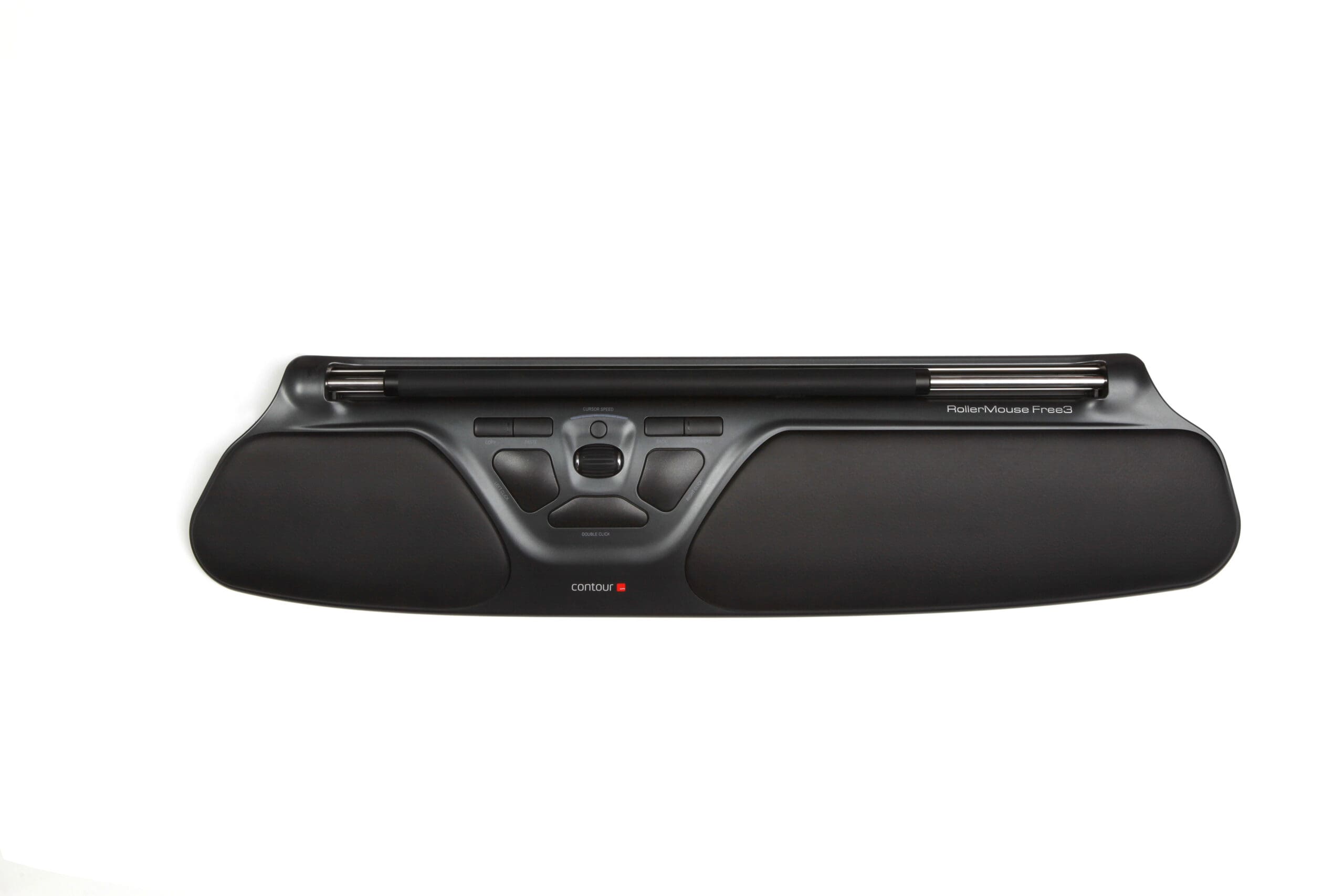
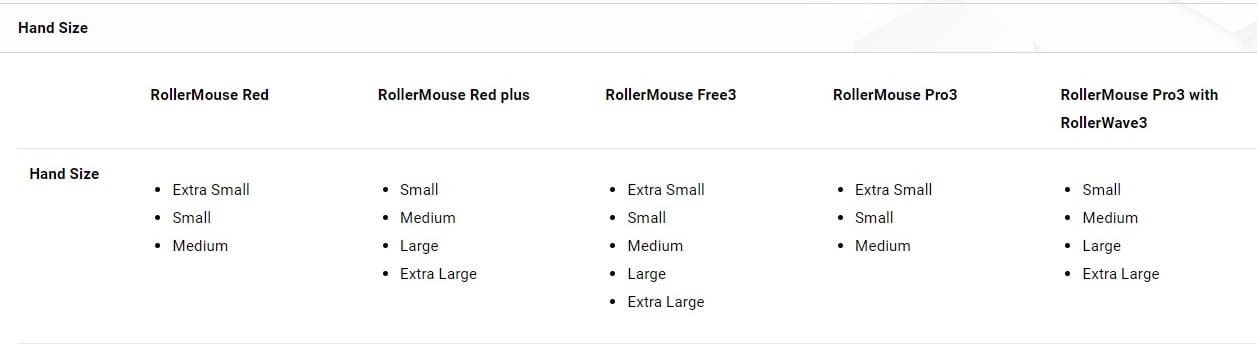
An innovative, ergonomic mouse designed to sit in front of the computer keyboard. The Free3 features the most customized buttons of any RollerMouse. Suitable for right, left, and ambidextrous users with small, average, and large hands. For use on desktops, not on a keyboard tray.
The mission of the RollerMouse is to make you better at what you do. A RollerMouse is designed to sit in front of your Keyboard and relies on a patented Rollerbar to control the cursor. Ther RollerMouse can be used ambidextrously, and encourages use of both the fingers and the thumbs to roll and slide your way to a healthier, more productive work experience.
Stop the Reach
RollerMouse Free3, unlike a traditional mouse, sits in front of your keyboard instead of to the left or right. This eliminates the need for reaching for the mouse and will greatly reduce unnecessary muscle activity in your arms, shoulders, and neck.
Sleeker, Faster, Freer
A modern upgrade to the Free2, the Free3 brings the same ergonomic design and quality, with the added benefits of more speed, more buttons, better precision and wireless technology.
Feel the Difference in Freedom
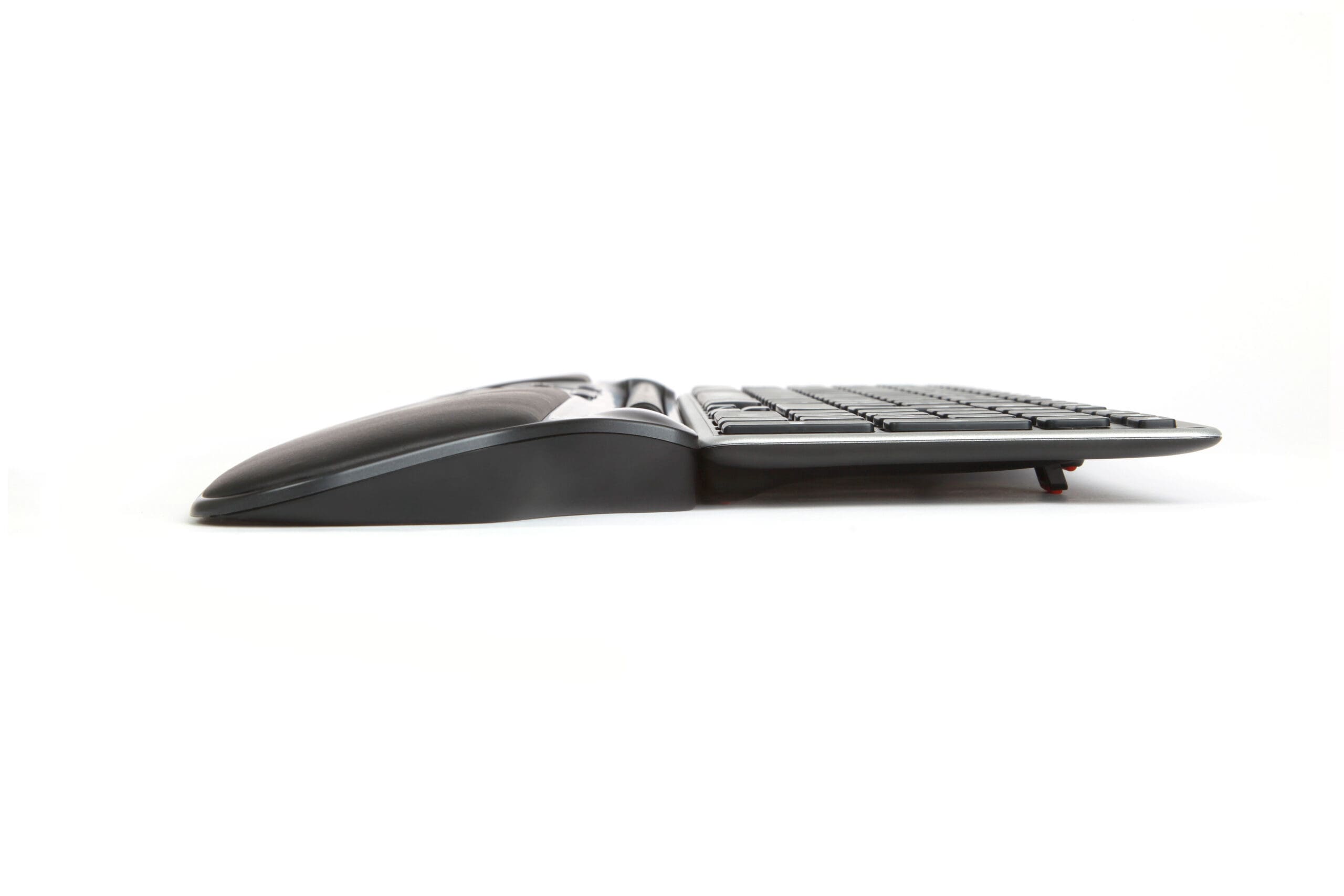
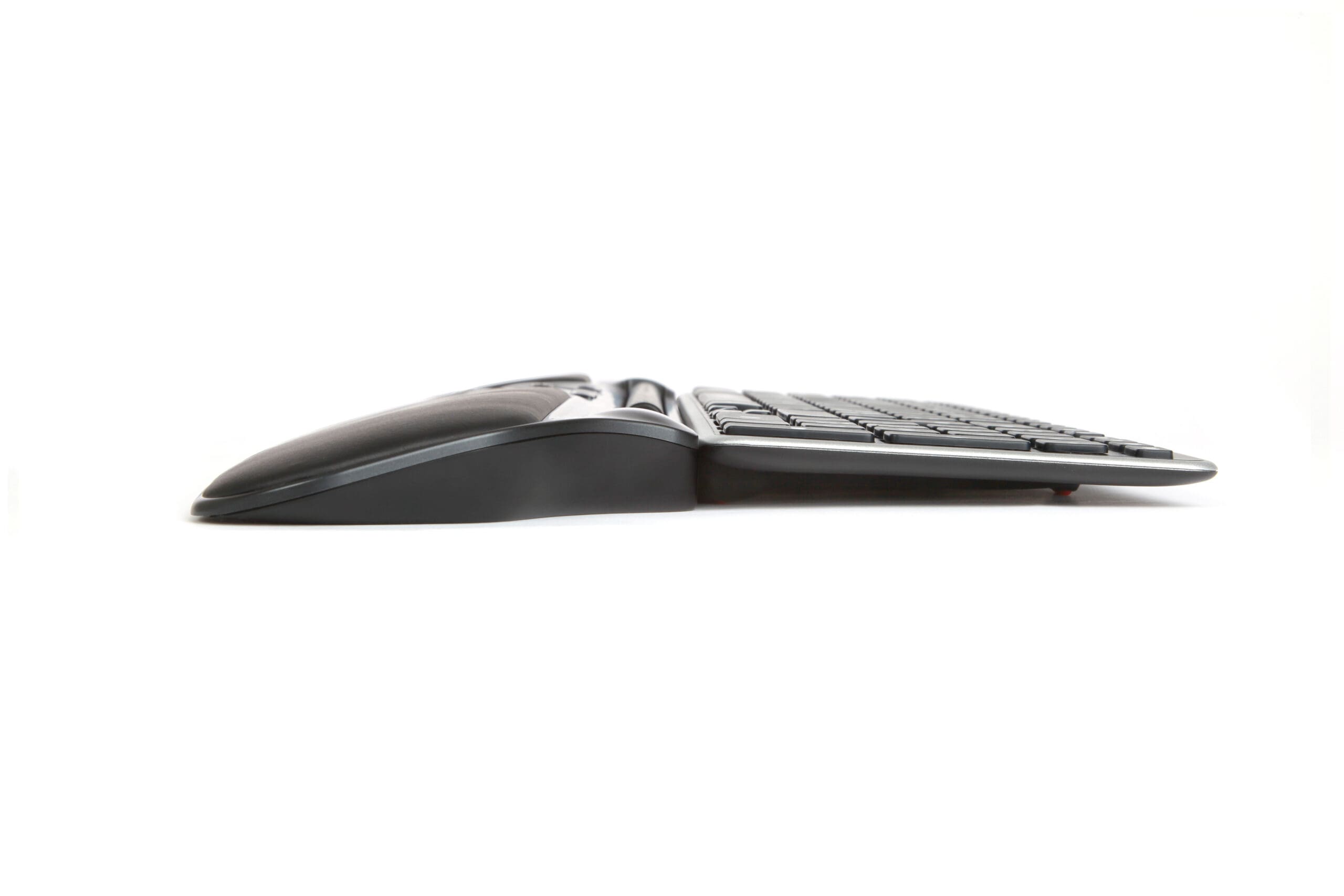
The RollerMouse Free3 combines pinpoint precision and comfort with low profile design. Free3 is built low to the desk, making it ideal for use with slim, compact keyboards.
The high cursor speed lets users move the cursor easily and efficiently across large screens - or even multiple monitors. The broad rollerbar makes it simple to vary work posture.
Simply put, you can work faster and more comfortably.
Natural Feel, Natural Movement
An advanced sensor located underneath the rollerbar allows for more precise cursor movements without changing the feel.
Slimmest Design, Still
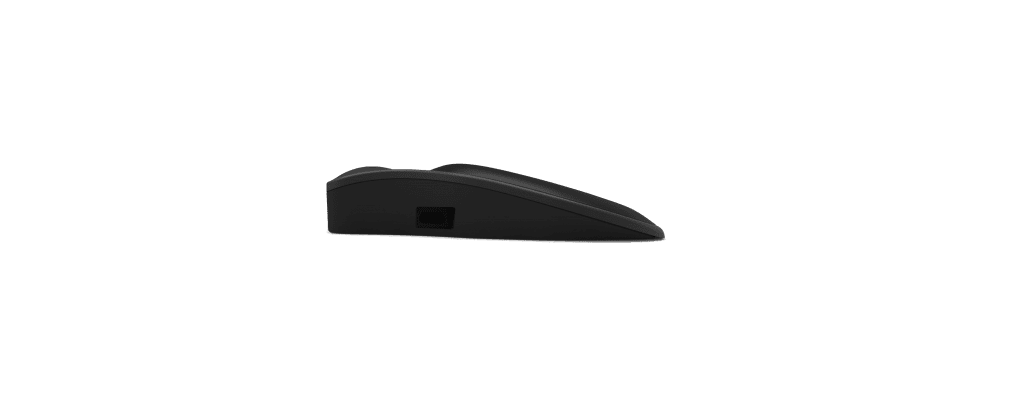
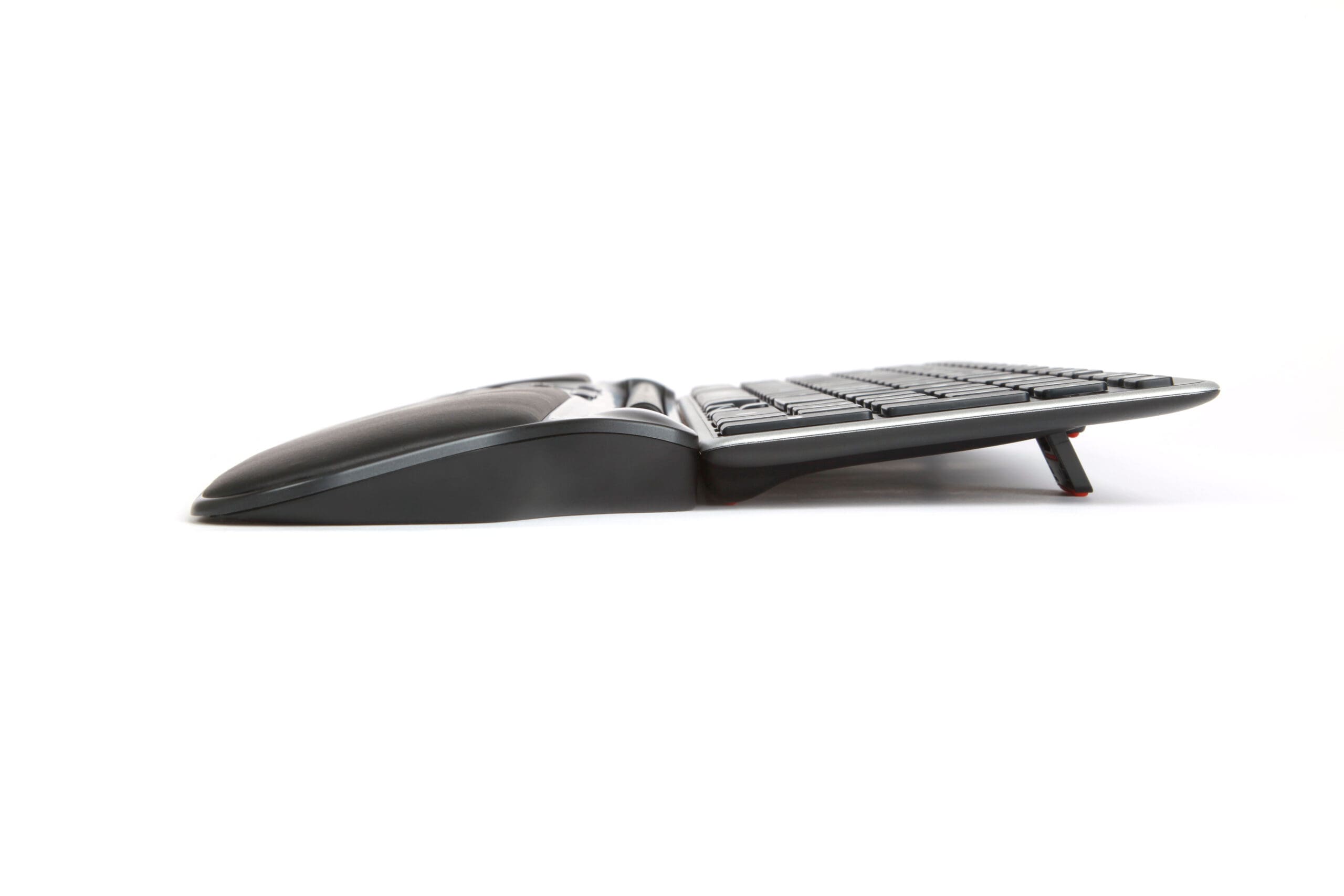
At just 23mm high, the RollerMouse Free3 boasts the lowest profile in the RollerMouse family, helping maintain a proper ergonomic position, in a new and sleek modern style which is perfectly at home on a PC or Mac.
Usability
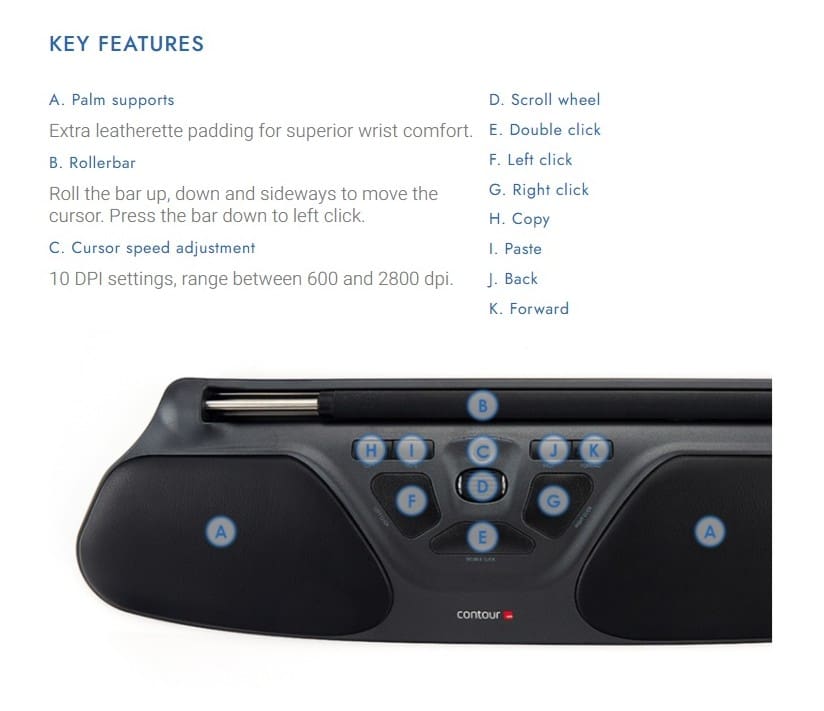
The built-in wrist rest has more padding for increased comfort. The rollerbar has more room to move with 357mm of bar access. Free3 is ideal for a variety of hand and body sizes.
Speed without Compromise
Ten speeds range between 600 and 2800 dpi, allowing the cursor to move quicker and easier across multiple monitors or large screens.
New Features for a Modern Take
RollerMouse Free3 offers greater cursor speed selection than is predecessor; ten speeds range between 600 and 2800DPI, making it ideal for modern multi-screen workstations.
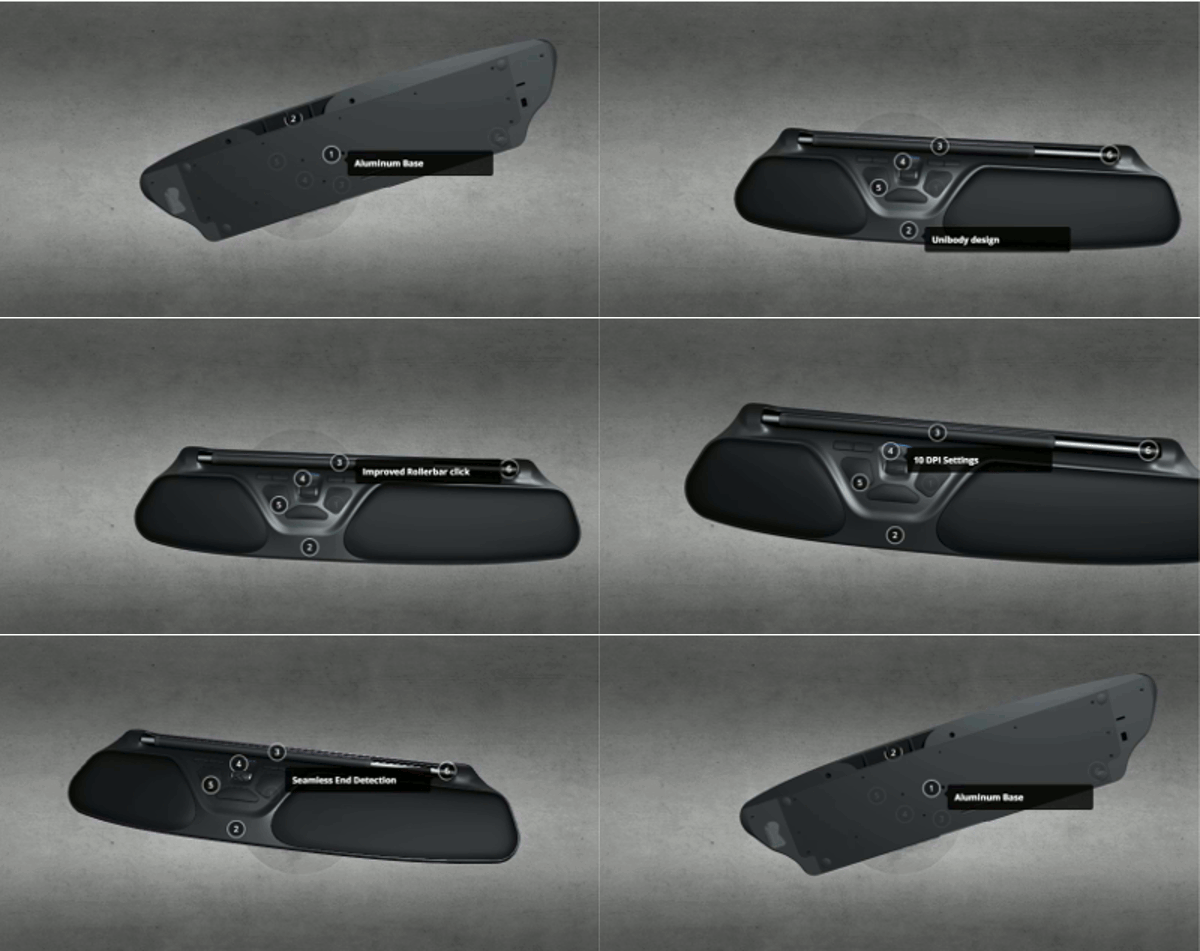
Free3 has a sturdier aluminium base and a softer click.
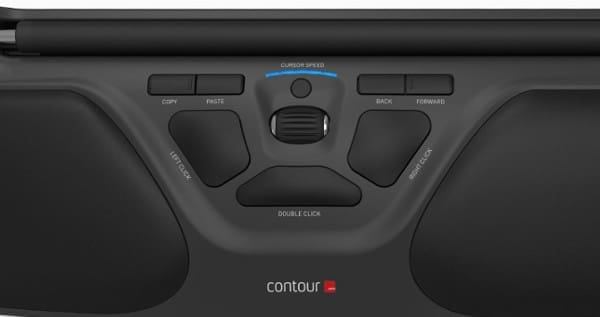
Free3 has two new buttons for forward and back to be used in most internet browsers, and 5 other pre-programmed buttons bringing the total buttons to 7, compared to the previous 5, meaning less reaching for your keyboard for common tasks.
A fully open rollerbar design, combined with a new advanced bracket support, allows for more room to move and optimal control, giving you the ability to accurately and speedily navigate around your computer screen.
An advanced sensor located underneath the rollerbar allows for more precise cursor movements without changing the feel, and improves on the already excellent reliability of the RollerMouse family.
Available in Wired and Wireless
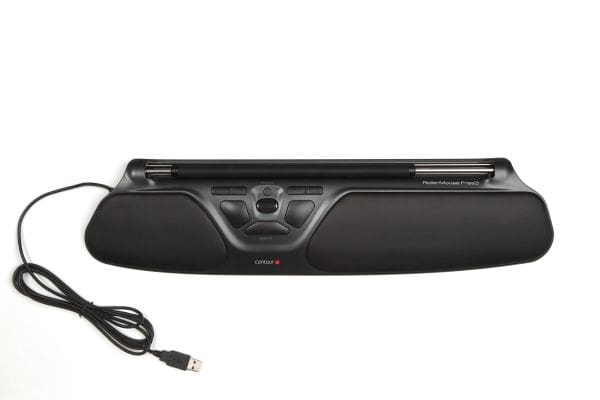
There are two versions of the RollerMouse Free3, wired and wireless, making the Free3 even freer than before.
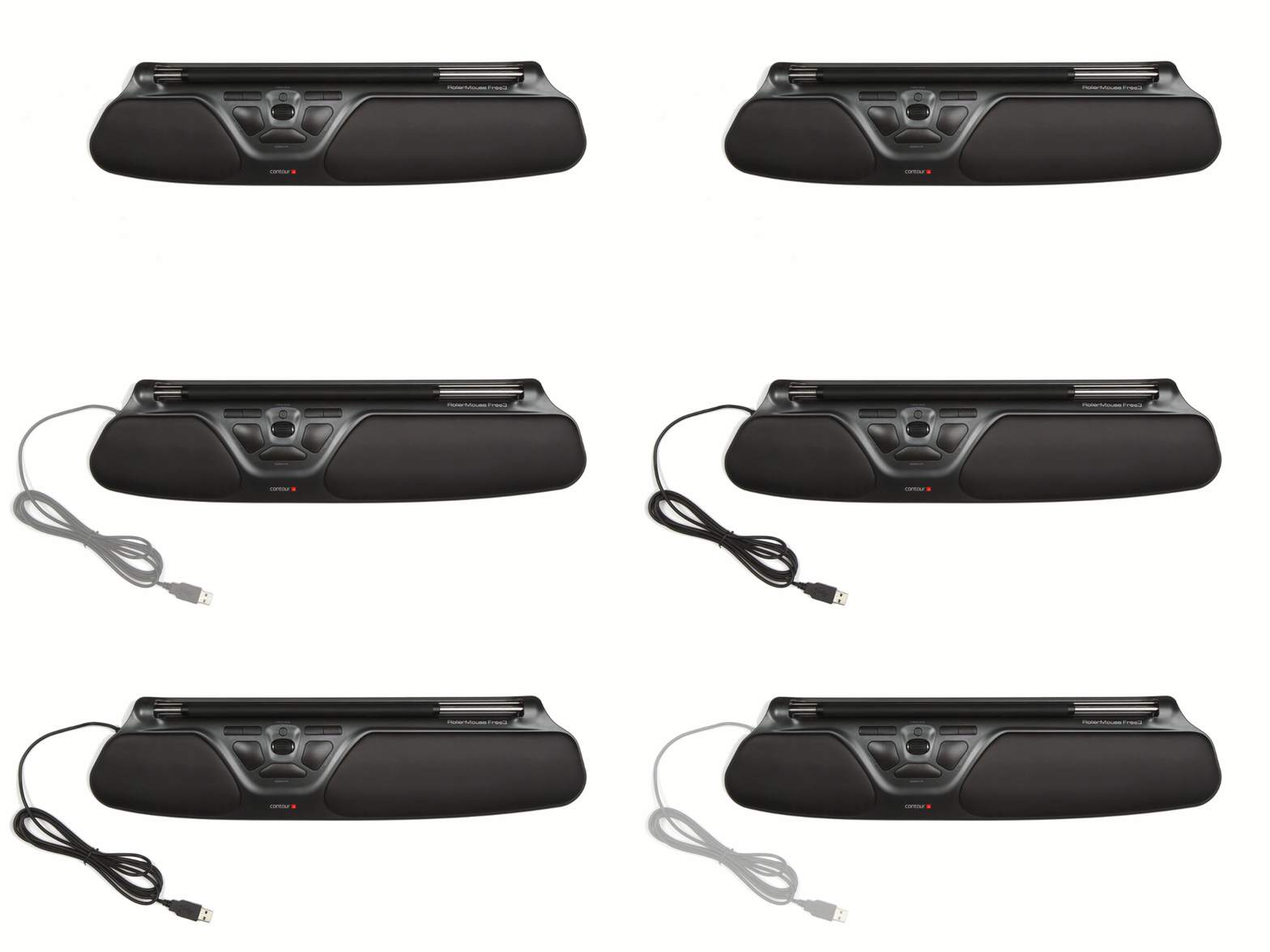
-------------------------------------------------------------------------------------------------------------------------
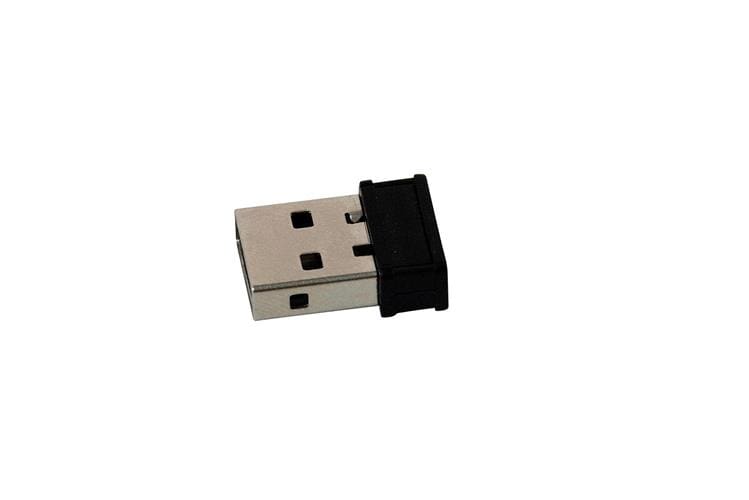
Contour RollerMouse Free3 Wireless USB Receiver
The Contour RollerMouse Free3 Wireless USB Receiver is the dongle component for the Contour RollerMouse Free3 Wireless.
The Dongle is included with the Contour RollerMouse Free3 Wireless, but a spare dongle is available in the event that the original dongle becomes faulty or is misplaced, or if a spare is required.
Syncing of the new USB Receiver with the Free3 Wireless is required. Please click on the Support tab for instructions.
The Perfect Partner - The Perfect Fit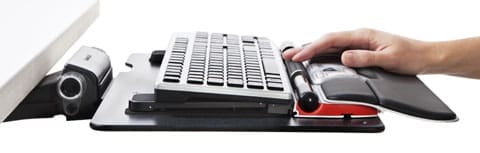
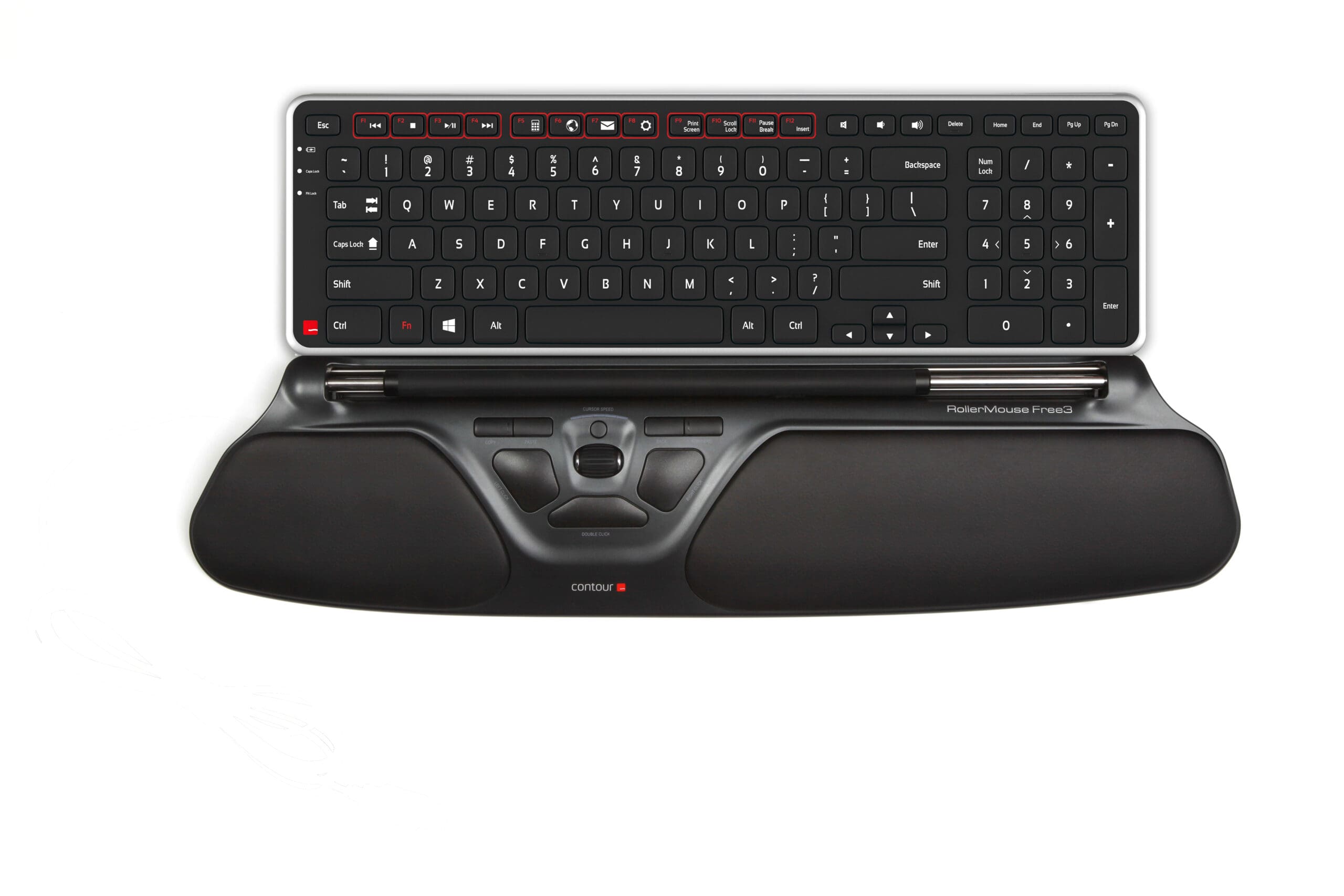
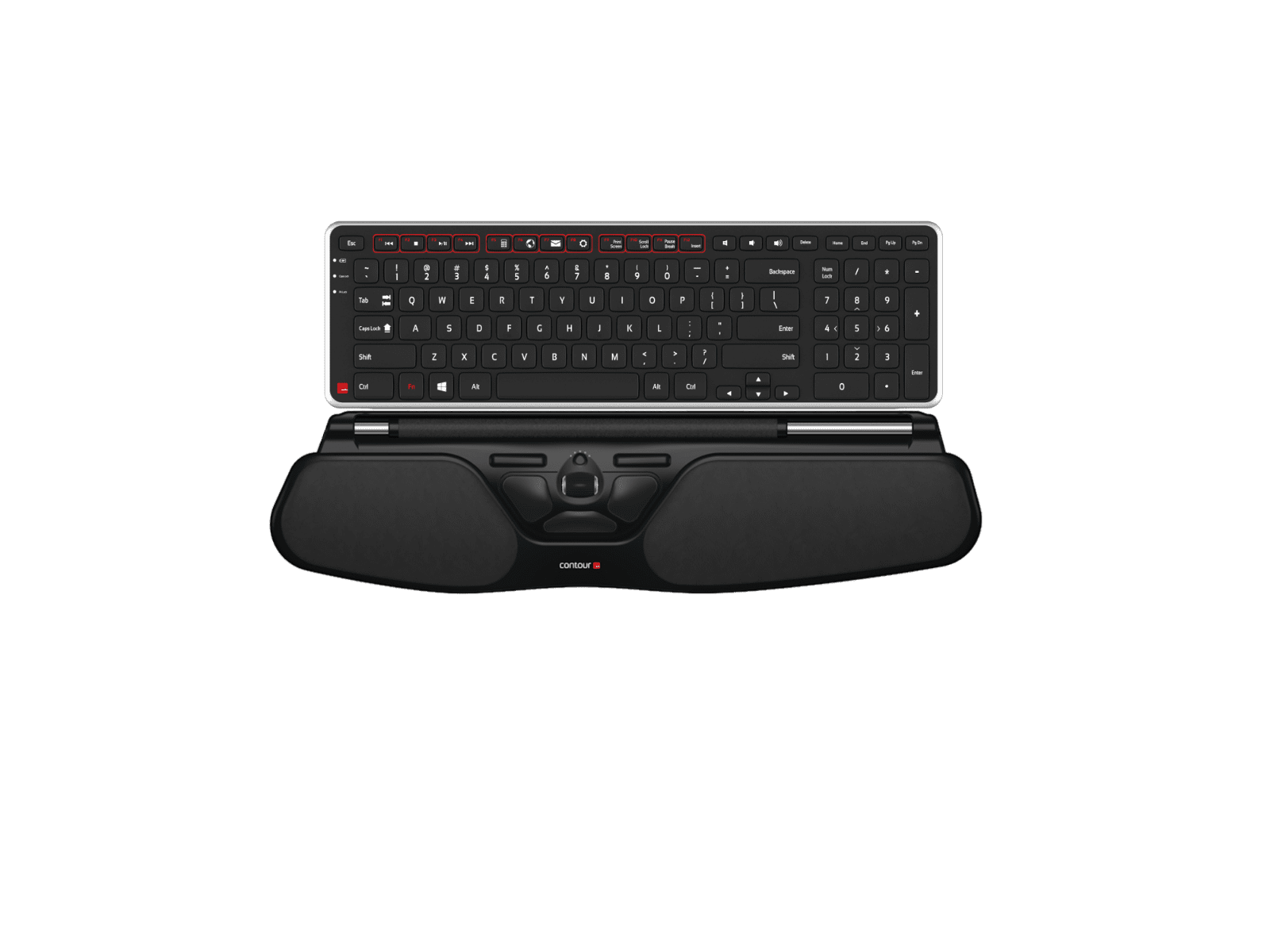
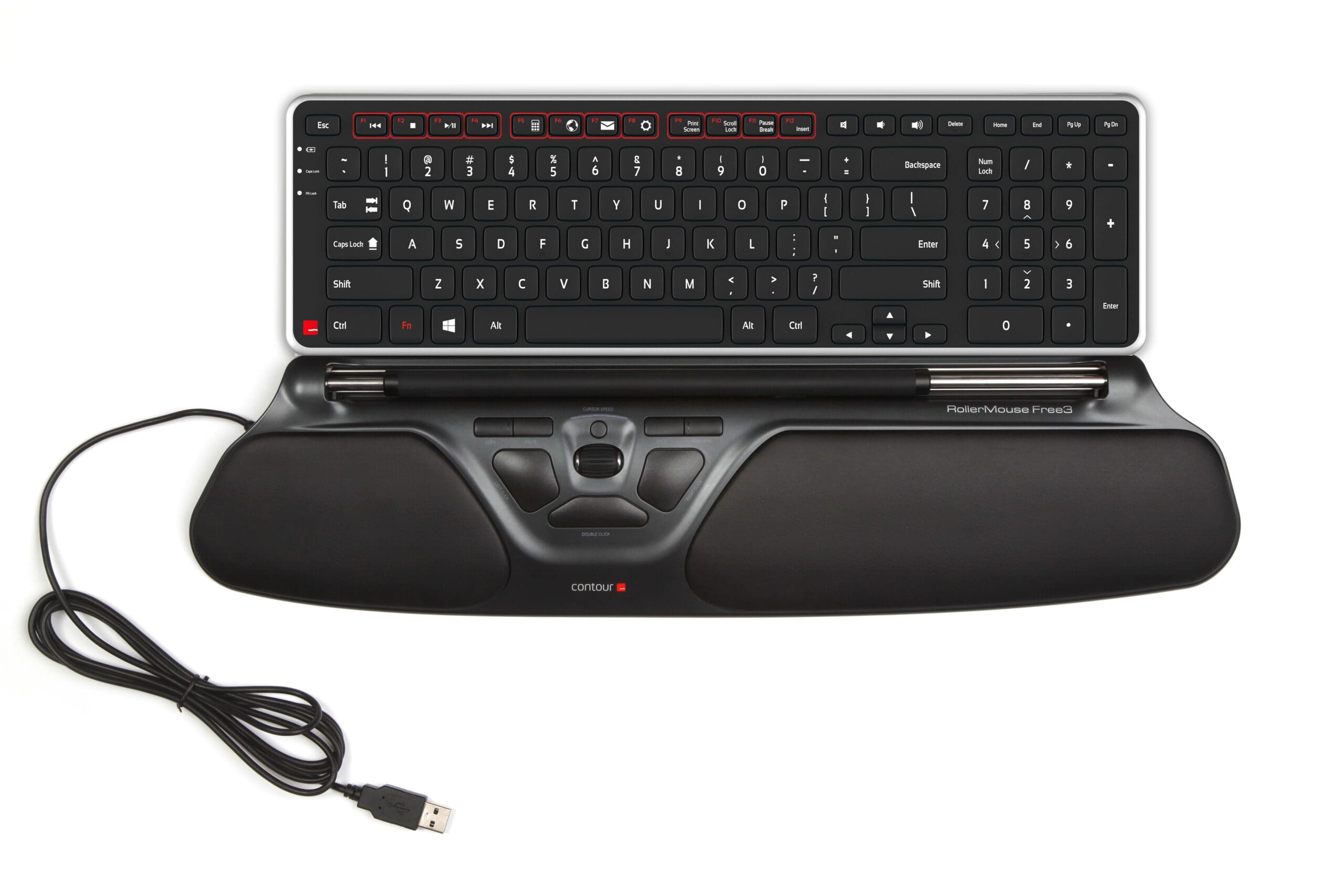
Introducing the Contour Balance Keyboard - a Keyboard specifically designed to fit the Contour RollerMouse Family.
Combining the Balance Keyboard with a Contour RollerMouse puts hands in the perfect typing and mousing position.
Comfort is Key
Designed specifically for use with the award winning Contour RollerMouse family, the Balance Keyboard positions users in an improved, stress-free position while getting the most out of the keyboard and mouse.
Using the Balance Keyboard keeps hands closer to the action and within reach of both the Rollerbar and Keyboard keys.
Increased Functionality at Hand
The Balance Keyboard's media keys perform useful everyday tasks and can easily be programmed to suit specific needs.
Traditional function keys (F1-F12) are also available, with the Fn Lock feature making them readily available when needed.
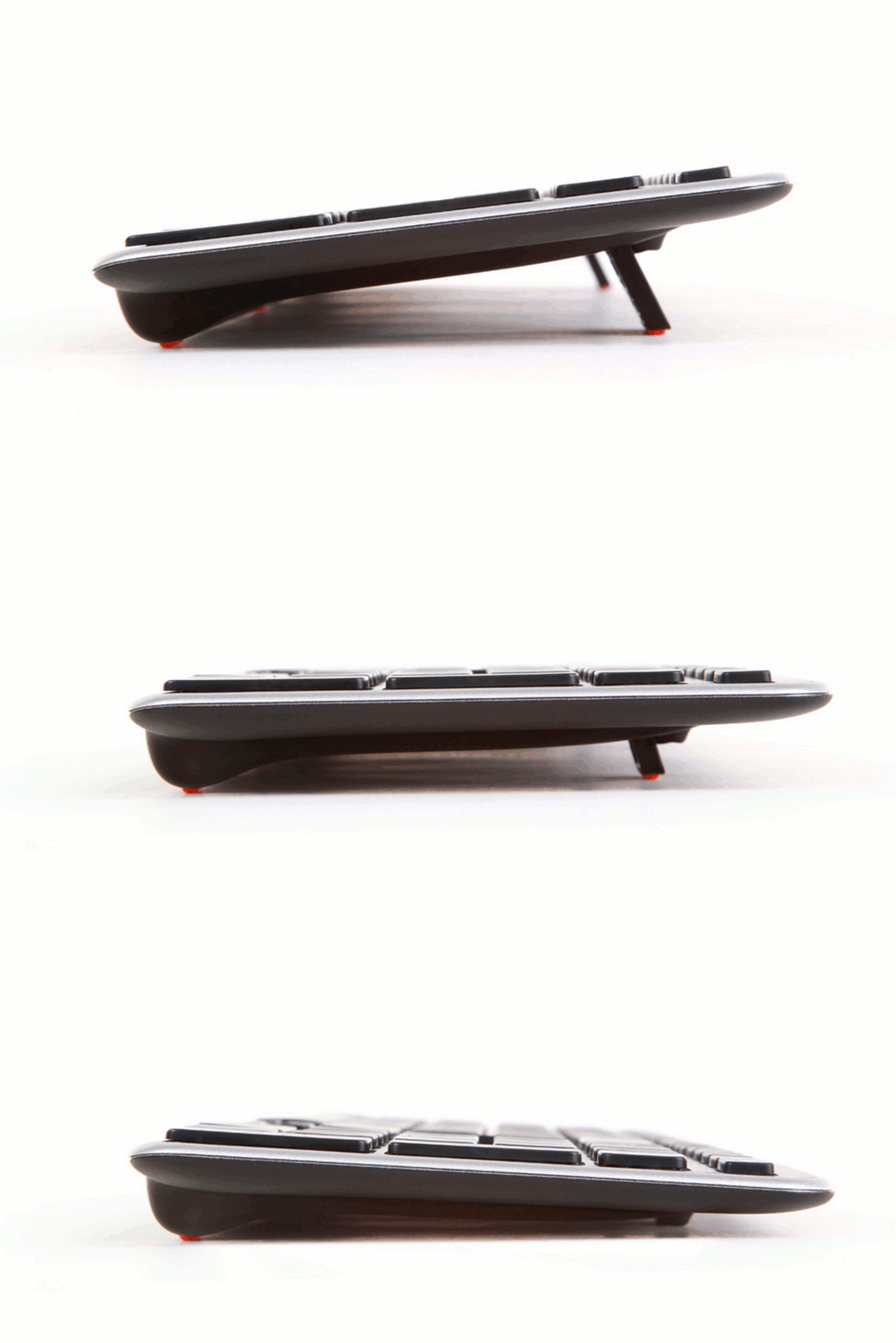
Find the Right Angle
The Balance Keyboard's adjustable legs and tilt options allow for easy adjustability into negative, neutral and positive typing angles.
Key Functions
- Aligns perfectly with the Contour RollerMouse RE:D
- Includes a full Number Pad
- Indicator Light for Battery Level, Caps Lock and Function Lock
- A slightly larger "A" key, to prevent accidental Caps Lock selection
- Fn Lock allows for immediate use of all programmed function keys
- Reduced bottom edge to minimize reach from Rollerbar to Keyboard
Alternative Spellings: rollermouse free 3, rollermouse free three, roller mouse free 3, roller mouse free three, contour free 3, contour free three, RMF3, RMF3W, RMBALANCE US, RMBALANCE US W, CONUSB, CONUSB-Free3, CONSUB
Contour RollerMouse Free3
Device Weight: 680grs
Device Dimensions:
– Width: 490mm
– Depth: 120mm
– Height: 23mm
Rollerbar: 357mm
Scroll Wheel
7 Programmable Buttons
Keyboard Rises: included to customise the height and angle of your keyboard
Built-in Wrist Rest with Extra Padding
Quick Speed Selection
Connection:
- Wireless – USB Receiver (included)
- Wired – USB Cable (included)
Installation: Plug & Play
Sensor Type: Twin-Eye Laser Motion Sensor
Cursor Speed: 600-2800 DPI (600/800/1000/1200/1400/1600/1800/2000/2400/2800)
Operating System: OSX, Windows
Compatibility: Mac and PC
Colour: Black
Contour Balance Keyboard
Keyboard Dimensions:
- Width: 392mm
- Depth: 119mm
- Height: 20.5mm
Connection:
- Wireless Versions: through USB Receiver
Drivers: Plug & Play
Operating System: OSX, Windows
Compatibility: PC and Mac
Layout: US
Power: Wireless Version- 2 x AAA Batteries (Included)
Purchase includes: 1 x Contour RollerMouse Free3 as selected with all components for immediate use
Watch: Introducing the Contour RollerMouse Free3
Instructions on Pairing the Contour RollerMouse Free3 Wireless:
1. Charge the Device: Ensure that the Free3 Wireless is fully charged and disconnected from the charging cable.
2. Power On: Turn on the RollerMouse Free3 Wireless using the switch located on the base
3. Connect the USB Receiver: Insert the USB receiver into an available USB port on your computer/device
4. Enter Pairing Mode: to activate pairing mode, simultaneously press and hold the left click, right click, and cursor speed buttons.
5. Observe the LED Indicators: The LEDs will illuminate blue and pulse like a sonar signal, indicating that the Free3 Wireless is in sync mode.
6. Sync the Devices: While the LEDs are pulsing blue, hold the RollerMouse close the USB receiver. The RollerMouse will automatically syn with the receiver.
RollerMouse Comparison – Re:d, Pro, and Free
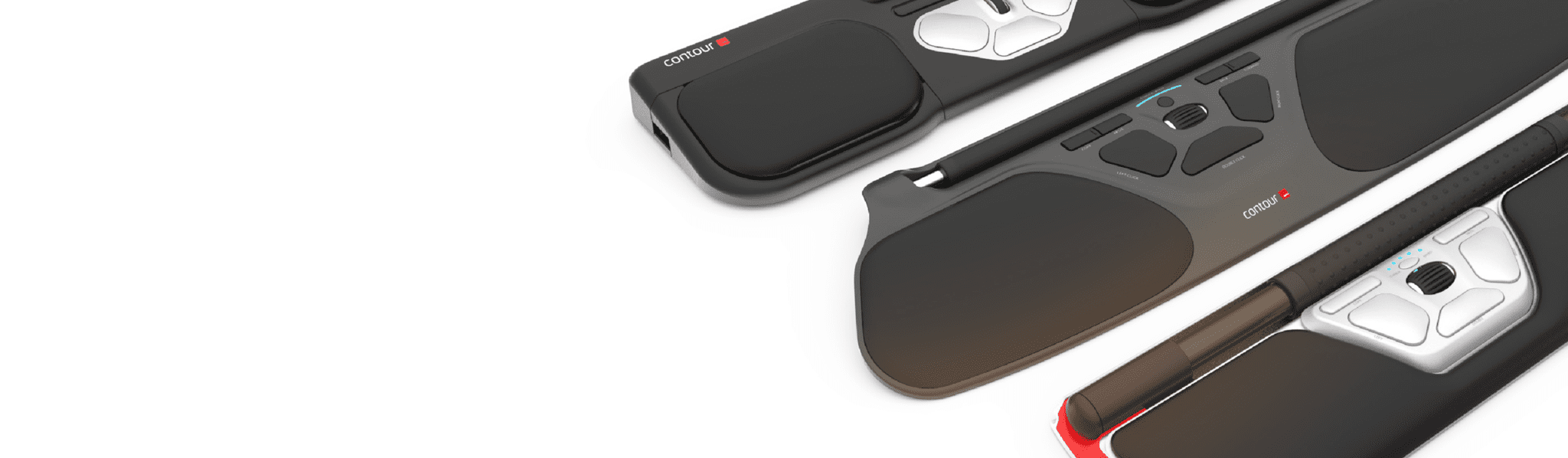
Below is a short comparison designed to help users find a suitable mouse.
There are 3 models on Contour RollerMouse – Re:d, Pro, and Free. The Re:d, and Free are available in Wired or Wireless versions, and the Pro is available in a Wired version.
The Re:d is the most dynamic RollerMouse, and great for people with small to average hand sizes. Teamed with a Plus Palm Support, the Re:d will accommodate users with large and extra-large hands, and for those using the device on a desktop. The Re:d is suitable for use on a keyboard tray as as well as on a desktop. The Re:d is available as a wired or wireless device.
The Free3 is great for those with small, average, and large hands. Its gradually sloped palm support makes it too large for keyboard trays, but perfect for desktop use. With two extra shortcut buttons, the Free3 has the most customized buttons of any RollerMouse. The Free3 is available as a wired or wireless device.
The Pro3 is the only RollerMouse long enough to support a full-sized keyboard with a 10-digit number pad (up to 19″) and is made to work best on a keyboard tray. Its reduced depth and semi-closed bar makes it ideal for those with small to average-sized hands.
If you require any support with this product, Chat, email [email protected] or phone us on 0403 693 780.
Australia Wide: 3-10 weekdays. Please note, longer delivery time frames can sometimes occur.
Need it urgently or want to know when you will receive your order? Check with us before placing your order. Chat, email [email protected] or phone us on 0403 693 780.
Troubleshooting:
If you are having any issues with this product, Chat, email [email protected] or phone us on 0403 693 780.
Contour Balance Keyboard
Preliminary Checks:
- Can you see debris on the keyboard and in and around the keys? There could be dust caught underneath the keys. If there is no apparent physical obstruction of the keys, you may be able to clear any debris caught under the keys and solve the issue by doing one or more of the folloiwng:
- turning the keyboard over and gently tapping the back to see if anything dislodges
- blowing compressed air in and around the keys
- brushing around and underneath the key/s with a dry and clean toothbrush or paint brush
- vacuuming the top of the keyboard gently using a mini dust brush
- Wired Version. Check that the cable is in good condition, and that it doesn’t have:
- Harsh kinks, twists or bends
- Damage to the connection to the keyboard or the metal USB connector (located at either end of the cable.
- Wireless Version. If it is not currently, plug the USB receiver directly into the computer. It is recommended for optimal performance and connectivity to have the USB cable plugged directly into the computer and not into a hub or other peripheral. Changing the USB port that the USB cable is plugged into may also improve connectivity if there is an issue with the USB port.
- Wireless Version. Plug the USB receiver into a different port
- Wired Version. Plug the cable into a different port.
- Are there other wireless devices being used near the keyboard?
- Are you able to remove and reinstall the driver?
Issue: Various keys are not working properly
Solutions: Delete/refresh the keyboard drivers on your system.
The Balance Keyaobrd uses generic system keyboard drivers. Operating system updates and other devices using the same keyboard driver can impact the performance of the device. This can be rectified by deleting the keyboard drivers. When the keyboard is next connected to the computer, a fresh version of the driver is automatically downloaded.
The Balance Keyboard uses generic Plug & Play drivers. Sometimes, if these drivers have previously been used by another device on the computer or there has been an operating system update, they do not recognise the keyboard correctly. Uninstalling the driver may resolve the issue.
Instructions to uninstall a driver:
- while the USB is plugged in, open the Bluetooth and other device settings via Windows Search.
Under the Bluetooth & devices > Devices window, select the three dot menu icon next to the Balance Keyboard in the Input list. It will be listed as Contour Receiver.
Select Remove Device. Confirm that you want to remove the device.
It there are other keyboard drivers listed, delete those as well.
Remove the USB from the computer.
Remove the batteries from the base of the keyboard.
Reinsert the batteries.
Plug the USB back in. The keyboard driver should automatically download.
WIRED VERSION
Issue: pressing various keys is causing other characters to show
- Check for any damage in the USB cable, such as kinks or breaks
- Plug the USB cable directly in to the computer the keyboard is being used on (not into a USB hub or other peripheral). If this is already the case, plug the USB cable into a different port.
- If the issue persists, there may be an issue with the driver. Uninstalling and then reinstalling the driver may resolve the issue. The instructions to do this are as follows:
– While the USB cable is plugged in, open the Bluetooth and other device settings via Windows Search
– Under the Mouse, keyboard & pen section, select Balance Keyboard
– Select Remove device
– The Balance Keyboard should now be disconnected from the computer
– Remove the USB cable from the computer
– Plug the USB cable back in. The driver should automatically download.
- If there is still an issue after performing the above steps, please contact us providing the results of the troubleshooting performed and the serial number of your keyboard.
WIRELESS VERSION
Issue: The Keyboard is not working
- Check that the keyboard has been synced with the USB receiver. How to sync the Keyboard and USB receiver are as follows:
For the Contour Balance Keyboard with serial numbers prior to 7102001, press the “Reset” button on the bottom of the keyboard and hold it physically close to the plugged in dongle. It is ideal if the “X” key can be held above the dongle. Then press the Caps Lock button repeatedly until the Caps Lock LED lights up, which indicates the keyboard has been paired with the USB received.
If the Contour Balance Keyboard has a serial number from 7102001 and above, press the Ctrl button down simultaneously with the “Power” button on the bottom of the keyboard to place it into pairing mode. LED lights will activate on the left hand side to indicate the keyboard in in pairing mode. Hold the keyboard near the plugged in dongle and press the Caps Lock key until the dongle pairs.
Issue: pressing various keys is causing other characters to show
- Replace the batteries with a pair of fresh batteries
- If the issue persists, move the receiver to another USB port. Plug the USB receiver directly into the device the at the keyboard is being used on (not into a USB hub or another peripheral).
- If the issue persists, there may be an issue with the driver. Uninstalling and then reinstalling the driver may resolve the issue. The instructions to do this are as follows:
– While the USB receiver is plugged in, open the Bluetooth and other device settings via Windows Search
– Under the Mouse, keyboard & pen section, select Balance Keyboard
– Select Remove device
– The Balance Keyboard should now be disconnected from the computer
– Remove the USB receiver from the computer
– Remove the batteries from the keyboard
– Reinsert the batteries
– Plug the USB receiver back in. The driver should automatically download.
- If there is still an issue after performing the above steps, resyncing the keyboard to the USB receiver may resolve the issue. The instructions to do this are as follows:
– Press the “reset” button on the bottom of the keyboard and hold it physically close to the plugged in dongle. It would be ideal if you can hold the X key above the dongle itself.
– Press the Caps Lock button repeatedly until the Caps Lock LED lights up. The latter indicates that the keyboard has paired.
If you are having any issues with this product, Chat, email [email protected] or phone us on 0403 693 780 with the following information:
1. Serial Number of the product
2. The results of the troubleshooting
3. What the issue is
4. What troubleshooting was done
5. The results of the troubleshooting
6. Invoice number
Warranty: 2 Years
What do I do if the product is faulty?
1. Cease using the product as it may be unsafe to use. Damage that occurs as a result of continued use of a faulty product will not be covered under warranty.
2. Complete and return the Product Repair Request form
Reviews
There are no reviews yet.